
Setting up DNS for one domain is a 20-minute job. Setting it up for 25 cold email domains, and keeping every record correct six months later, is where things go wrong.
I've audited setups where one of thirty domains had a new tool add a second SPF record, or a DKIM key pasted with a line break. Every other domain was fine, and that one domain quietly sent mail to spam for weeks.
DNS automation solves the setup and the drift. In this guide, I'll walk through every record a cold email domain needs, with real examples, what automated DNS setup actually writes for you, and how to keep records healthy once you're running dozens of domains.
DNS automation means your infrastructure provider creates, publishes and updates your domains' records for you, instead of you editing them by hand at a registrar.
For cold email, that covers the records inbox providers check before trusting your mail (SPF, DKIM, DMARC and MX) plus the records that make a secondary domain look like a real business: a custom tracking domain, domain forwarding and, if you need it, SSL with domain masking.
It matters more now than a few years ago. Since February 2024, Google and Yahoo require SPF and DKIM from all senders, and a DMARC record plus alignment from bulk senders. Microsoft started sending non-compliant mail from high-volume domains to Junk in May 2025. A missing or broken record is no longer a soft signal; it's a reason to filter or reject.
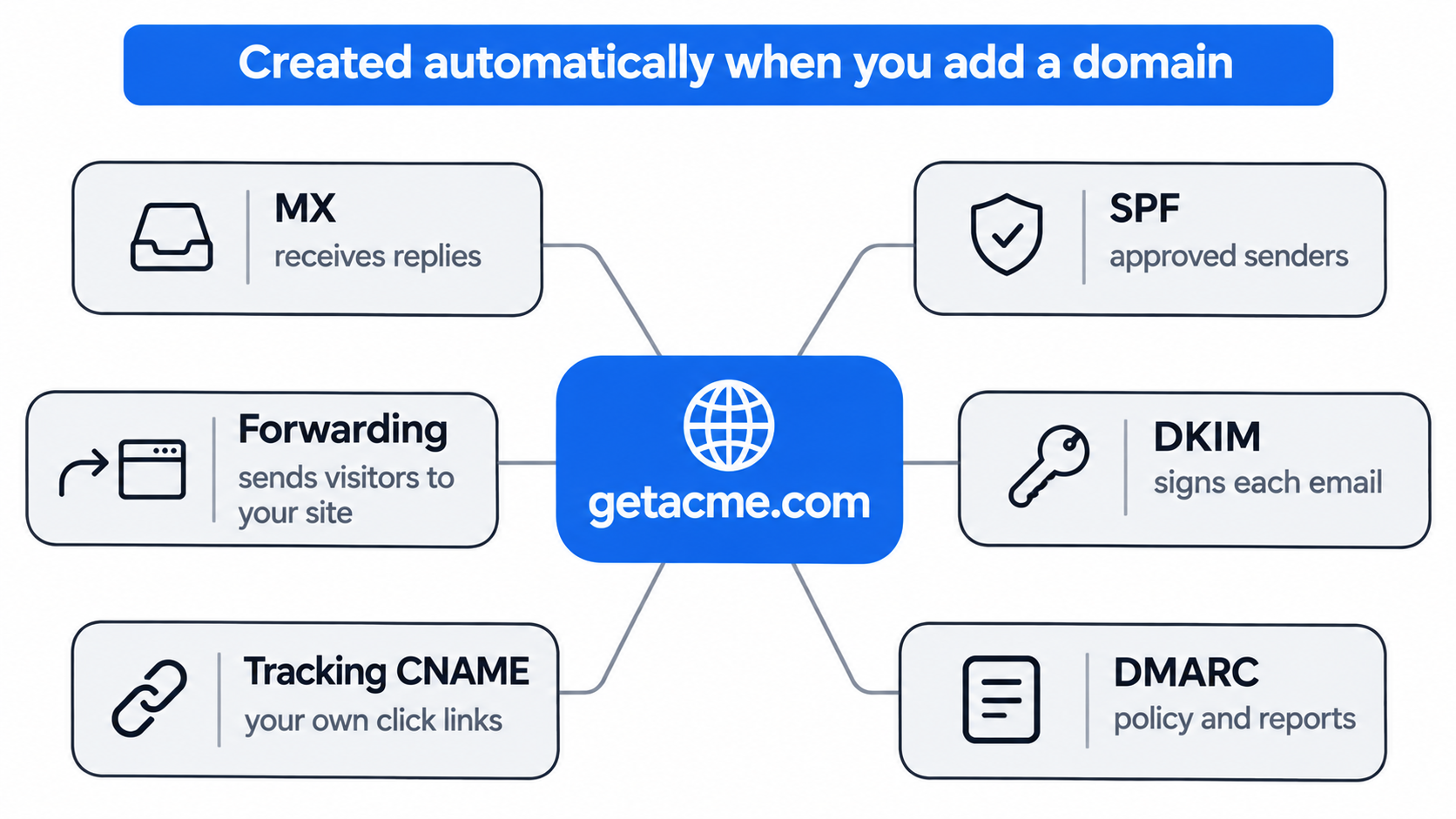
Here's each record, what it does, and what a correct version looks like.
MX records tell other servers where to deliver mail for your domain, which for cold email means where prospects' replies arrive. They point at your mailbox provider's servers. A domain with missing or wrong MX records can't receive replies, and some filters treat a sending domain that can't receive mail as suspicious.
SPF is a single TXT record listing the servers allowed to send for your domain. Two rules catch people out: a domain can have only one SPF record, and evaluating it can't take more than 10 DNS lookups, so stacking includes for every tool you try eventually breaks it.
This guide to the top 10 SPF record errors covers the rest.
Automated setups usually solve the lookup problem with one delegated include that the provider manages. You can see it in Mailforge's own record:
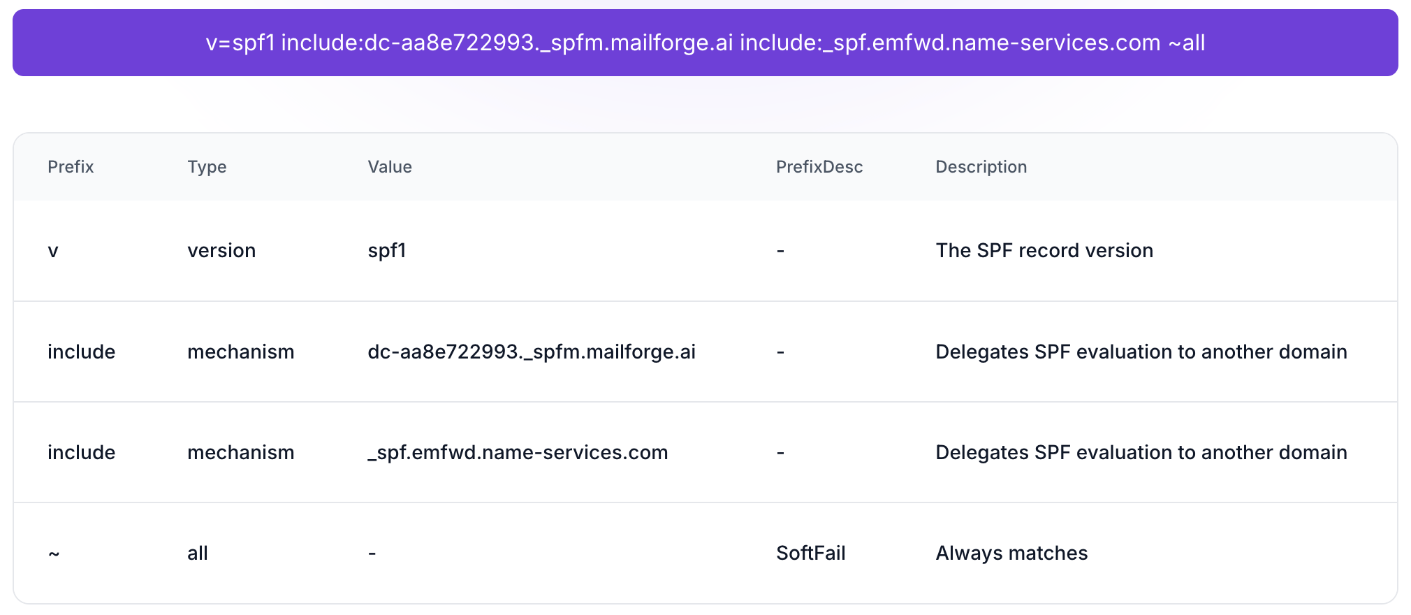
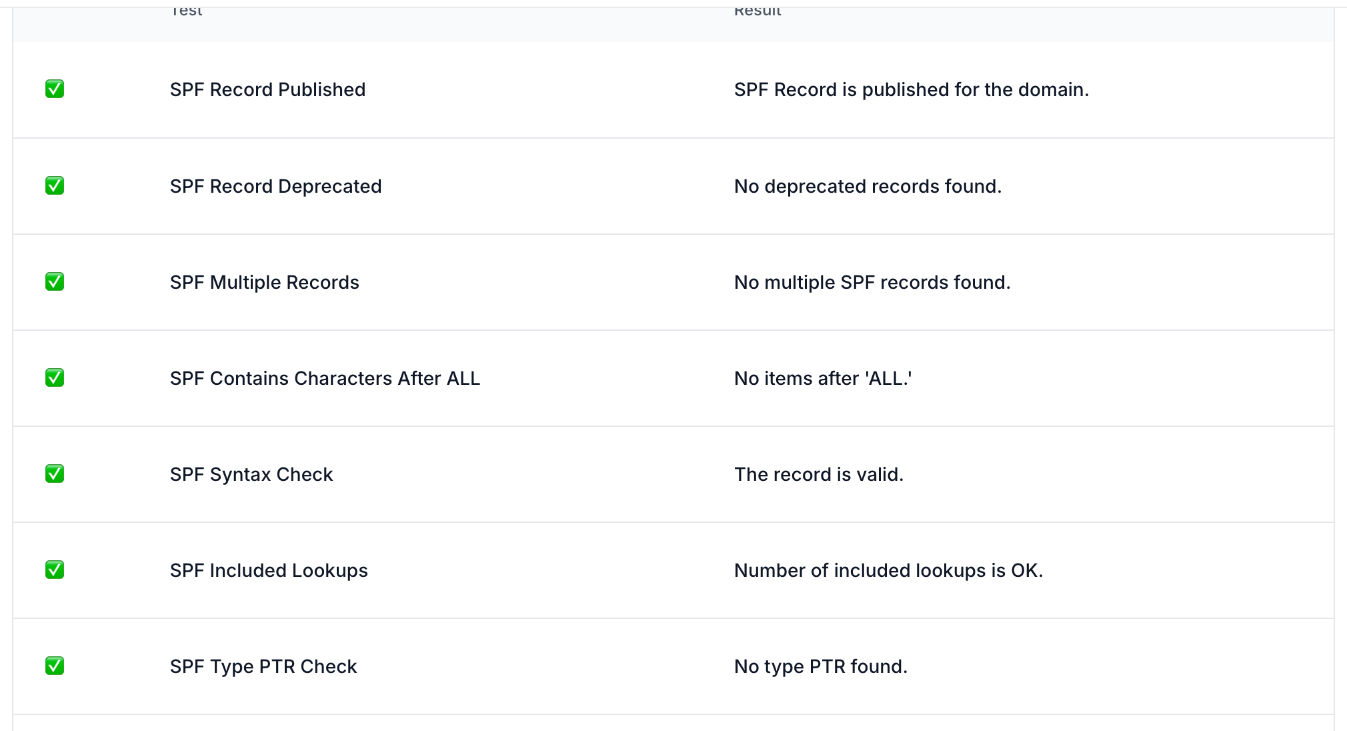
A good checker also runs the structural tests for you: one record only, valid syntax, nothing after "all", and lookups under the limit.
DKIM signs each outgoing email with a private key; the matching public key sits in DNS under a selector, such as google._domainkey for Google Workspace. Receivers use it to confirm the email wasn't changed in transit. Use a 2048-bit key where your provider supports it, and make sure the key is published in full, with no line breaks or missing characters.
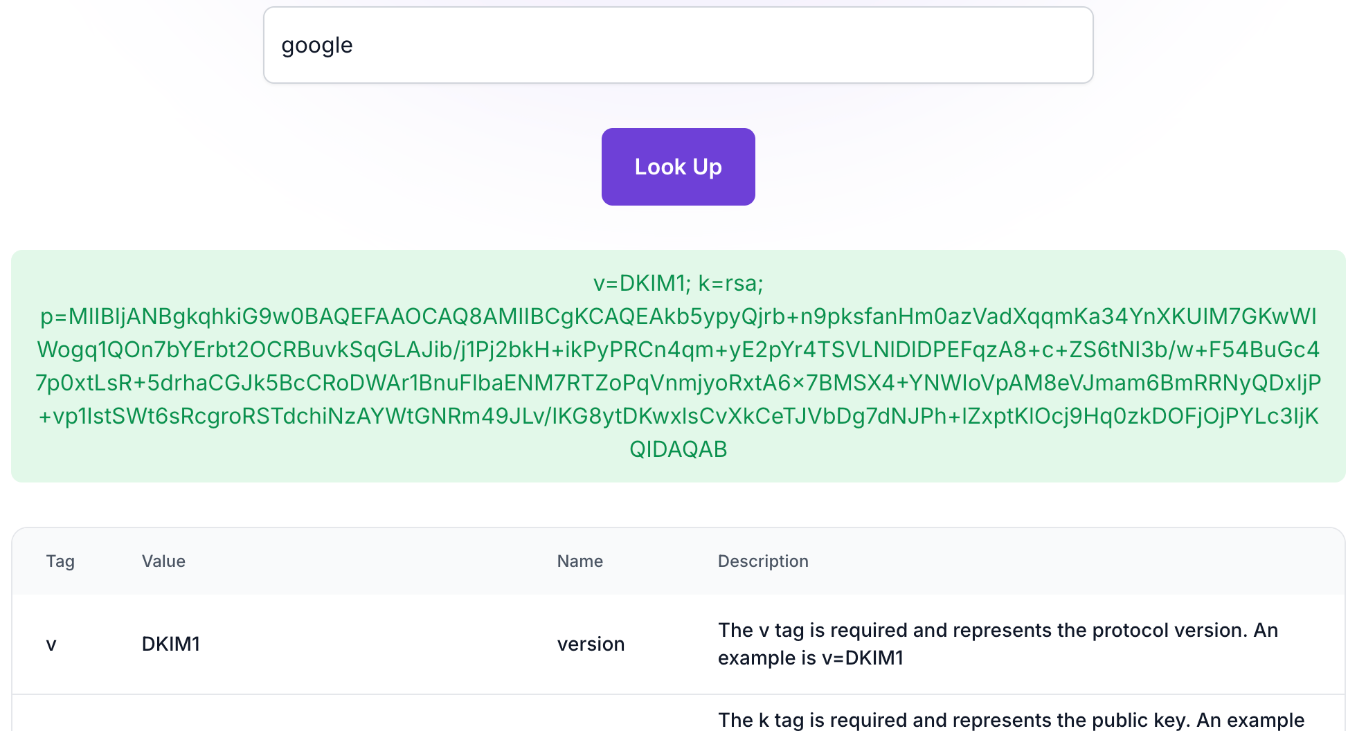
If DKIM passes but DMARC still fails, the issue is usually alignment between the signing domain and your From address. This guide to fixing DKIM key alignment walks through it, and this DKIM setup guide covers the record itself.
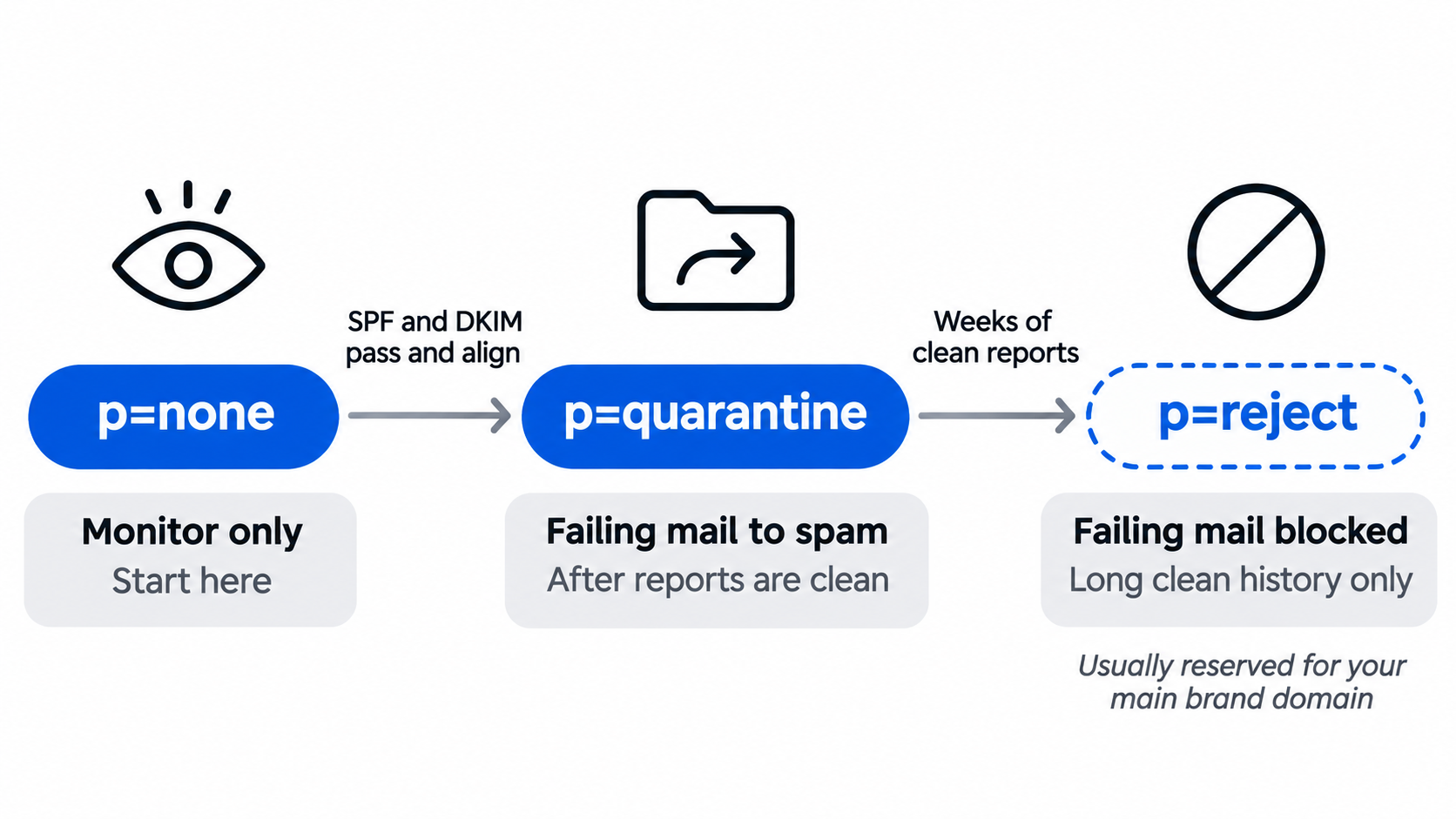
DMARC tells receivers what to do when mail fails SPF and DKIM alignment (nothing, quarantine or reject) and where to send reports. For new cold email domains I start at p=none to collect reports, then move to quarantine once everything passes consistently.
This comparison of DMARC none, quarantine or reject for cold email explains when to move.
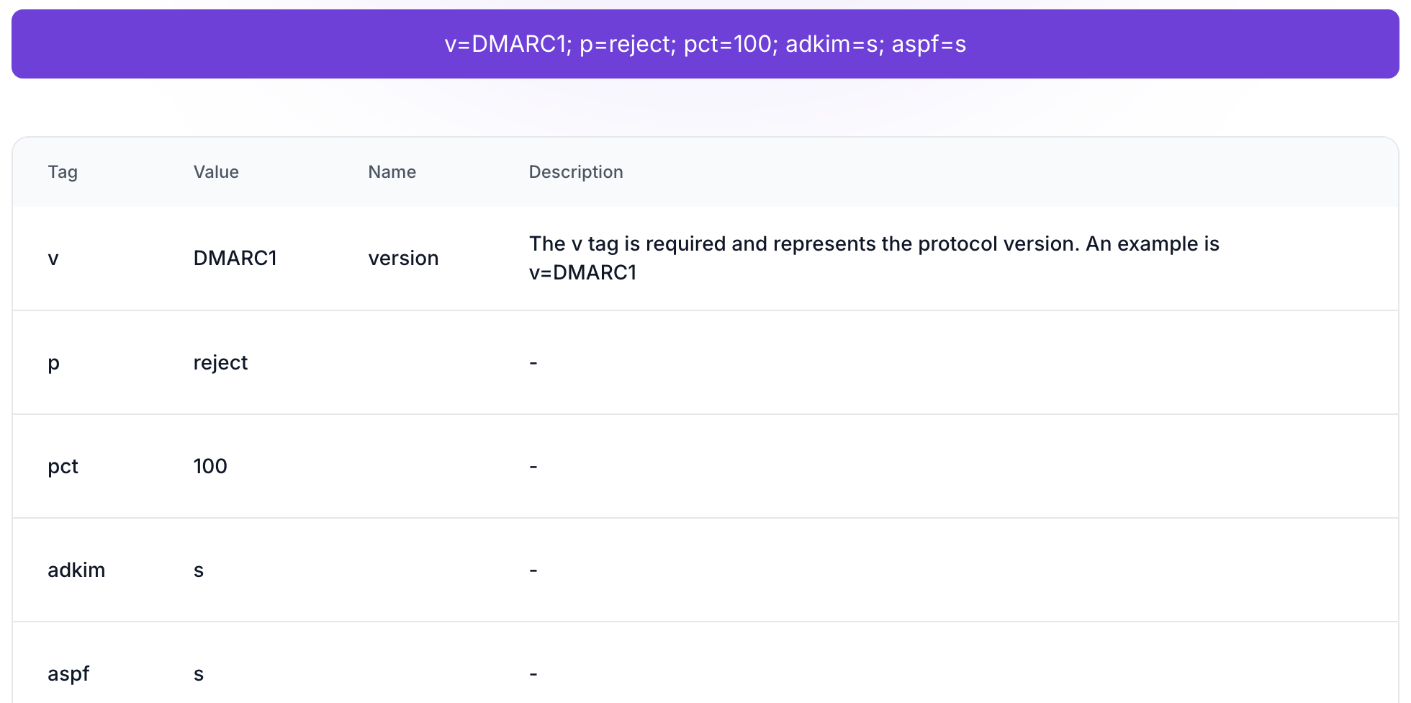
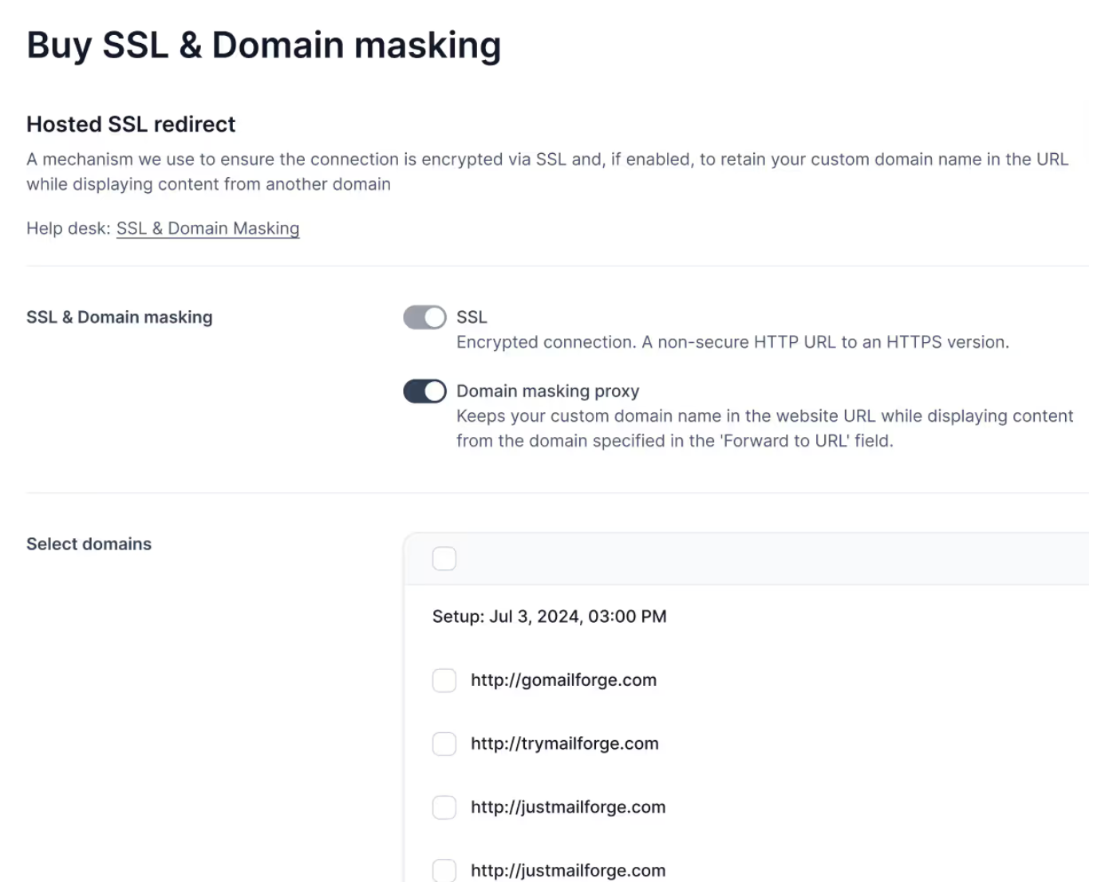
A custom tracking domain is a CNAME on your own subdomain, so click tracking doesn't share a domain with thousands of other senders. Domain forwarding sends anyone who visits your secondary domain to your main website. SSL with domain masking goes a step further and keeps your secondary domain in the address bar over HTTPS; this comparison of domain masking vs domain forwarding explains the difference.
Manual DNS works for a handful of domains; the problems are volume and drift.
Each cold email domain needs at least six records once you count MX, SPF, DKIM, DMARC, tracking and forwarding, and more if your provider uses several MX entries. That's roughly:
The errors that follow are predictable: a second SPF record added when someone connects a new tool, a DKIM key pasted with a missing character, a DMARC record on one domain but not the next, MX left on the registrar's default. Each one only affects a single domain, which is exactly why it goes unnoticed.
If you want the manual route anyway, this cold email DNS setup guide walks through it step by step.
Automated DNS setup works because the provider controls both the domain's DNS and the mailboxes the records point to.
When you buy or transfer a domain into an automated platform, its DNS is hosted there. The platform knows exactly which mail servers, sending servers, DKIM keys and tracking hosts your mailboxes use, so it can write the correct records the moment the domain is added:
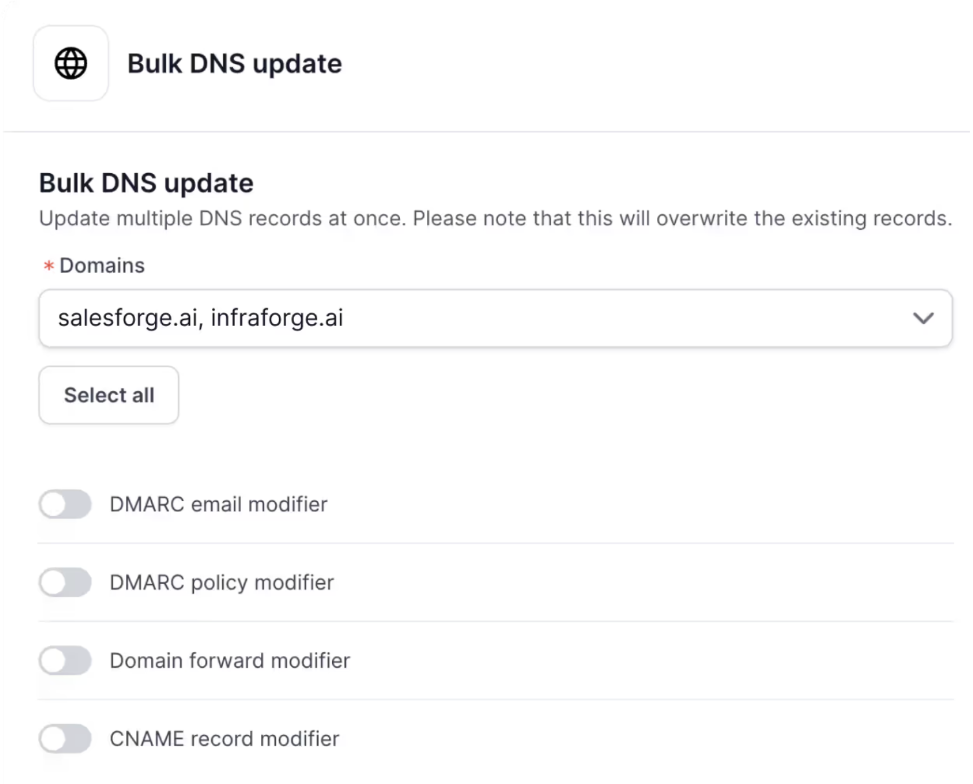
The same control is what makes bulk changes possible later: the platform can update one record type across every domain at once instead of you logging into each one.
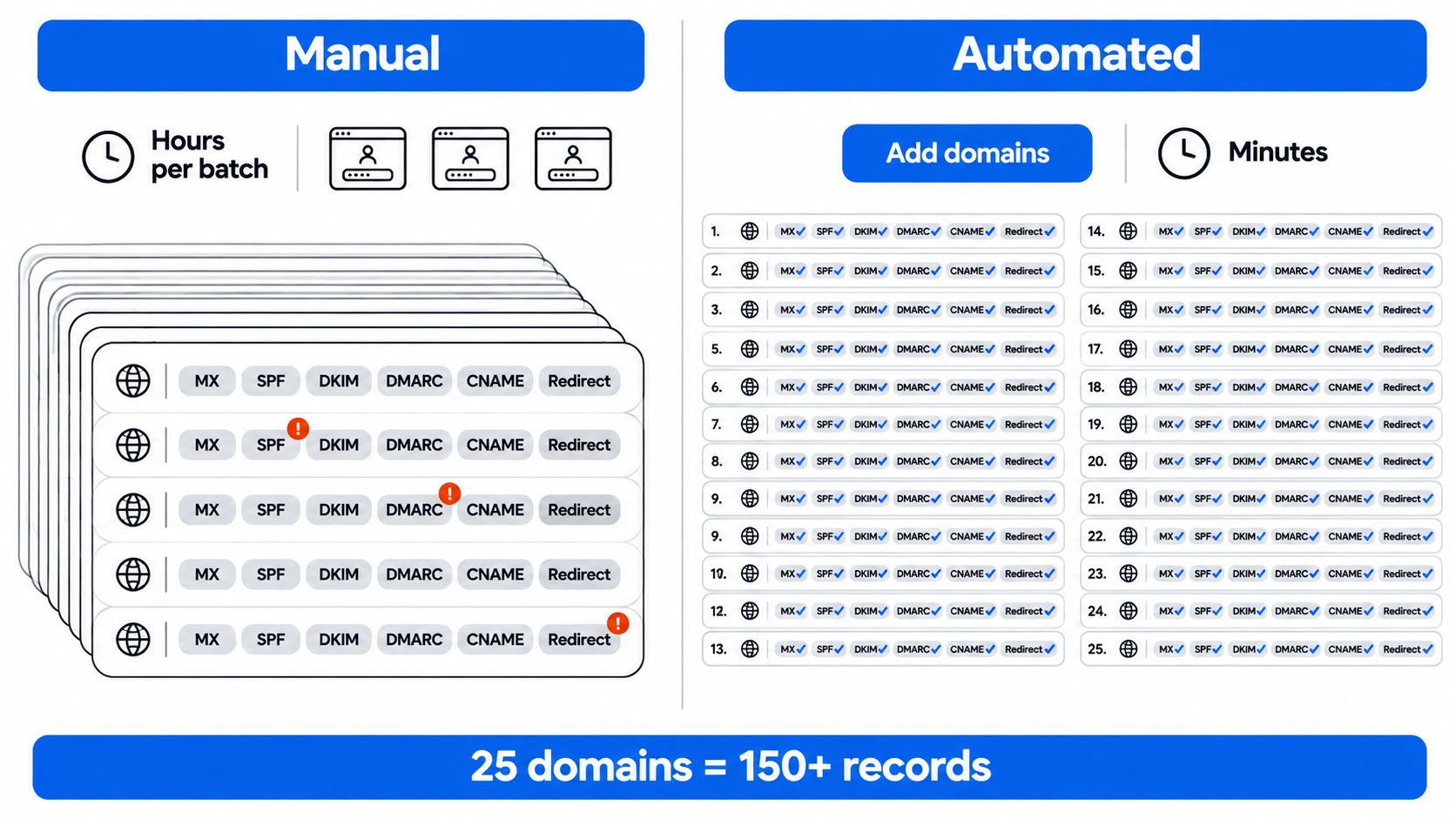
Here's the process from domain to verified records, as it works in Mailforge.
Buy new secondary domains inside Mailforge, or transfer domains you already own so their DNS moves with them. Keep cold email off your main domain; this comparison of secondary vs primary domains explains why, and this guide covers whether TLDs affect cold email deliverability when you choose names.
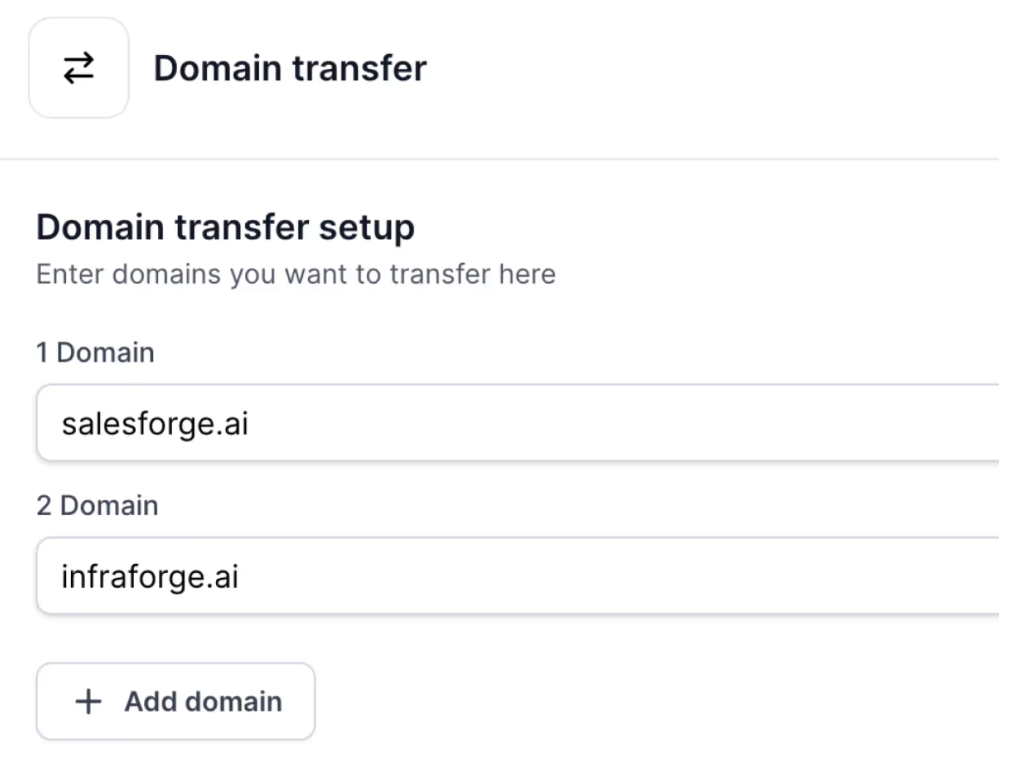
Set where each domain should forward, then create mailboxes. Mailforge's guided setup works out how many domains and mailboxes your sending volume needs.
Once the setup is confirmed, Mailforge writes SPF, DKIM, DMARC, MX and custom tracking records for every domain. There's nothing to copy into a registrar.
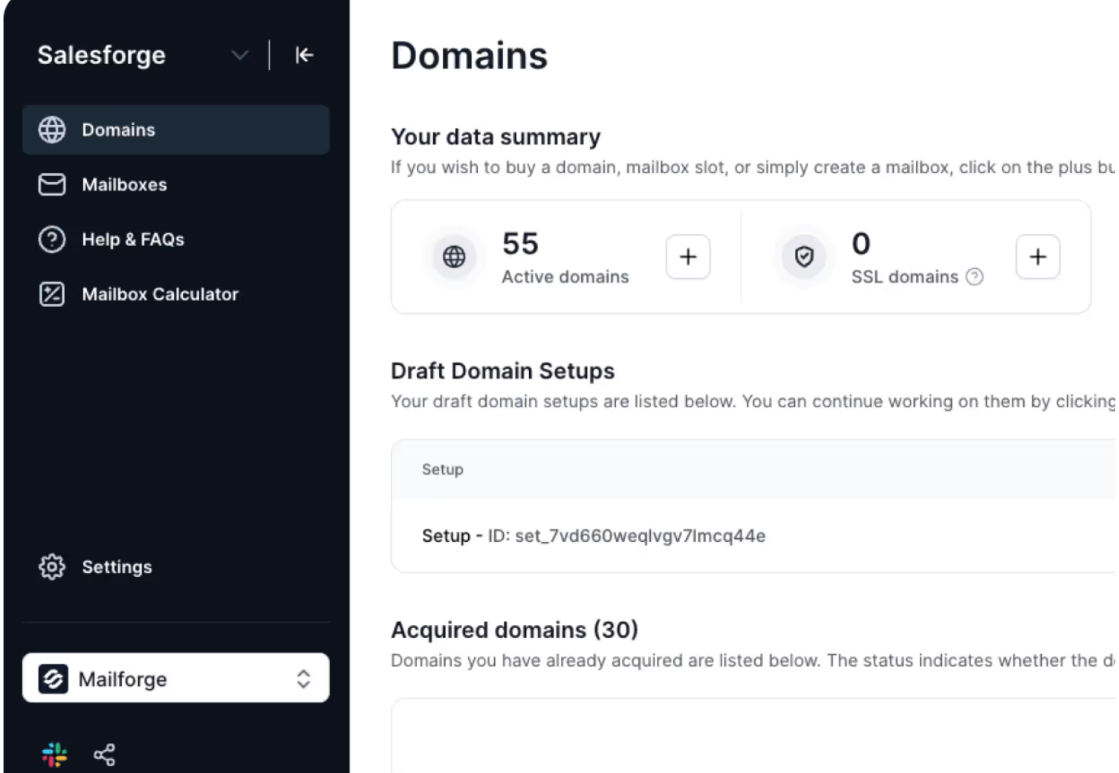
If you want visitors to see your secondary domain over HTTPS rather than being redirected, add SSL and domain masking for the domains that need it.
Check a sample of domains with SPF, DKIM and DMARC lookups (the free Salesforge SPF checker and its DKIM and DMARC siblings work well), then connect the mailboxes to warmup before any cold sends.
This guide on how to test SPF, DKIM and DMARC records covers what each result means, and these domain warming best practices cover the ramp.
Automation gets records right on day one; keeping them right is a routine.
When you need to change a DMARC policy, a reporting address, forwarding or a CNAME, do it across every affected domain at once. That keeps domains consistent, which is the whole point.
Start at p=none, read the reports for a few weeks, move to p=quarantine once SPF and DKIM pass and align consistently, and only consider p=reject on domains with a long clean history. Change the policy across domains together with a bulk update.
These best practices for SPF, DKIM and DMARC records go deeper.
The most common post-setup break is a tool that asks you to add its own SPF include or DKIM record. Adding a second SPF record, or pushing the include count past the lookup limit, fails SPF on that domain. Check records after every new integration.
Correct records don't guarantee good placement. Watch blocklists and domain reputation alongside DNS; this guide to IP blacklist issues and fixes and this one on how domain reputation affects cold email cover what to track.
Here's how the two approaches compare once you're past a handful of domains.
Automation prevents most errors, but these five still come up.
For a wider list, this guide to how to configure SPF, DKIM and DMARC and this one on diagnosing email deliverability issues by symptom cover what to check next.
Mailforge is shared email infrastructure for cold outreach, and automated DNS is built into every domain.
Pricing: $3 to $2 per mailbox per month billed annually, dropping at volume, with a minimum of 10 mailbox slots. Domains are priced separately by TLD, and SSL and domain masking is $2 per domain per month. Setup takes about 5 minutes.
Automated DNS runs across the Forge Stack's infrastructure options. Infraforge adds dedicated IPs when you want full control over IP reputation, and Primeforge sets up DNS automatically for real Google Workspace and Microsoft 365 mailboxes. All three run under one login. Once records are live, Warmforge warms every mailbox, free with unlimited slots on every Salesforge plan, and you can run outreach with your own team, hand it to Agent Frank, Salesforge's AI SDR, or bring in a certified Forge Expert agency.
For high-volume structures, this guide on sending 10,000 cold emails at once shows how it fits together.
DNS automation is worth it from about five cold email domains onward, because that's when manual errors start hiding.
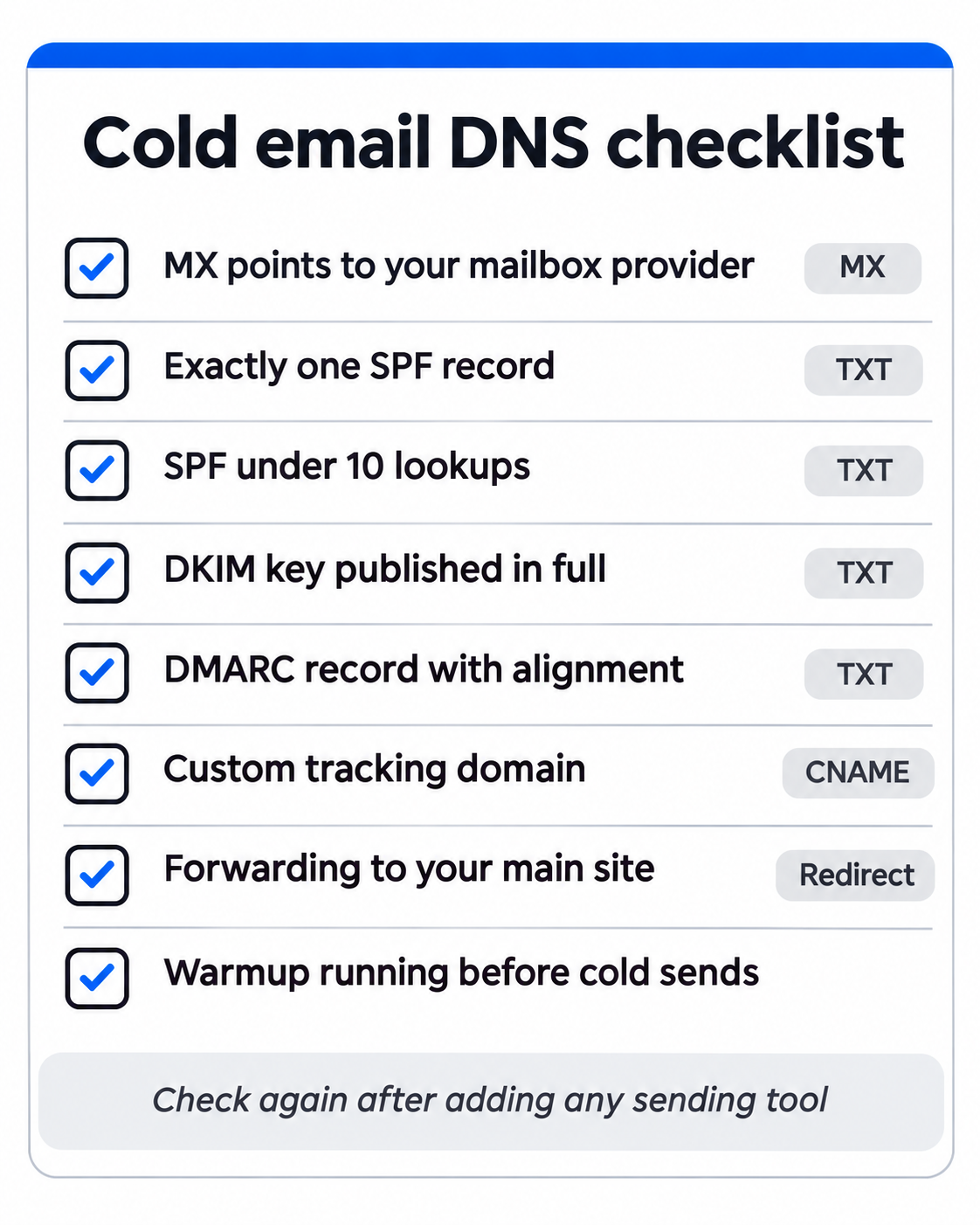
Every domain needs MX, one SPF record, a full DKIM key, a DMARC policy, a custom tracking domain and forwarding. Automation publishes all of them correctly when the domain is added and lets you change them across every domain at once. It doesn't replace checking records after new integrations, moving DMARC forward deliberately, or watching reputation.
Mailforge automates that layer on shared infrastructure, alongside Infraforge and Primeforge, with Warmforge warming every mailbox. With Leadsforge, Salesforge and Agent Frank, the whole outbound stack sits under one roof.
DNS automation means your infrastructure provider creates, publishes and updates your domains' DNS records for you. For cold email, that covers MX, SPF, DKIM, DMARC, a custom tracking domain and domain forwarding, set up the moment a domain is added.
MX records for replies, exactly one SPF record, a DKIM key on your provider's selector, a DMARC record, a custom tracking CNAME if you track clicks, and forwarding to your main website.
Yes, as long as the provider hosts the domain's DNS and the mailboxes the records point to, since it then knows exactly which servers and keys to publish. Check a sample of domains with SPF, DKIM and DMARC lookups after setup.
No. A domain can have only one SPF record. A second one makes SPF fail. Merge every sender into one record and keep the total DNS lookups at 10 or fewer.
Start at p=none to collect reports, then move to p=quarantine once SPF and DKIM pass and align consistently. p=reject is usually reserved for domains with a long clean history, such as your main brand domain.
Records are created as soon as the domain is set up, but new or transferred domains can take time to propagate across DNS. Check records again before connecting mailboxes to warmup.
Yes. Correct DNS lets providers verify your mail, but a new domain still has no sending history. Warm every mailbox for about two weeks before cold sends, and keep warmup running.
Yes. Transfer them into Mailforge, and their DNS is managed alongside new domains, including bulk updates and forwarding.