If your emails are landing in spam or failing DMARC checks, DKIM alignment might be the culprit. DKIM (DomainKeys Identified Mail) ensures emails are signed with a cryptographic key, but alignment issues occur when the signing domain (d=) doesn’t match your "From" address. Here's a quick breakdown of how to fix it:
d= tag matches your "From" address. Use relaxed alignment (adkim=r) for subdomains or strict alignment (adkim=s) for an exact match.selector._domainkey.yourdomain.com) for typos, mismatches, or missing entries.Proper DKIM alignment boosts inbox placement and protects your domain from spoofing. If you rely on third-party senders, configure them to sign with your domain. Tools like Mailforge can simplify managing DKIM across multiple domains.
Want to avoid email deliverability headaches? Start by fixing your DKIM alignment today.
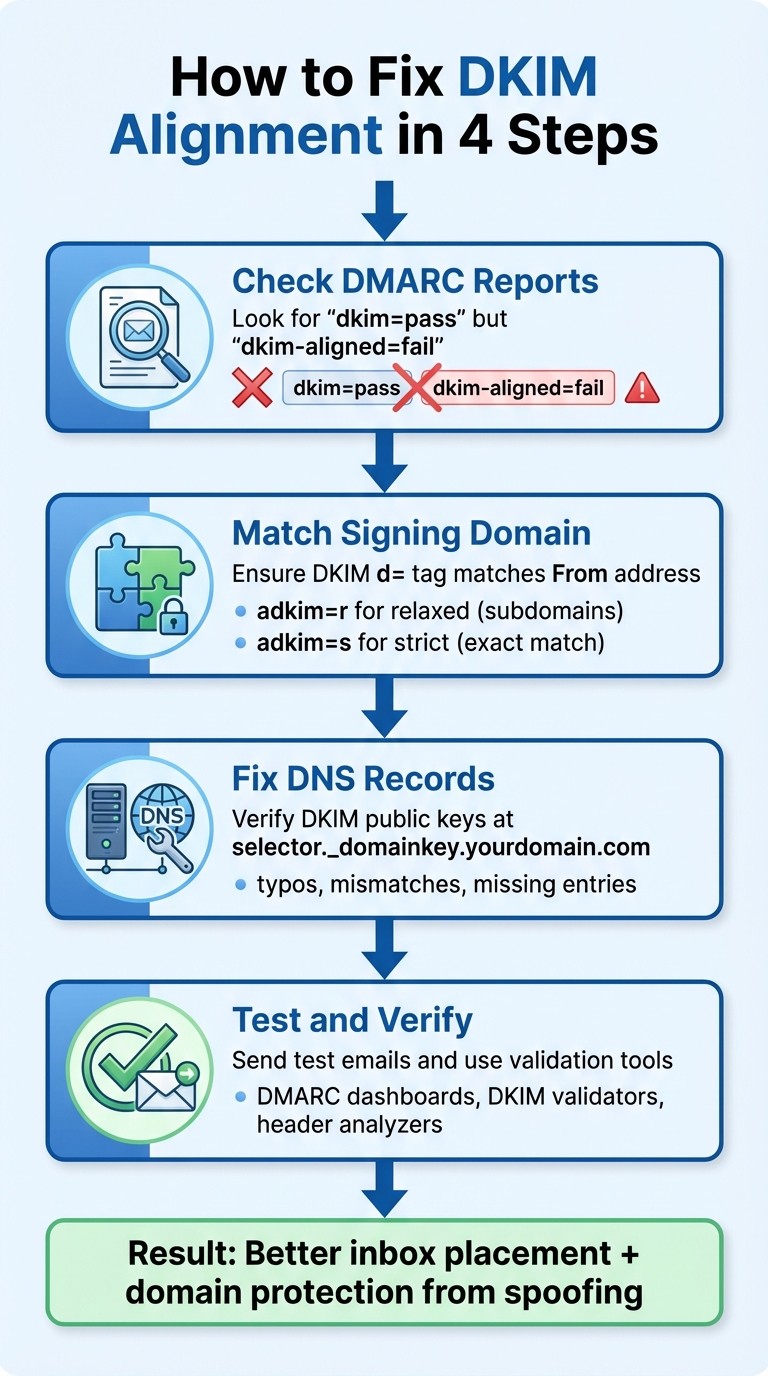
4-Step DKIM Alignment Fix Process for Email Deliverability
Start by reviewing your DMARC aggregate report to spot low DKIM alignment percentages. Pay close attention to sending sources with alignment percentages near 0%, especially for specific IP addresses or providers. Within the report, look for rows where the result shows "dkim=pass", but DKIM alignment is marked as failing. This means the DKIM signature is valid, but the signing domain doesn’t match the domain in the From header, as required by your DMARC policy.
Focus on three critical details: the sending IP address, the DKIM d= domain (the domain that signed the message), and the Header From domain (the domain visible to recipients). Group alignment failures by provider - such as CRMs, email marketing platforms, or support tools - to prioritize fixes.
For a deeper dive, examine the full email headers of individual messages. Locate the Authentication-Results header, where you might see something like dkim=pass [email protected] alongside header.from=yourdomain.com. Extract the domain from the d= tag in the DKIM-Signature and compare it directly to the From header domain. If they don’t match based on your alignment mode, the signature will pass, but alignment will fail.
Once you’ve identified misaligned records, it’s time to dig into the reasons behind these failures.
After spotting misalignments in your reports, investigate the following common causes:
d=servers.mailchimpsender.com, while your From address is yourbusiness.com. Although the signature is valid, it doesn’t align with your domain.
adkim=s), the signing domain must match the From domain exactly. For example, a signature with d=mail.yourdomain.com won’t align with a From address of [email protected]. However, relaxed alignment (adkim=r) allows subdomains, so d=marketing.yourdomain.com could align with [email protected] if the subdomain relationship is valid.
To troubleshoot DKIM alignment issues, leverage these tools for precise analysis:
selector._domainkey.yourdomain.com. They verify the syntax, key length, and proper publication of your public key.
dig selector._domainkey.example.com TXT or nslookup to verify DNS records directly. A valid DKIM record should return a single entry, confirming correct propagation and avoiding conflicts or duplicates.
To ensure proper DKIM alignment, the domain specified in the "d=" tag of your DKIM signature must correspond to the domain in your email's "From" header. For strict alignment (adkim=s), these domains need to be an exact match. For instance, if your "From" address is [email protected], the DKIM signature should use d=example.com. With relaxed alignment (adkim=r), the DKIM domain can be a subdomain, so d=mail.example.com would still align with [email protected], as they share the same root domain.
If you're sending directly from your own mail server, configure it to sign messages with your domain. For third-party platforms like marketing tools or CRMs, enable their custom or aligned DKIM feature to ensure messages are signed with your domain rather than the provider's. Afterward, update your DMARC policy to reflect these alignment preferences.
Your DMARC record specifies whether strict or relaxed DKIM alignment is required. Publish your DMARC TXT record at _dmarc.example.com. For example:
v=DMARC1; p=quarantine; adkim=r; rua=mailto:[email protected]
If you leave out the adkim tag, the default relaxed alignment (adkim=r) will apply. Relaxed alignment is ideal when sending from multiple subdomains or when third-party platforms sign with a parent domain. Use strict alignment (adkim=s) if you have centralized control over all email sources. Before enforcing stricter policies like p=quarantine or p=reject, start with a monitoring policy (p=none) and review DMARC reports over several days to ensure everything is functioning as expected.
Your DKIM public key should be published as a DNS TXT record at selector._domainkey.example.com. The record must start with v=DKIM1; k=rsa; p=.... Common mistakes include typos in the selector name (e.g., "selctor" instead of "selector"), syntax errors in the key, or publishing the key under the wrong domain. To verify the setup, use a DNS lookup tool (e.g., dig selector._domainkey.example.com TXT) or an online DKIM checker to confirm the published public key matches your mail system's private key. If you're rotating keys, keep the old selector active until all systems have transitioned to the new one to avoid delivery issues.
Messages with multiple DKIM signatures from different d= domains can lead to alignment issues, as some mailbox providers might evaluate a non-aligned signature. Check your message headers for multiple DKIM-Signature entries. If you find unnecessary or outdated signatures, remove them at the ESP or gateway level. Alternatively, reconfigure the signers so all d= domains align with your "From" header. For large-scale operations, automation tools can simplify these adjustments.
Platforms like Mailforge are particularly useful for managing DKIM configurations across numerous domains. They automate DNS setup and reduce the chances of errors.
As Danny Goff, Director of Sales at Propeller, explains, "Procedures that used to take hours for setting up DKIM and SPF records for multiple domains can now be completed in minutes with Mailforge".
After fixing alignment issues, it's crucial to test those changes to ensure everything works as expected. Send test emails from every system that uses your domain - this includes your ESP, CRM, marketing platform, and transactional email service. Make sure to send these tests to major U.S. email providers like Gmail, Outlook, Yahoo, and iCloud. Additionally, include at least one address tied to a DMARC monitoring tool. Use a clear and identifiable subject line, and send multiple emails at different times to rule out any sporadic issues. Keep in mind that DNS propagation can take anywhere from a few minutes to 24 hours.
When you receive the test emails, open their full headers (in Gmail, for example, click "Show original" to access the message header analyzer). Check that the Header From domain matches the DKIM d= domain, and confirm that DMARC shows dkim=pass (aligned). If any header displays dkim=fail or dkim=pass (not aligned), there are still problems that need further troubleshooting.
Once you've reviewed these tests, it's time to dive deeper using diagnostic tools.
Diagnostic tools make it easier to validate your setup before sending live emails. Start with a DKIM record checker, which queries your DNS to confirm that the public key exists and is error-free. Then, use header analyzers to paste the email header and check the DKIM, SPF, and DMARC pass/fail status in plain terms. This helps you quickly verify whether the d= domain aligns with your From header based on your alignment mode (strict or relaxed). DMARC monitoring platforms also provide a clear overview by highlighting sources where dkim-aligned=fail, offering a dashboard view of alignment issues across all your senders.
For example, after sending a test email, copy its full header and analyze it. Check that the DKIM d= domain matches your From domain according to your alignment settings. If the results show dkim=fail or "no key for signature", use a DKIM DNS checker to verify the published public key and selector. These tools can uncover common errors like:
selector._domainkey.example.com record is absent.d= tag points to the wrong domain.Each issue should lead to a specific fix, such as adding or correcting the DNS record, updating your mail server or ESP configuration, or regenerating the key if the record is malformed.
After resolving these issues, keep an eye on your setup over time with DMARC reports.
Update your DMARC record to include one or more rua reporting addresses, so email providers can send you daily aggregate XML reports. Use a DMARC dashboard to filter reports by source (e.g., ESP, CRM, or IP) and review key fields like "DKIM result" and "DKIM aligned" for each sender. A properly configured setup should show high DKIM pass rates with proper alignment for legitimate emails, while spoofed messages will show dkim=fail or "not aligned." Monitor these pass rates over a period of 7 to 30 days to ensure stability before tightening your DMARC policy from p=none to quarantine or reject.
Pay special attention to data grouped by source and by subdomain versus organizational domain. This can reveal cases where strict adkim=s settings cause subdomain-signed messages to fail. If you notice consistent dkim=pass but dkim-aligned=fail results, adjust the sender's DKIM domain, add subdomain keys, or switch to relaxed alignment mode. For organizations managing a large number of domains, tools like Mailforge can simplify the process by centralizing DNS and DKIM configuration. Automated DNS entries, bulk updates, and standardized signing domains help minimize errors and ensure that all legitimate traffic continues to be delivered when DMARC enforcement is active. This kind of proactive monitoring and adjustment is essential to maintain alignment at scale.
To effectively handle DKIM alignment issues, consider the following approaches.
Third-party email services are often the root of DKIM alignment problems. Before you start using a new ESP, CRM, or marketing platform, make sure it can sign emails with your domain (e.g., d=example.com) instead of its own (e.g., d=mailer-123.esp.com). Follow the provider's DNS configuration instructions, and always send test emails through a header analyzer to confirm subdomain settings align with your chosen mode.
If you're using subdomains like newsletters.example.com or billing.example.com, decide whether each subdomain needs its own DKIM key or if they can share the organizational key. With relaxed DMARC alignment (adkim=r), a signature from d=mail.example.com will align with a From: address like [email protected] since they share the same organizational domain. However, strict alignment (adkim=s) demands an exact match, meaning you'd need a signature like d=newsletters.example.com for that subdomain. Most U.S. businesses opt for relaxed alignment and assign specific subdomains for different functions, simplifying key management and reducing policy violations.
To streamline the process, maintain a straightforward onboarding checklist for new senders. This should include defining the sending domain, confirming alignment, publishing DNS records, and running tests before going live. Keep a centralized inventory of domains, selectors, and DKIM values, and require approval for DNS changes to avoid misconfigurations.
Once your senders are aligned, focus on standardizing DNS records and key management.
Consistency in your DNS setup ensures that DKIM records, such as selector._domainkey.example.com, are properly formatted and hosted only in authoritative zones. Use a clear naming convention for selectors - like s1-2025, s2-2025 - so teams can easily identify active systems and keys. Avoid using the same selector for multiple keys, as this can lead to alignment errors or "no key" issues.
Perform regular DNS audits to clean up outdated or duplicate entries. Look for missing or malformed TXT records, selectors from retired systems, or unused _domainkey entries under inactive subdomains. Cross-reference these findings with DMARC aggregate reports to ensure all IPs and d= domains are accounted for. After major infrastructure updates or vendor changes, conduct spot audits and send test emails to confirm DKIM is functioning correctly before tightening DMARC enforcement.
For high-volume or sensitive emails, many security teams rotate DKIM keys every 6–12 months. A safe rotation involves adding a new selector to DNS while keeping the old one active, updating sending systems to use the new selector, verifying alignment through test emails and DMARC reports, and only then retiring the old selector. Rotate keys in stages across domains and providers to quickly identify and address any issues. Never reuse old selector names for new keys to avoid confusion.
For organizations with multiple domains, centralized tools can simplify these processes.
Managing DKIM for dozens - or even hundreds - of domains can be overwhelming, especially when you're handling cold email outreach. Mailforge streamlines the process by automating DNS setup for DKIM, SPF, and DMARC. It applies best practices from the start, saving you from repetitive manual tasks and reducing the risk of misalignment or missing keys.
With Mailforge, you can update DNS records in bulk across multiple domains and subdomains, ensuring consistency in DKIM configurations. This tool supports a shared cold email infrastructure with domain masking and is compatible with any sending platform. Whether you're using a consistent organizational domain or a structured subdomain strategy, Mailforge helps maintain alignment and deliverability as your operations grow. For agencies or growth teams frequently adding or retiring domains, this centralized solution is a time-saver. At just $2–$3 per mailbox per month, it’s a cost-effective way to keep your DKIM setup compliant and efficient without spending hours on DNS management each week.
Getting DKIM alignment right is crucial for both email deliverability and protecting your brand. When the DKIM d= domain matches your From: domain - or aligns at the organizational level under relaxed mode - you meet DMARC requirements and significantly improve your chances of landing in the inbox. Without alignment, even valid DKIM signatures won’t help you pass DMARC, leaving your emails vulnerable to being quarantined or rejected, and exposing your domain to spoofing risks.
To fix alignment issues, start by reviewing DMARC reports to identify problems, verify your alignment mode, update DKIM DNS records as needed, coordinate with any third-party senders, and keep monitoring reports regularly. These steps, while technical, are usually straightforward to resolve once diagnosed.
Beyond the technical fixes, proper DKIM alignment offers clear business benefits. For U.S. companies, better inbox placement can drive revenue growth and improve customer retention. At the same time, stronger protection against impersonation helps safeguard your brand reputation and reduce fraud. Many organizations see their DMARC pass rates climb from below 70% to over 95% within a week of resolving alignment issues.
As your email infrastructure expands, keeping alignment consistent across multiple domains can become more complex. That’s where Mailforge steps in. It streamlines the setup for DKIM, SPF, and DMARC, applies best practices from the start, and allows bulk updates across all your domains.
Danny Goff, Director of Sales at Propeller, shared: "Procedures that usually took hours (setting DKIM, SPF, etc. records) for multiple domains, now take a few minutes. Mailforge is also cost-efficient since you spend per mailbox ~3 times less than with Gmail. The support team replies in minutes and is happy to sort out issues in a proactive manner!"
With Mailforge’s centralized system, you can minimize manual errors and scale your email operations with ease.
DKIM alignment problems can hurt your email deliverability by making your messages seem untrustworthy to receiving servers. To determine if DKIM alignment is causing issues, start by confirming that your DKIM record is properly configured in your DNS settings. Specifically, check that the domain in the d= tag of your DKIM signature matches the domain in your email's "From" address.
Email testing tools are another valuable resource for analyzing your DKIM setup and alignment. These tools can pinpoint misconfigurations or mismatches that might be affecting your emails. If you manage multiple domains and mailboxes, platforms like Mailforge can be a game-changer. They simplify DNS configuration and make it easier to maintain proper DKIM alignment across all your domains.
When configuring DKIM DNS records, even small errors can cause misalignment or email delivery problems. Here are some common pitfalls to watch out for:
Paying attention to these details can help ensure your DKIM setup is correct and boost your email deliverability. Tools like Mailforge streamline this process by automating DNS setup and alignment testing, minimizing errors and saving you time.
Mailforge simplifies DKIM management by automating the DNS setup process across multiple domains. This not only ensures compliance with industry standards but also helps save time while minimizing potential errors.
On top of that, Mailforge enables bulk DNS updates directly within the platform. This feature makes managing large-scale email infrastructures much more straightforward and efficient.