When it comes to Gmail vs Outlook for your cold outreach, the real question isn’t “Which inbox do you like more?” It’s which one helps your emails land safely?
Gmail brings automatic spam blocking, privacy, and AI support with Gemini. Outlook gives you organised multi-account control, Copilot summaries, and a clean way to manage everything in one place.
So instead of guessing, we’ve put together a clear, fact-based breakdown to look at how both platforms actually behave when you’re sending cold emails, and what each one can realistically help you do.
By the end, you’ll know how Gmail and Outlook compare for cold outreach, and what you can do to make either setup work better for you.
Key Takeaways: Gmail vs Outlook
Gmail offers strong built-in spam blocking, privacy protection, and helpful AI tools through Gemini.
Outlook gives structured organisation, multi-account management, and stronger controls with Microsoft 365 security features.
Gmail’s sending limit ranges from 500–2,000/day, but can drop to 150/day if sending looks risky.
Outlook usually allows 300–500/day, with tighter filtering on unfamiliar senders.
Both rely on shared IP networks, so actual inboxing depends on your setup, not the provider.
Neither platform handles warmup, rotation, or domain reputation tracking.
DNS (SPF, DKIM, DMARC), warmup, and consistent sending patterns matter more than limits.
Mailforge is the best alternative for senders who need more deliverability control than Google or Outlook offer. Which gives automated DNS, warmup, routing, and build your reputation strong.
Let’s walk through this to see how both platforms compare, especially if you plan to use them for outreach.
Gmail vs Outlook: Quick Comparison
Feature
Gmail
Outlook
Security
Blocks 99.9% of spam with strong phishing protection
Core security with stronger protection on Microsoft 365
AI
Gemini helps write emails and summarises threads
Copilot summarises and prioritises emails
Account Handling
Easy account switching
Better for managing multiple accounts in one place
Productivity
Built-in Chat, Meet, Docs, and Drive
Word, Excel, PowerPoint, OneDrive, and Teams
Sending Limits
500 to 2,000 emails per day, reduced to around 150 if flagged as risky
300 to 500 emails per day, more cautious with new senders
Spam Filtering
Adaptive AI-based filtering
Rule-based filtering that flags unfamiliar senders more often
1. Which One Keeps Your Inbox Safer?
Gmail provides stronger security by default, while Outlook offers similar protection only when upgraded to Microsoft 365 paid plans.
Gmail
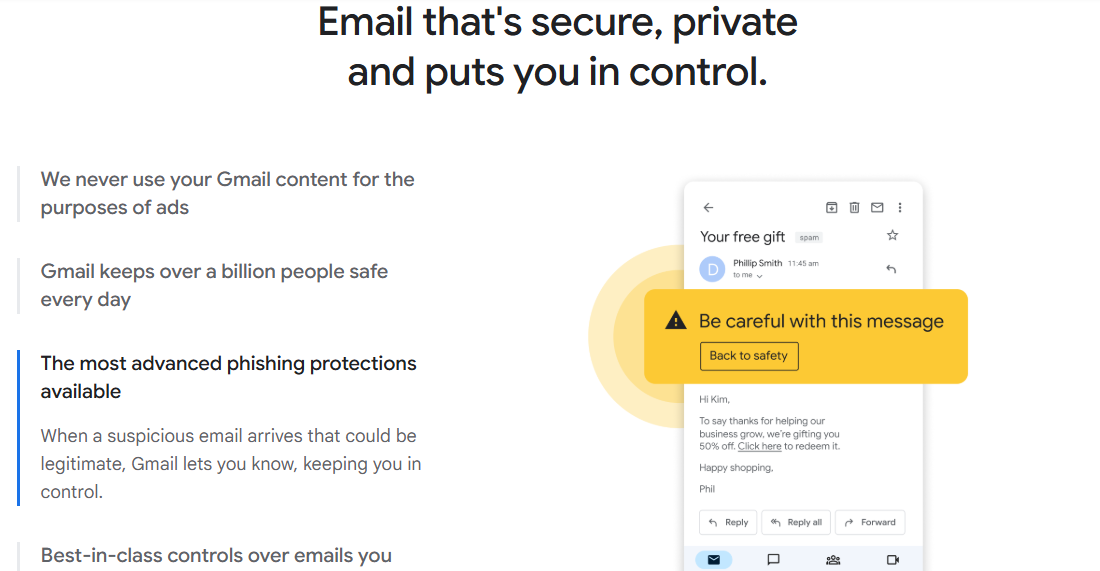
This image shows the Gmail safety control
Gmail gives you very strong protection by default. It blocks 99.9% of spam, malware, and dangerous links, and it doesn’t scan your email content for ads.
You also get phishing protection built in, plus an optional Advanced Protection Program if you handle more sensitive information.
Outlook
Outlook’s free plan comes with basic security.
If you want more, like data encryption, malware scanning, suspicious-link warnings, and removal of dangerous attachments.
2. Which AI Helps You Handle Email Better?
Gemini acts as a writing and search assistant, whereas Copilot helps manage and sort incoming emails.
Gmail (Gemini)
Gemini is Gmail’s built-in AI that helps you write, summarise, and find emails faster using simple instructions.
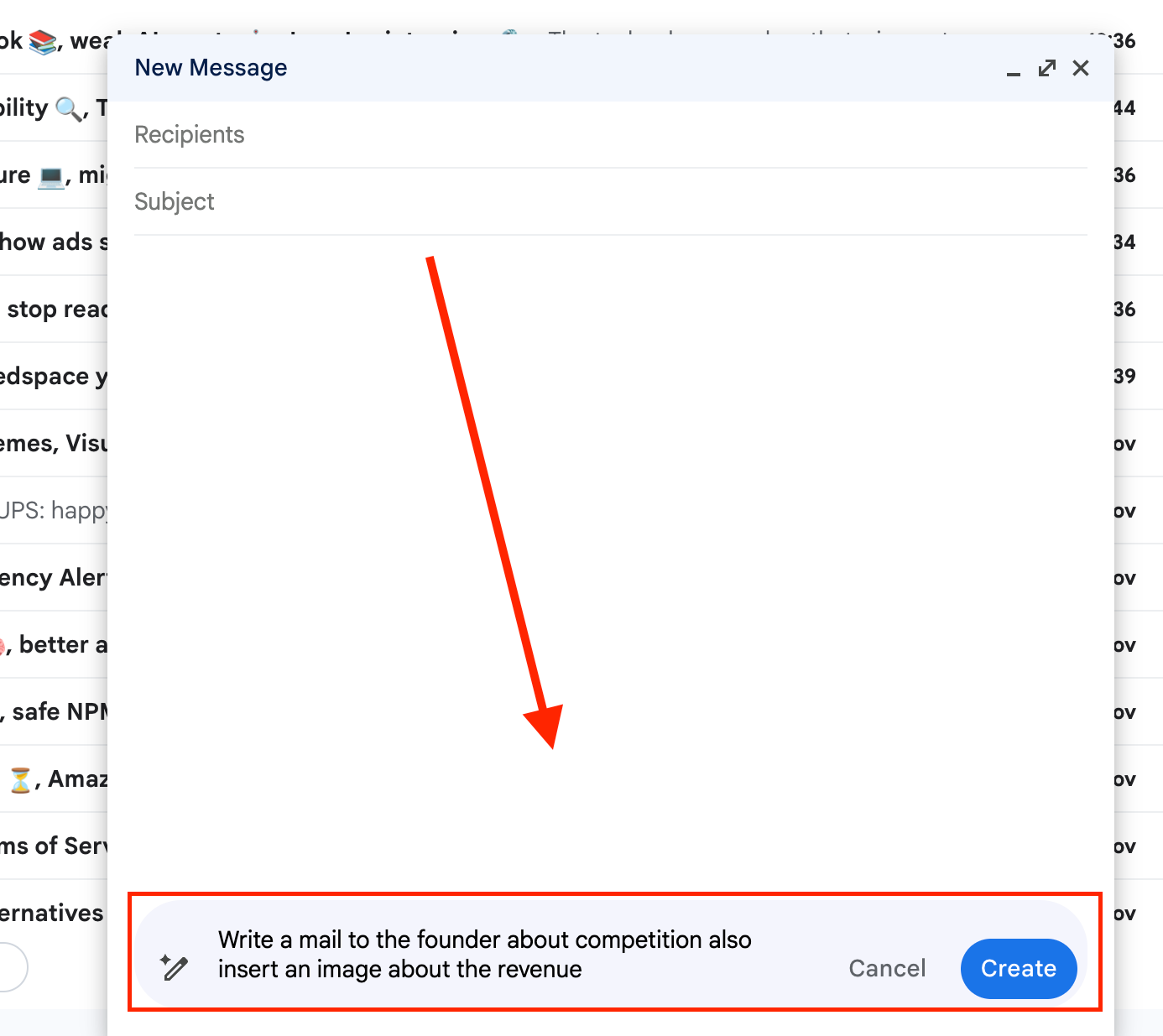
You give Gemini simple instructions, like asking it to write a reply, summarise a thread, or find an email.
This image shows the Giving instructions to Gemini
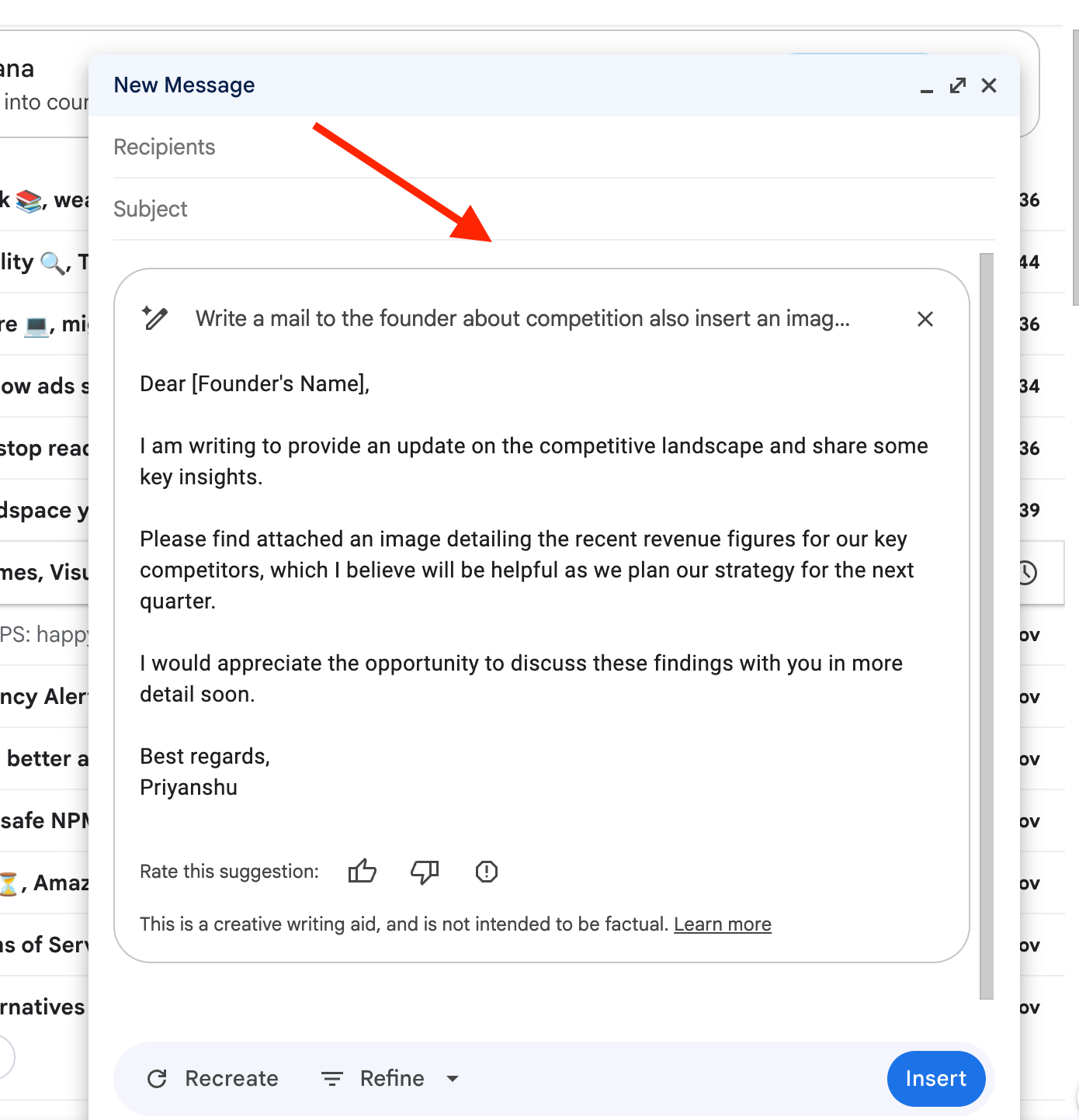
Gemini generates drafts, crafts replies, summarises long conversations, and searches your inbox or Drive, acting like a built-in writing and research assistant in Gmail.
This image shows the Gemini Writing personalized email
Outlook (Copilot)
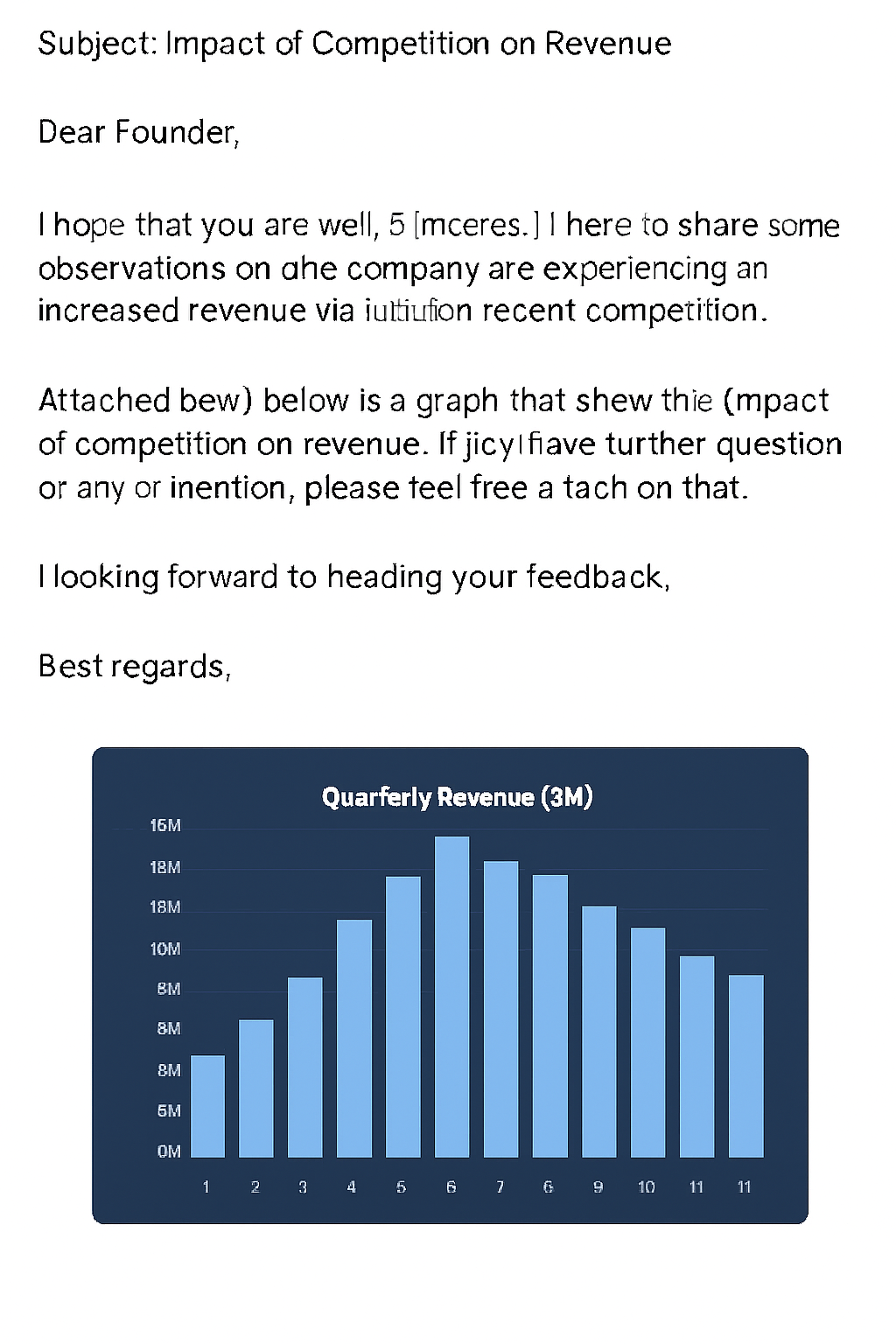
Copilot in Outlook is Microsoft’s AI assistant that can draft emails on demand, summarise long email threads, and help prioritise your inbox using AI.
You let Copilot review your inbox and long conversations so you can quickly understand what matters.
This image shows the Email written by Copilot
Copilot summarises long email threads and helps prioritise important messages, acting as an inbox-management assistant inside Outlook.
3. Which Handles Multiple Accounts More Smoothly?
Outlook handles multiple accounts more smoothly, because it’s designed to manage all inboxes and calendars in one place, while Gmail keeps account switching simple and search fast.
Gmail
Switching between Gmail accounts is simple, and it also works well with desktop clients like Outlook, Apple Mail, and Thunderbird.
You also get a strong search to find emails quickly.
Outlook
Outlook is built for managing everything in one app.
You can add Gmail, Yahoo, iCloud, Outlook.com, personal accounts, work accounts, and school accounts, all in the same place.
Your emails and calendars stay in one place, so you don’t need to keep switching between apps.
4. Which Is Faster: Google or Outlook?
Gmail feels fast when you want quick communication and flexible offline access. Outlook feels fast when your work is tied into Microsoft apps and calendar organisation. Each can speed up work in its own way, depending on how you use it.
Gmail
Gmail brings Google Chat, Google Meet, Docs, Drive, and more into one interface, so you don’t need to switch apps to work.
You can start a chat, jump into a video call, or edit a document right from your inbox.
Gmail also works offline, letting you read, reply, delete, and search emails even without internet, which can speed up your workflow when you’re on the go.
Outlook
Outlook connects deeply with Microsoft apps like Word, Excel, PowerPoint, OneDrive, and Teams, letting you move between email and other tools smoothly.
You also get customisable themes and a view where you manage all your calendars at once, which helps streamline your day without app hopping.
5. Which Plans Give You More?
Google Workspace is more affordable if you only need business email, while Microsoft 365 costs more because it includes a full set of desktop apps and services.
Gmail (Workspace)
Google Workspace pricing is focused mainly on email::
A custom business domain
99.9% uptime
Twice the personal Gmail storage
Zero ads
24/7 support
You’re paying for a clean, reliable email setup without extra software bundled in.
Outlook (Microsoft 365)
Outlook pricing changes once you move into Microsoft 365:
Free plan: 15 GB mailbox + 5 GB cloud storage
Paid plans include:
100 GB mailbox storage
1 TB to 6 TB cloud storage
Desktop apps like Word, Excel, PowerPoint, Outlook, and OneNote
Microsoft Defender
OneDrive ransomware protection
Teams for calls and meetings
Here, the higher price reflects everything that comes with Outlook beyond email.
6. Which is More Suitable For Cold Outreach?
Both platforms can be used for outreach, but they support you in different ways:
Gmail gives you stronger built-in safety. The automatic spam blocking, phishing protection, and privacy controls help keep your sending environment clean.
Outlook becomes powerful once you move into Microsoft 365. Its security upgrades, organisation tools, and multi-account handling make it easier to manage several inboxes at scale.
Instead of one “winner,” it comes down to what your workflow looks like and how many accounts you manage.
7. Which Is Safer for Cold Email: Gmail or Outlook?
Gmail Sending Limits
Gmail can allow up to 500 emails per day, depending on the type of account.
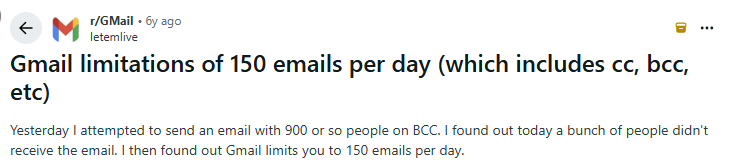
However, Gmail can restrict the limit to around 15-150 emails per day if it detects:
This image shows the Gmail user explaining about hitting its sending limits
high bounce rates
spam-like activity
large sudden sends (example: sending to ~900 recipients at once)
When restricted, Gmail’s counter resets every 24 hours, allowing another batch of 150.
Safe Range for Cold Email:
Because Gmail can lower limits based on risk, the safe zone is 15 emails per day.
Slow, gradual sending is required to avoid triggering restrictions.
Outlook Sending Limits
Outlook generally allows around 300–500 emails per day.
Like Gmail, Outlook reduces tolerance if sending patterns appear unusual or risky.
Gmail → higher potential limit, but more reactive to spikes and risky patterns.
Outlook → smaller limit, but still requires slow, steady sending to stay safe.
Safe volume is always lower than the official limit on both platforms.
Warmup and pacing matter more than the maximum number you’re allowed to send.
8. How is the Deliverability in both Gmail and Outlook
In real cold-email use, both Gmail and Outlook have limits that show up quickly. Gmail may say you can send 500–2,000 emails a day, but many senders notice this drops to around 150 per day after bounces, large BCC sends, or sudden volume jumps.
This image shows the Gmail sending limit
Outlook usually sits lower, around 300–500 emails a day, and often becomes cautious when it sees new or unfamiliar sending patterns.
With Outlook, filtering often happens at the infrastructure and routing level rather than because of content. Gmail behaves differently but shows similar friction with new domains and changing volume.
This image shows the Outlook user about its mailboxes crushed by microsoft spam filter
So while both platforms work well for regular email, neither fully handles cold-email deliverability on its own. That’s why many senders end up looking for an alternative that gives better control over sending limits, warmup, and reputation.
Why Gmail or Outlook Alone Can’t Guarantee Inbox Placements
Both platforms are great for everyday email, but when it comes to cold outreach, here’s why they still don’tt guarantee inbox placements:
You Can’t See Your Domain Reputation
Neither Gmail nor Outlook shows you how your domain is performing.
If reputation drops, you won’t know it, and inboxing can suffer without warning.
Outlook And Google Both Does Not Provide Account Warmup
Both platforms let you send emails, but they don’t help you warm up domains, spread volume, or rotate sending.
These steps are essential for cold outreach, and neither platform handles them.
Non of Them Provides Visibility of IP Performance
Gmail and Outlook both run on shared IP networks, but they don’t give you visibility into how those IPs are performing.
If someone else on the same IP pool sends risky traffic, it can affect your inbox placement.
Mailforge: Better Cold Email Infrastructure than Outlook and Google
Mailforge is a cold email infrastructure platform that manages DNS setup, warmup, rotation, routing, and reputation monitoring to keep your emails consistently inboxing.
This is why Mailforge better than Gmail and Outlook:
Built for cold email, not everyday inbox use Gmail and Outlook are designed to send and receive emails. Mailforge focuses on what decides inboxing in cold outreach, like setup, speed, and domain reputation.
Handles DNS for you Mailforge takes care of SPF, DKIM, and DMARC. These small setup details are easy to miss, but they matter a lot for deliverability.
Keeps your sending growth under control Instead of jumping from low volume to high volume, Mailforge warms ups mailboxes and domains slowly and rotates sending so everything looks natural.
Lets you see issues early Gmail and Outlook don’t tell you much when deliverability starts dropping. Mailforge gives monitoring so problems don’t show up only after inboxing drops.
Made for consistency, not trial and error Cold email works when things stay steady. Mailforge is built to keep pacing, reputation, and routing predictable.
Conclusion
Gmail makes it easy to get started quickly, works smoothly across devices, and gives you broad compatibility with different tools.
Outlook gives you a more structured environment, stronger control features, and a setup that stays organised when you manage multiple accounts or schedules.
Mailforge protects deliverability by managing the setup and sending behavior that inbox providers use to judge reputation. It handles DNS configuration like SPF, DKIM, and DMARC, controls warmup so volume increases gradually, and supports rotation to avoid sudden spikes.
It also adds structure around routing and reputation management, which helps keep sending patterns stable and reduces the risk of inbox placement dropping without warning.
1. Which has better cold-email deliverability, Gmail or Outlook?
Both can deliver well. Gmail offers strong built-in spam and phishing protection, while Outlook becomes stronger when upgraded to Microsoft 365 security features. Deliverability depends more on your setup than the provider.
2. What are Gmail and Outlook sending limits in 2025?
In 2025, Gmail typically allows around 500–2,000 emails per day, but this can drop to 150 per day if bounces or spam-like activity are detected, while Outlook usually allows 300–500 emails per day.
3. Why do my Outlook emails land in junk while Gmail ones don’t?
Outlook uses more rule-based filtering and often flags unfamiliar senders. Gmail uses adaptive AI filtering that improves with reputation over time.
4. Can I connect Gmail or Outlook accounts with Mailforge?
Yes. Mailforge works with both Gmail and Outlook as an external deliverability infrastructure layer.
5. What’s the safest way to scale cold-email sending?
Stay well below your sending limits, warm up gradually, keep sending consistently, and use proper DNS setup (SPF, DKIM, DMARC). Tools like Mailforge help manage warmup, DNS, and sending structure so scaling stays controlled and predictable.
6. Why do people still use Outlook and for what?
People still use Outlook because it brings email, calendar, tasks, and contacts into one organised workspace, and in cold-email setups some senders find Microsoft accounts deliver reasonably well alongside Gmail, especially when managing multiple accounts or scheduling.