
Personalized Outbound Strategy
Get The Right Outbound Strategy In Minutes
Enter your email to get a custom plan & stack recommendation for your business
It's being carefully crafted by AI
Please check your mailbox in 5 minutes

Sending cold emails from your main domain puts more than your outreach at risk.
If enough prospects mark your emails as spam, Google can suspend your entire Workspace account. Every employee could lose access, even those who’ve never sent a cold email.
Maybe you’ve already sent a few hundred cold emails without any problems. That doesn’t mean you’re safe. You can’t control which prospects report you, so the risk grows with every campaign.
Secondary domains keep that risk away from your main domain. The setup is usually what holds people back.
If you set it up by hand, each new domain needs its own DMARC, SPF, DKIM, and tracking domain. That can take days or weeks and often requires help from your IT team.
In Mailforge, I can do all of that in about 3 minutes. The only part that takes time is warm-up, which takes 2 weeks before a mailbox is ready to send campaigns.
Here’s how I set them up, step by step.
A secondary domain is a separate domain used only for cold email, protecting your main domain’s reputation.
A secondary domain is a separate domain you buy just for cold email, such as getacme.com alongside acme.com.
This works because inbox providers track sending reputation by domain. That means a secondary domain needs to be a real domain of its own, with its own mailboxes.
Simply using a second name that points to your main inbox won’t separate anything.
Two cold email tools show what this looks like in practice.
If you’ve sent a few hundred cold emails from your main domain without any trouble, setting up a separate domain might feel like unnecessary work. Here’s what’s at stake.
Some prospects who don’t know you will mark your email as spam. When those reports affect your main domain, all its email can suffer, including messages to customers and investors. In the worst case, Google suspends your entire Workspace account and locks out every employee.
This mistake still happens often. Daniel O. Blake, who works on email deliverability for B2B SaaS startups, calls it a rookie mistake.
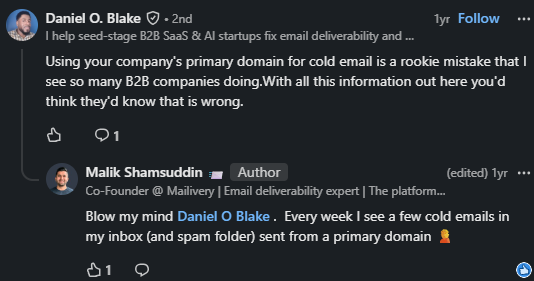
Malik Shamsuddin replies that every week, he finds cold emails sent from a primary domain in his inbox and spam folder.
Elisabet Kond, a CSM at Salesforge, describes what this can look like day to day: invoices, contracts, team messages, and even password resets start landing in spam.
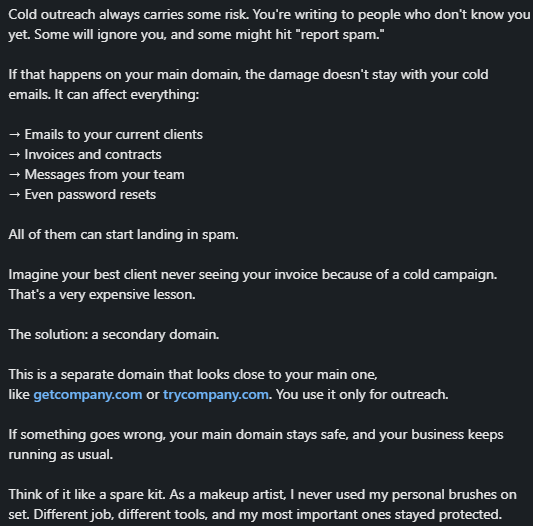
Her example is a client who never sees an invoice because a cold campaign hurt their domain reputation.
A secondary domain keeps that risk contained. If it gets flagged or blacklisted, your main domain can keep delivering support replies and customer emails as usual. You can then move your outreach to secondary domain.
Each secondary domain also gives you more room to send. A domain can hold a few mailboxes, and each mailbox can safely send only a limited number of cold emails a day. More domains let you send more without pushing any one mailbox too hard. I’ll show you how to work out the numbers in the next section.
Separate domains also keep campaigns apart. I can give each product line, audience, or client its own domains. If replies drop on one, I know which campaign to check while the others keep running.
You might worry that prospects won’t trust a domain they’ve never seen. Two things can help:
Another common concern is setup. Each domain needs its own DMARC, SPF, and DKIM records, plus a custom tracking domain.
Doing all of that by hand can take days. Mailforge can set up any number of domains and mailboxes in about 3 minutes. I’ll walk you through it step by step further down.
Some people try to skip all this by sending from a personal Gmail or Hotmail address.
Frank Sondors, says he often sees those accounts suspended because they haven’t been warmed up and have no sending limits.
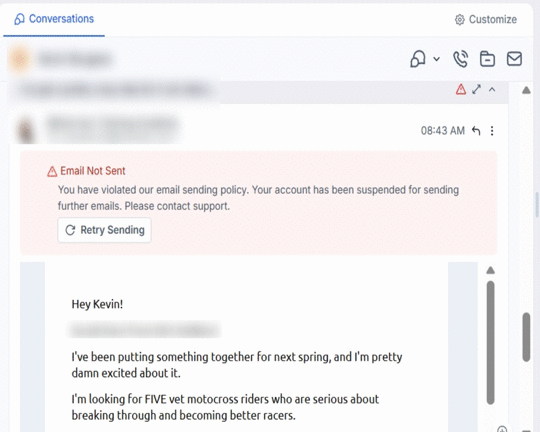
Before buying anything, I decide three things: how many domains I need, what to call them, and where the mailboxes will live.
Rushing to add domains later is slower and more disruptive than buying a few extra now.
Put 2 to 3 mailboxes on each domain, and never more than 3. Mailforge caps it at 3. Every mailbox on a domain shares that domain’s reputation, so if the domain gets flagged, all its mailboxes are affected.
Keeping the number low limits how much sending capacity you lose at once and makes each domain look like a small team sending normal email.
Once a mailbox is warmed up, plan to send about 50 cold emails a day from it. New mailboxes start much lower, as I’ll cover in the warm-up section below.
You might wonder why you can’t just send more from fewer mailboxes. New addresses don’t have a sending history, and Gmail and Outlook keep a close eye on new accounts.
Sending a high volume through a handful of fresh mailboxes is one of the quickest ways to get a domain flagged.
From there, the math comes down to two divisions:
A typical first setup is 5 domains with 2 mailboxes each. That gives you 10 mailboxes, or about 500 cold emails a day once they’re warmed up.
I’d add a domain or two to the number you land on. If you expect to double your volume within six months, set up the extra domains now. New domains need to be warmed up before they can carry a campaign, so waiting until the week you need them is too late.
Keep the name close to your brand so prospects can still recognize who’s writing. The simplest pattern is to add a short prefix to your main domain: getacme.com, tryacme.com, useacme.com.
You can also add a word about what you do, like acmegrowth.com or acmeleads.com.
You don’t have to come up with the names yourself. In Mailforge, I enter my primary domain and how many domains I want. It suggests variations using prefixes like get, try, use, go, my, trial, just, team, hey, and meet, and shows each one’s availability and price.
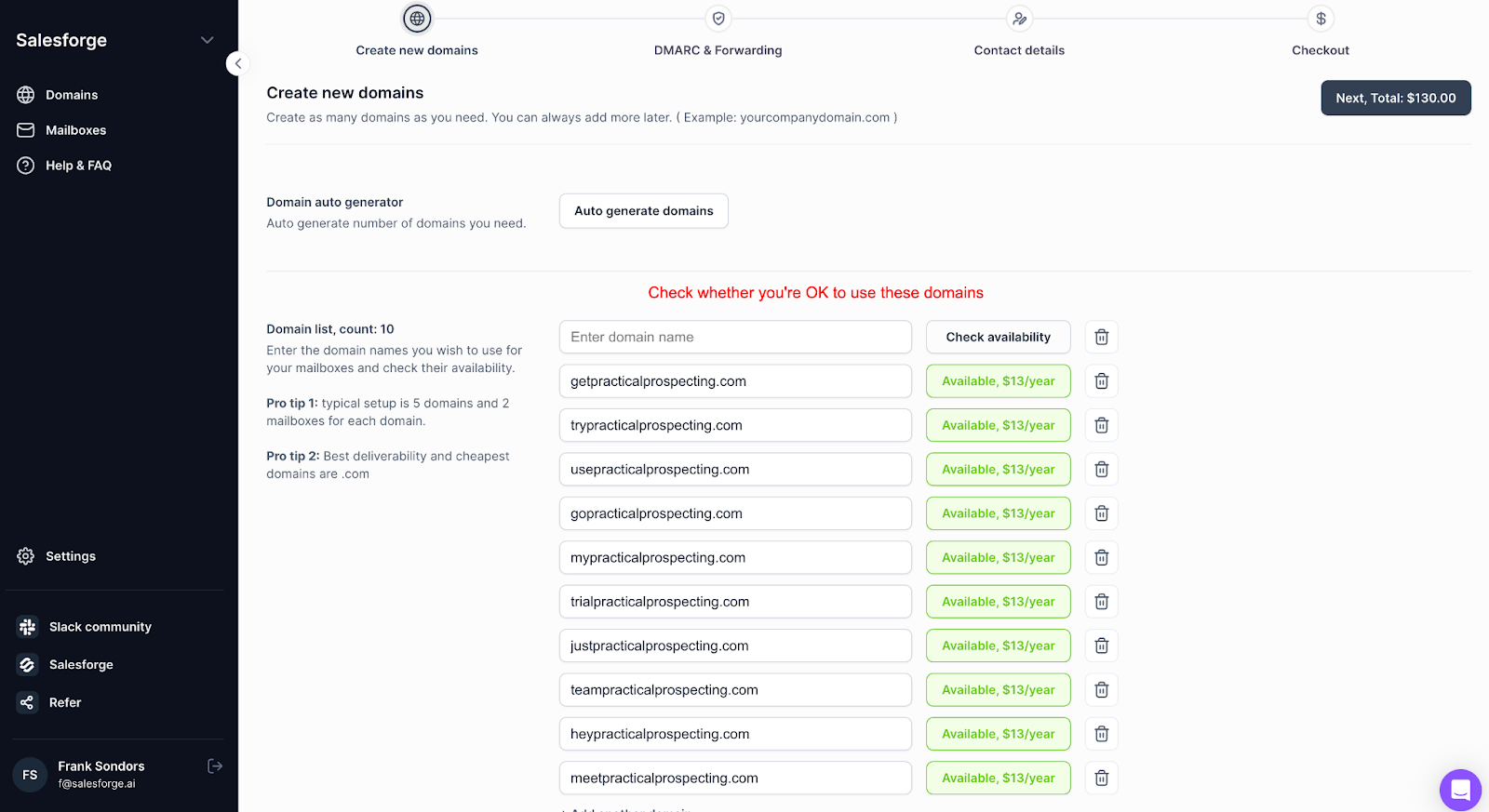
Stick with .com. It offers the strongest deliverability of any extension and is also the cheapest. If the .com you want is taken, .net, .io, .co, and .org are established alternatives. I’d avoid newer extensions like .xyz or .click.
Two more rules: keep names short and easy to type, and skip numbered patterns like acme1.com and acme2.com.
If you already pay for Google Workspace, adding cold email mailboxes there may seem like the easiest option. Here’s how it compares with Mailforge in cost and setup time.
For 1,000 cold emails a day, you’ll need 20 mailboxes across 10 domains. On Mailforge, the mailboxes cost $40 to $60 a month, plus $130 a year for ten .com domains.
The same 20 mailboxes on Google Workspace cost about $168 a month. If you want SSL and a custom tracking domain, Mailforge adds them for $2 per domain per month, or $6 per domain per year.
Whichever provider you choose, check these things before you commit:
Mailforge sets up the DNS records for every domain and exports mailboxes as a CSV that you can import into any sending platform.
Here’s how I’d handle the full setup in Mailforge, following the app's order. If you use a different provider, the same records and settings apply. Only the screens will look different.
On the Mailforge dashboard, I start a new domain setup and click Auto generate domains.
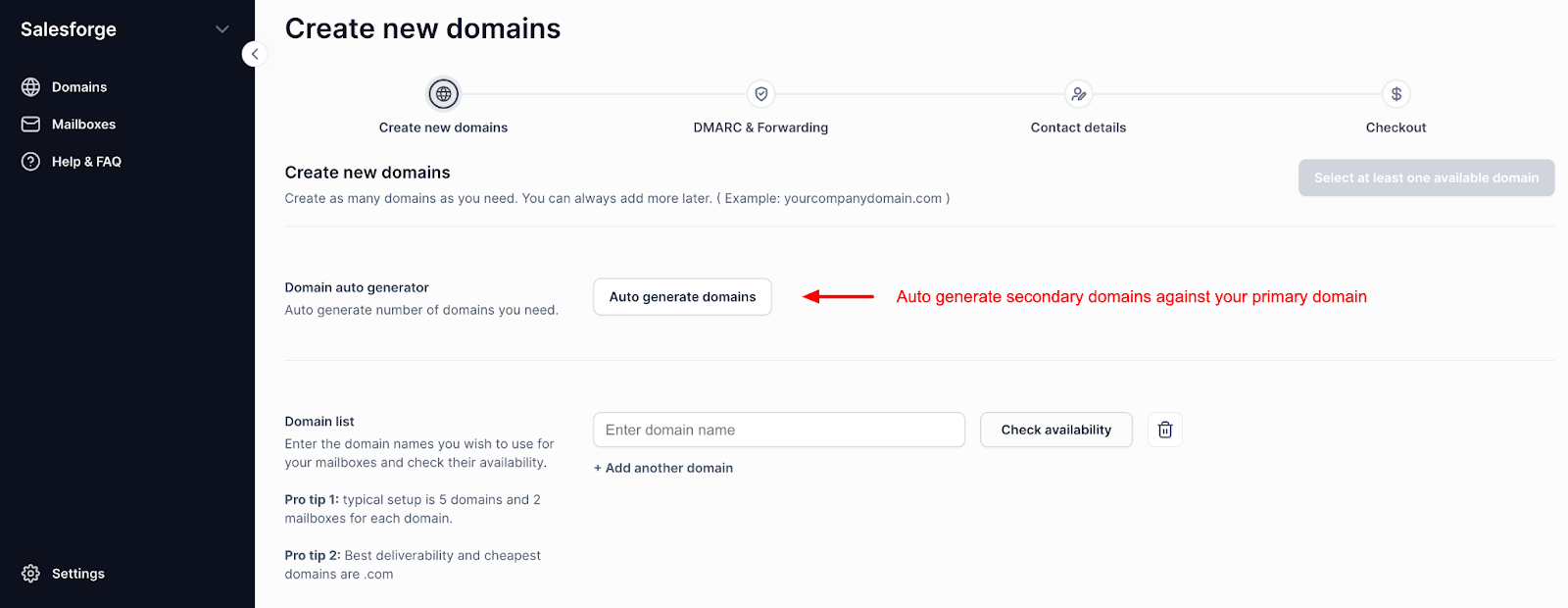
Mailforge asks for two things: your primary domain and how many domains you want (up to 100 at a time).
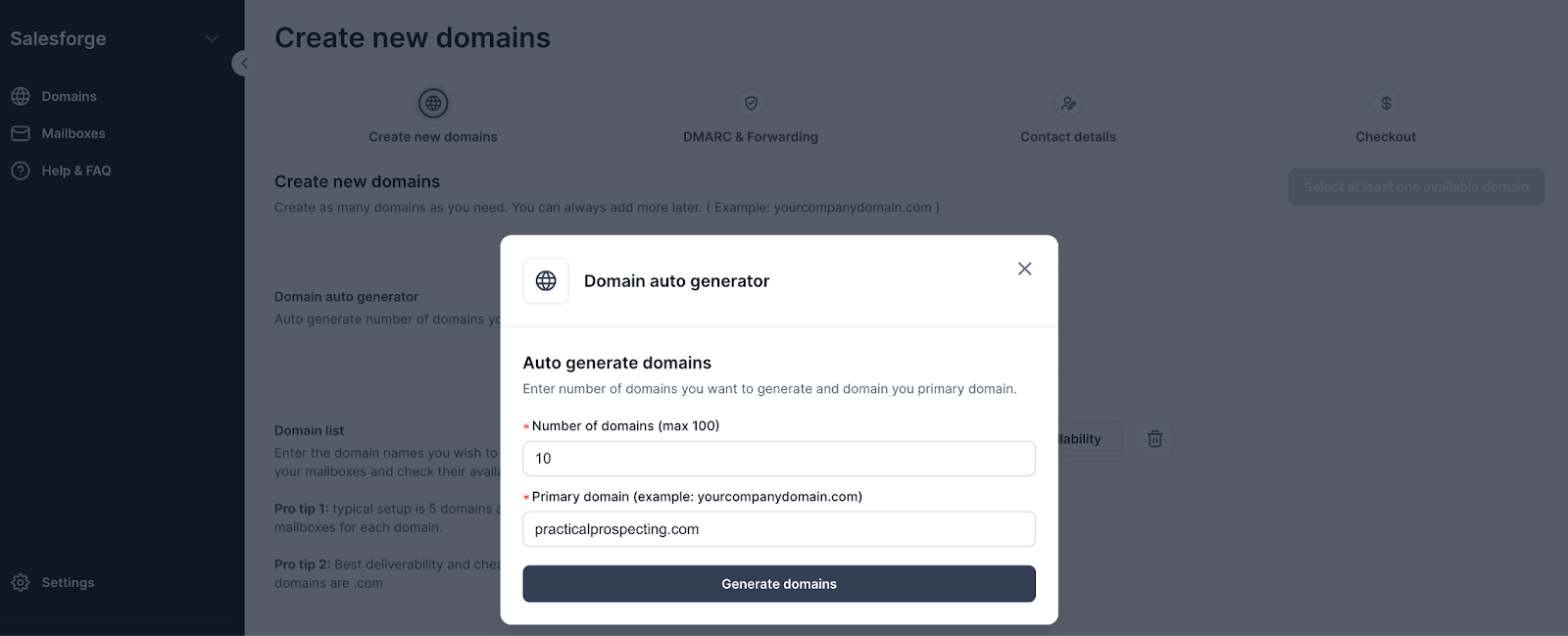
It returns a list of name variations with their availability and price, like the one in the naming section above. If a suggestion doesn’t feel right, I delete it, enter my own name, and check whether it’s available.
Before checkout, Mailforge asks where to forward visitors. I enter my primary domain. That way, anyone who types a secondary domain into their browser lands on my real website, helping answer the “who is this?” question a cautious prospect might have.
Florin Tatulea, who runs GTM engineering at ZoomInfo, makes the same point: secondary domains should direct curious prospects to your actual company site.

The same screen has an optional field for a DMARC report email. I leave it empty unless I plan to read the reports, because the address can receive a lot of them.
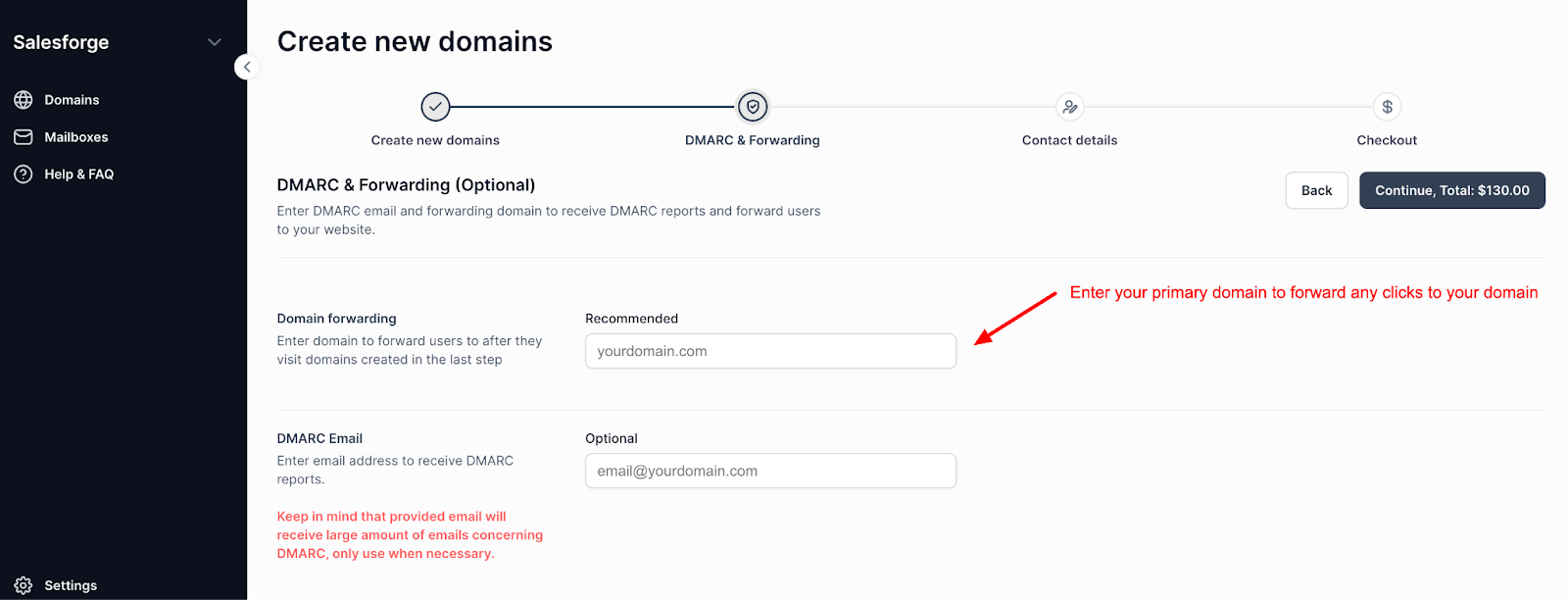
After that, I add my contact details and check out.
Every secondary domain needs four records before it sends anything: SPF, DKIM, DMARC, and a custom tracking domain.
Without them, inbox providers may treat your emails as suspicious or reject them outright.
Mailforge sets up all four for each domain it creates, so with Mailforge, this step is just a check.
If you’re setting up the records yourself, or just want to know what to check, here’s what each one does:
A generic link like click.emailprovider.com/track123 becomes something like links.yourdomain.com.
Set it up with a CNAME record pointing to your sending tool’s tracking domain. SSL prevents security warnings when recipients click.
New records take 24 to 48 hours to spread. I test SPF, DKIM and DMARC records with a tool like MXToolbox or DNSChecker, and don't send anything until every record shows as valid."
On the Mailboxes page, I click Create mailboxes.
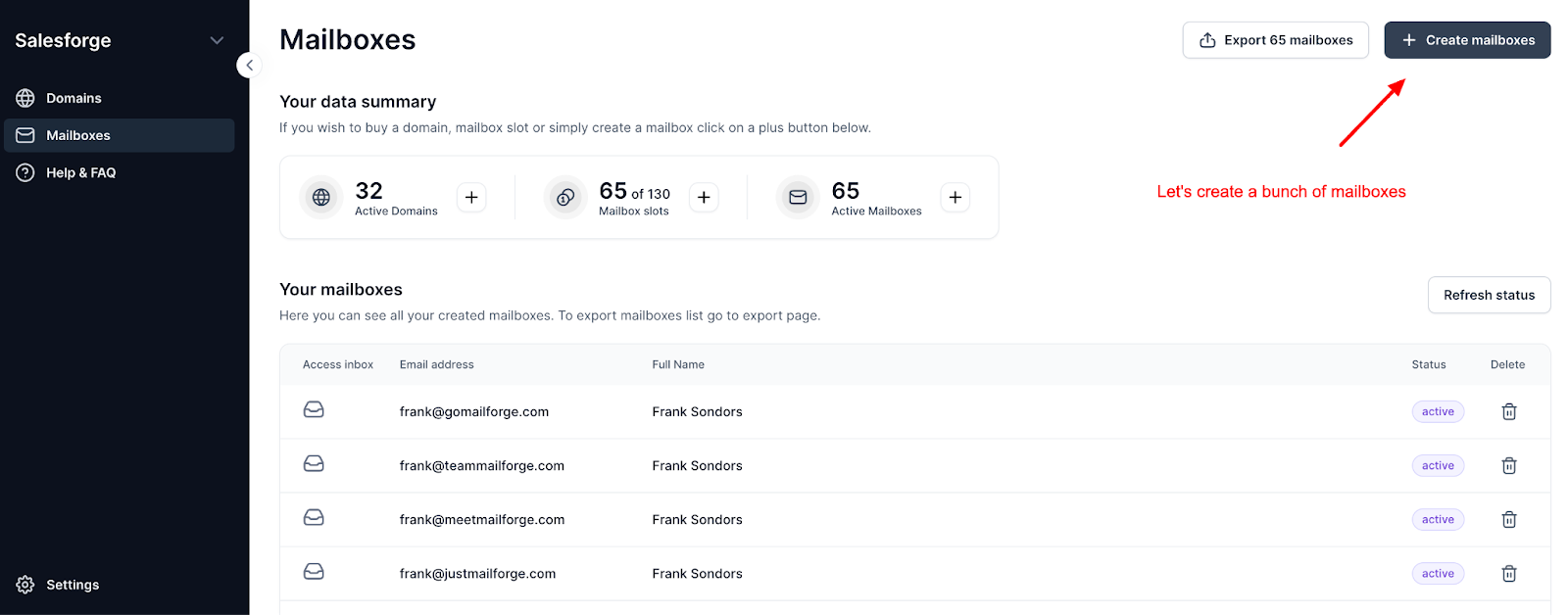
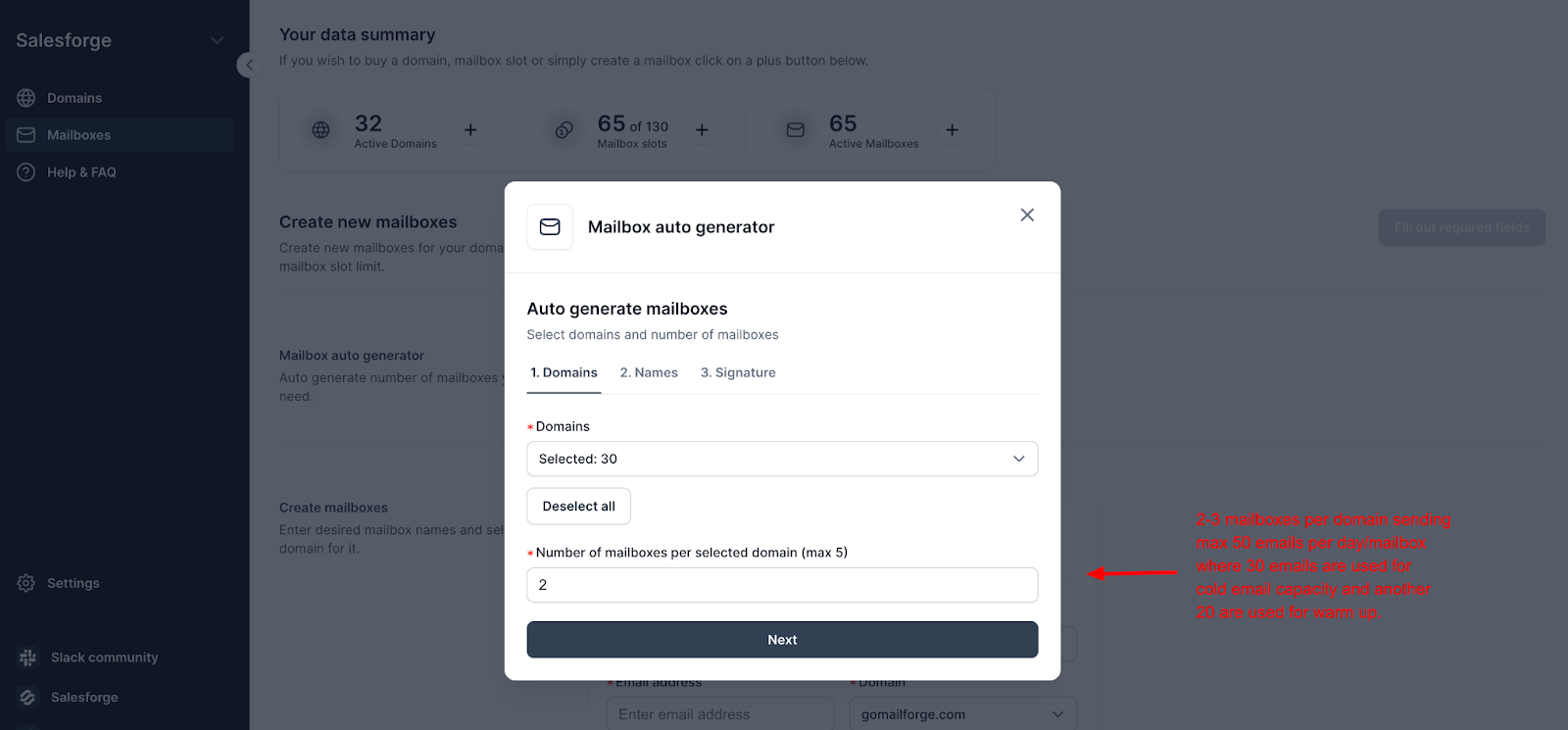
I select the domains, then choose how many mailboxes each one gets. Mailforge allows up to 3 per domain, and I usually choose 2.
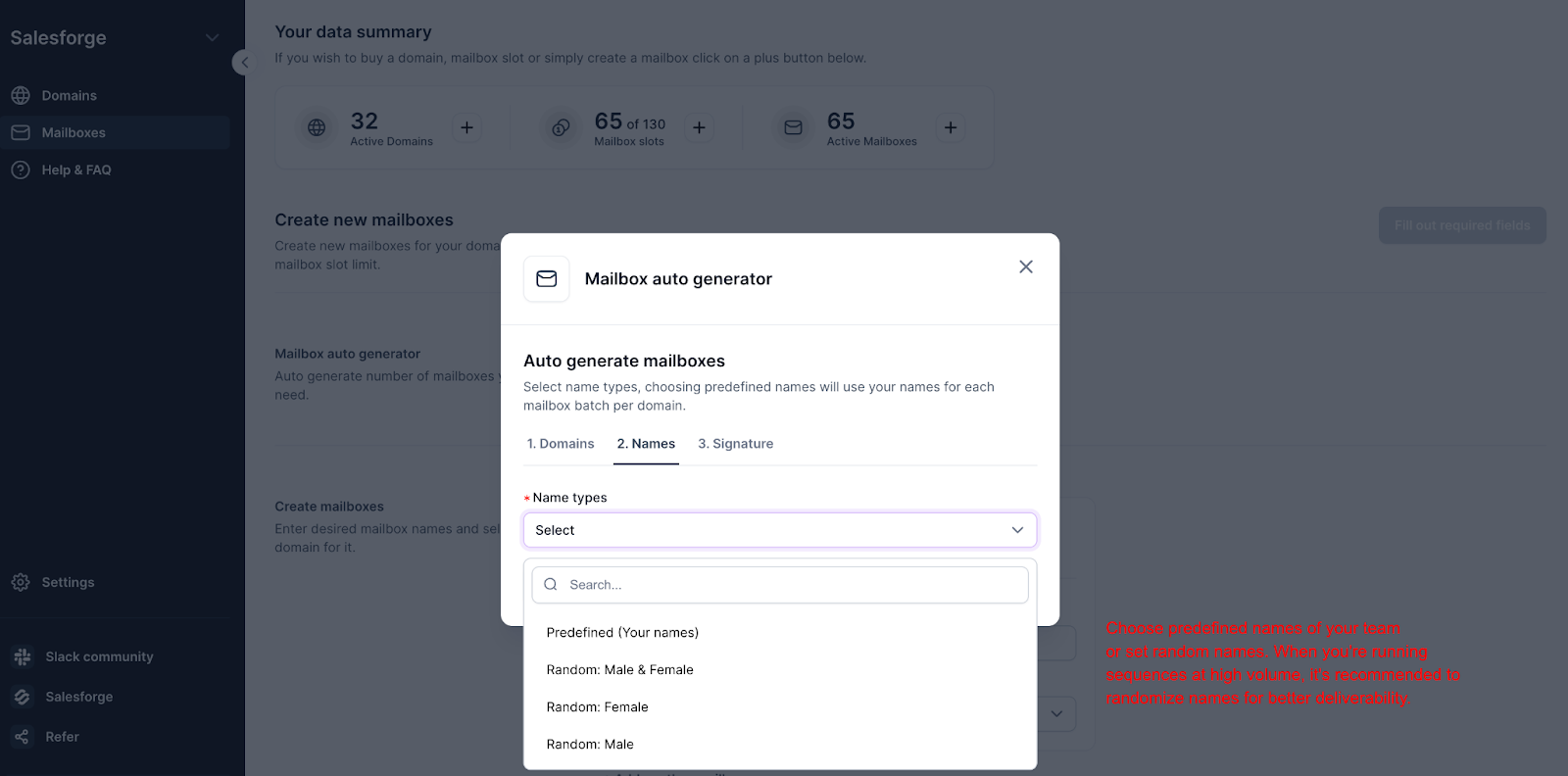
Next, I choose the names. Predefined uses names you enter, such as the reps who’ll handle replies. Random generates male, female, or mixed names. I use real first and last names, like someone signing an email.
The last screen is for the signature. I write it once using first-name and last-name variables, and Mailforge fills in the right name for each mailbox. Then I generate all the mailboxes at once—60 in this example.
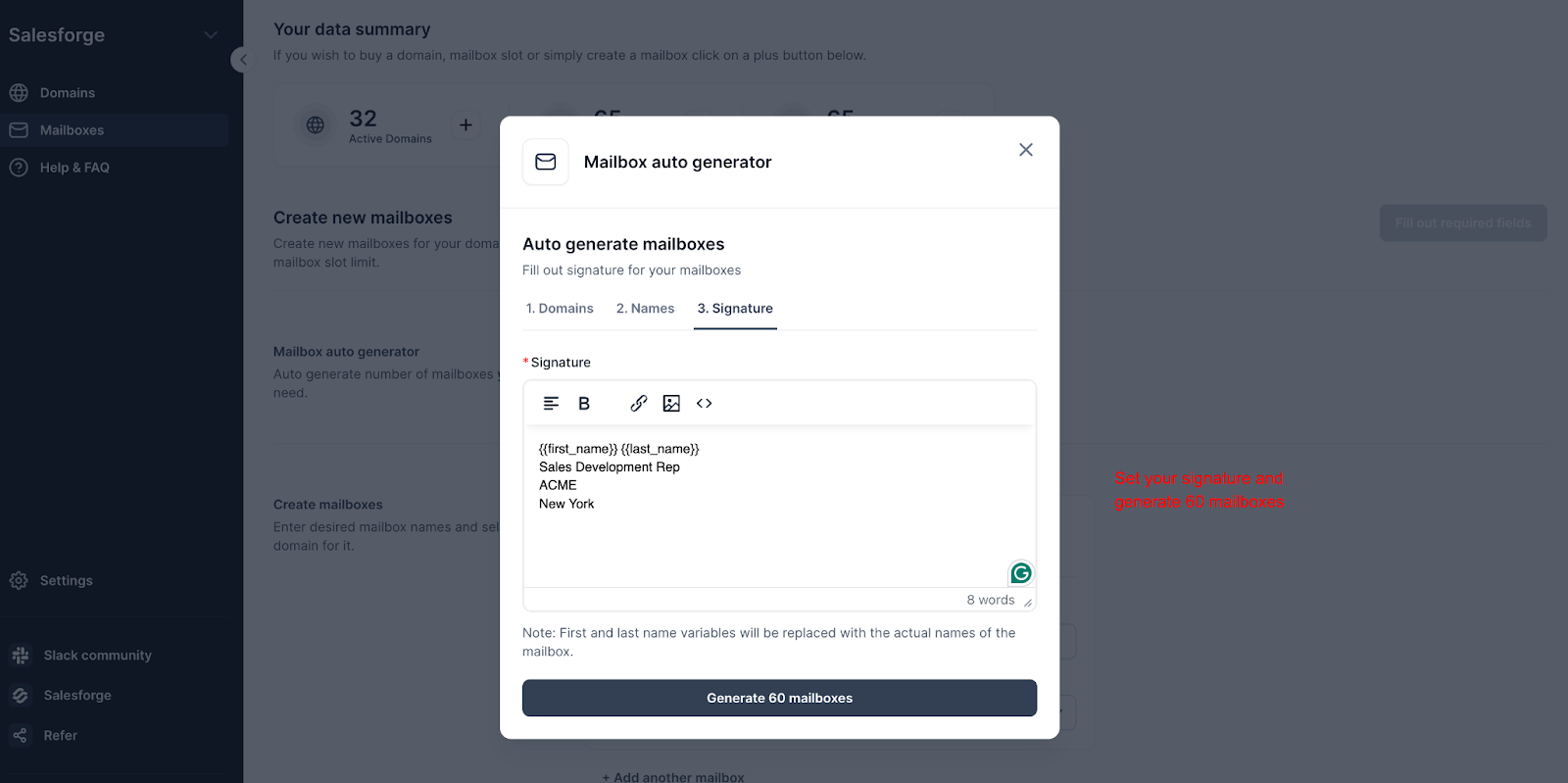
Keep the signature simple. Florin Tatulea suggests using plain text with no links, images, or calendar links, and including a physical address.
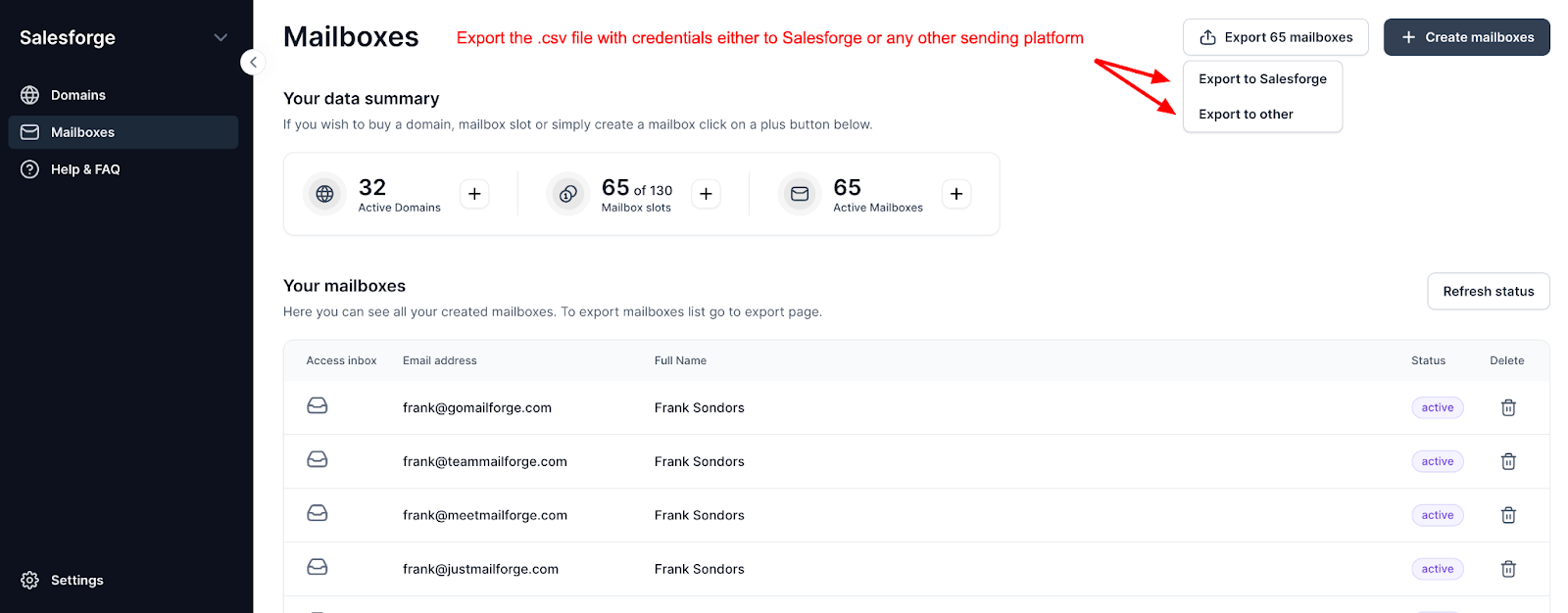
From the Mailboxes page, I export the mailboxes. Export to Salesforge connects them directly. Export to other downloads a CSV for any other sending platform, which I upload through that platform’s bulk-connect option.
The CSV contains login credentials, so I treat it like a password file and delete it after the import.
If your secondary-domain mailboxes are on Google Workspace instead, a Super Admin needs to approve the connection first:
Mailboxes connected this way are automatically added to Warmforge for warm-up. Salesforge also has a separate option for Gmail on your primary domain, which skips the Admin console setup. That option is for your main business inboxes and doesn’t add them to warm-up.
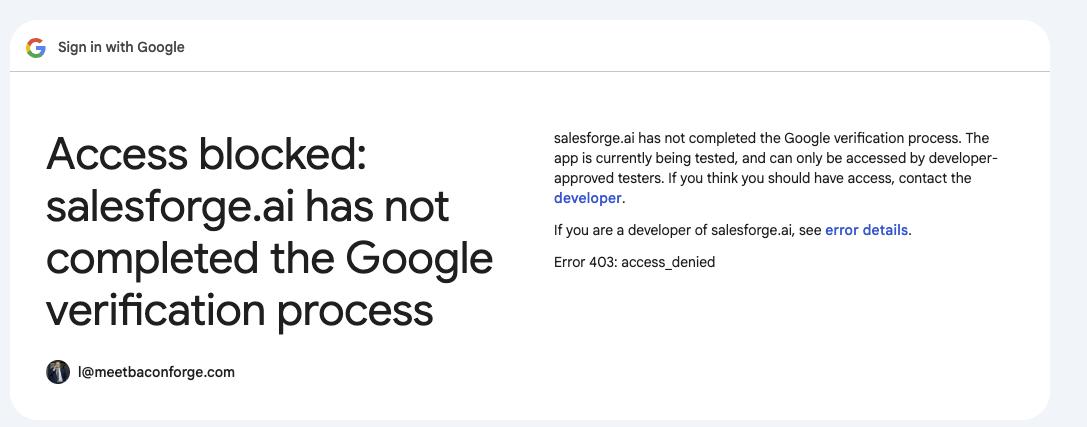
If Google shows a “403 access_denied” error during the connection, it usually comes from an OAuth setting. Upgrading your plan won’t fix it.
Make sure you’re signing in with the correct Google Workspace account, and ask your Super Admin to review the API controls. If it still doesn’t work, contact support and include a screenshot of the error.
Warm up the mailboxes for at least 2 weeks before adding them to a sequence. I’ll explain how in the next section.
Warm-up can feel like wasted time. You’ve paid for the mailboxes, but for two weeks they won’t send a single campaign.
Skipping it can cost more, though. Jumping straight to full volume can trigger spam filters and get the domain blacklisted. Then you’ll need to buy a new domain and start over.
Give each mailbox at least 2 weeks of warm-up before adding it to a sequence, and plan for 2 to 3 weeks.
Here’s the ramp-up I use for each mailbox:
Inbox providers use opens and replies during this phase to assess a new sender. So make sure those first emails go to people who’ll actually open them.
If opens drop or more emails land in spam while you’re ramping up, cut the volume and add another week. Losing a week costs far less than losing the domain.
Running that schedule by hand across 20 mailboxes means sending and replying to 200 to 400 emails a day just to build a sending history.
Warmforge handles that for you. It gradually increases each mailbox’s volume and tracks the numbers that show whether it’s building a good reputation.
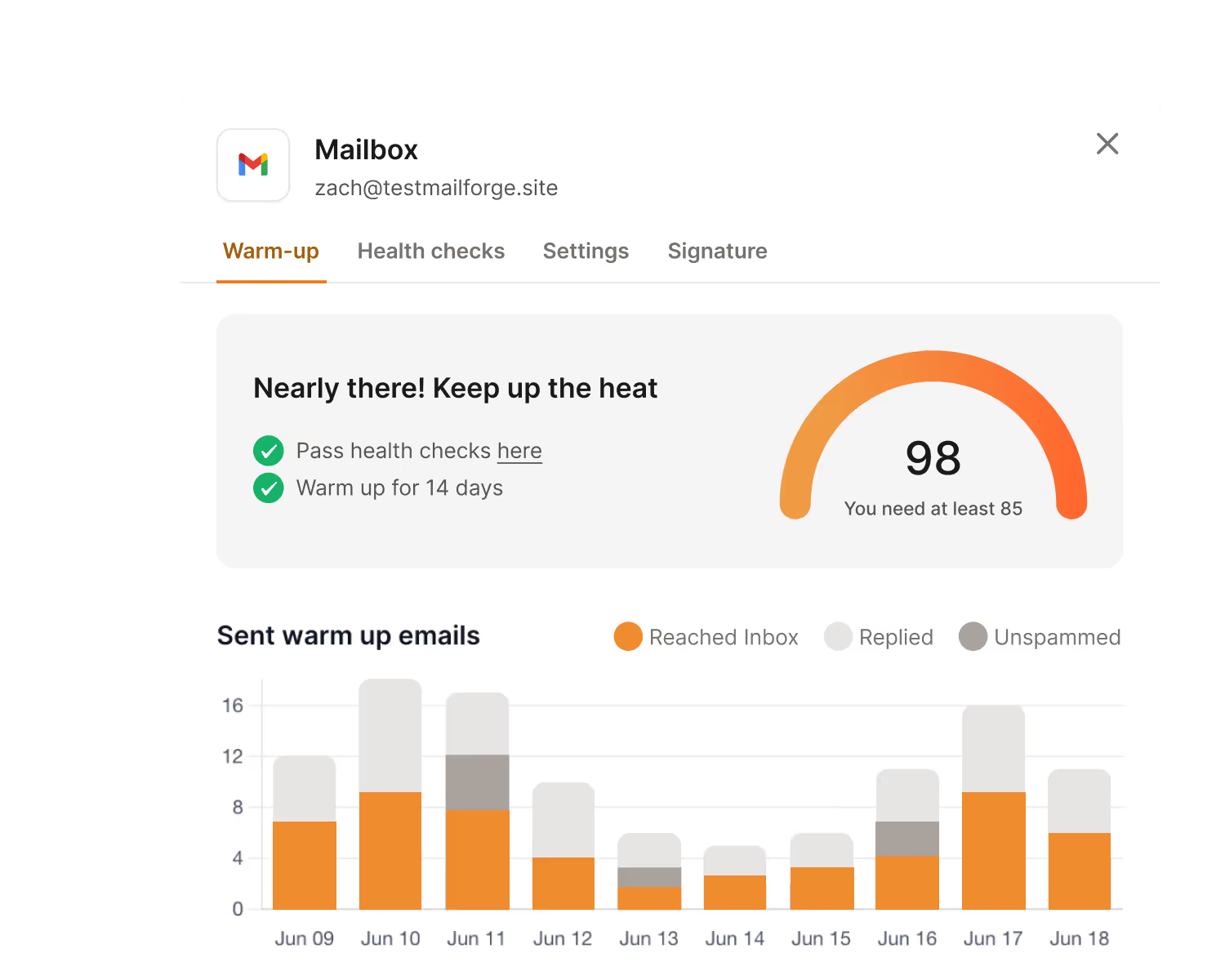
That way, you don’t have to adjust send counts by hand every day.
You don’t need Salesforge to use it. If you connect Google Workspace mailboxes on a secondary domain through Salesforge, they’re added to Warmforge automatically.
You can connect mailboxes from any other setup directly through Warmforge’s own connection.
Before moving a mailbox from warm-up to cold sends, I check where its emails actually land.
Send a test to seed addresses at Gmail, Outlook, Yahoo, and Apple Mail, then see which ones reach the inbox. Mail Tester, GlockApps, and Warmforge can all show you the results.
If a provider sends your test to spam, hold that mailbox back and give it more warm-up before using it in a campaign.
Once campaigns are running, keep an eye on open rates, reply rates, and spam placement for each mailbox.
Once campaigns start, I make sure each mailbox behaves as if it belongs to someone who sends email for a living:
Once campaigns are running across 10 or 20 domains, a drop in replies could come from any of them.
Here's how I protect cold email domain health: find the problem domain quickly and add more domains without hurting the ones already working.
Campaign reports average everything together, so a struggling domain can get lost in a campaign that still looks fine overall. I track the numbers for every domain and mailbox separately:
A spreadsheet works, as does the reporting in your sending tool. I log the numbers daily and review them weekly. That way, I can spot a slow decline before it leads to blacklisting.
A few routine checks help keep the setup in good shape:
As volume grows, I add a few domains each month. Setting up a big batch at once is harder to get right and harder to monitor. Before buying anything, I use the formula from the planning section to work out the new capacity.
Each new domain goes through the full setup outlined above, followed by warm-up. Before it joins a live campaign, I send small batches to contacts likely to reply for 3 to 5 days. I also spread mailboxes evenly across domains so no single domain carries more than its share of the load.
In Mailforge, adding domains follows the same few-minute process as step 1. New domains appear on the same Domains page as the ones you already have, each with its own status.
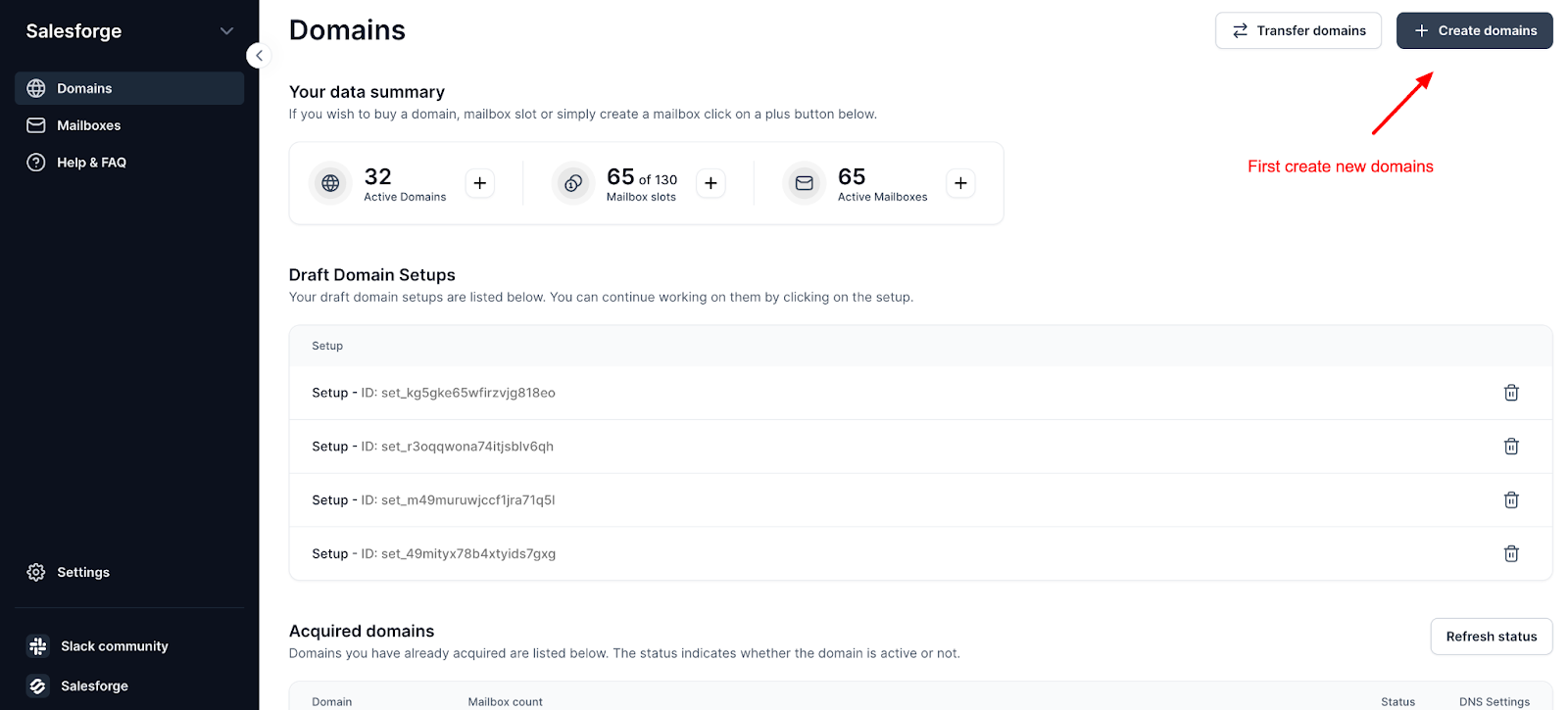
A flagged secondary domain won’t drag down the rest of your setup. Inbox providers track deliverability by domain, so the damage stays with that domain.
Spreading leads across multiple domains also spreads out the spam reports.
When a domain’s numbers start to slip, I cut its sending volume in half and give it another week of warm-up.
If it’s still struggling after that week, I stop using it for cold email and move its campaigns to a new domain.
Replacing a domain takes minutes in Mailforge, but the new one still needs to be warmed up. That’s why I keep one or two warmed-up spare domains ready.
When a domain gets flagged, campaigns can keep running on a spare while the replacement warms up.
Enter your email to get a custom plan & stack recommendation for your business
Please check your mailbox in 5 minutes
If I were starting from scratch today, my first two weeks would look like this.
On day one, I’d work out how many domains I need, generate them from my primary domain in Mailforge, and create 2 mailboxes on each. That takes just a few minutes.
From day 2 to day 14, the mailboxes warm up. I’d use that time to write the first sequence.
Before sending the first campaign, I’d run a placement test. If the test emails reach the inbox, the mailboxes are ready.
Start with 5 domains and 10 mailboxes on Mailforge, and have them warming up by tonight.