
If you want to send mass emails from Outlook, you can send the same message to multiple recipients or use mail merge to create personalized emails for each person.
The process depends on how many people you're emailing and whether each recipient needs a personalized message.
Outlook lets you handle both, but mail merge requires a few extra steps using Microsoft Word and an Excel spreadsheet.
In this guide, you'll learn how to send mass emails from Outlook, follow the steps to set up mail merge, and understand the limitations of using Outlook for bulk email campaigns.
Outlook gives you two main ways to send mass emails. You can add multiple recipients to one message or use Microsoft Word's Mail Merge feature to send separate, personalized emails.
Choose the first method when everyone can receive the same message. Use the second when each recipient needs a personal greeting or other details from your contact list.
The simplest way to send a mass email is to add multiple addresses to one message. You can use the To, Cc, or Bcc field, depending on who should see the recipient list.
Follow these steps:
When should you use this method?
Use it for announcements, internal updates, event invitations, and other messages that do not need individual personalization.
Keep in mind that every recipient receives the same message. You also need to follow your Outlook account's sending limits. For a large list, check the applicable limits before sending.
Mail merge helps you send individual emails to many people without writing each message from scratch. You prepare a contact list in Excel, create the message in Microsoft Word, and use merge fields to personalize each email.
For example, you can write a message that starts with each recipient's name. You can also include details such as their company name if those details are available in your spreadsheet.
The process below applies to the classic Outlook for Windows workflow with Microsoft Word. Menu options may differ by Outlook version, and the same desktop mail-merge workflow may not be available in New Outlook.
Start by creating an Excel spreadsheet with one row for each recipient. Use the first row for column headings.
Your spreadsheet might include these columns:
Replace the sample details with your actual contact information. Before moving to the next step, check the list for errors.
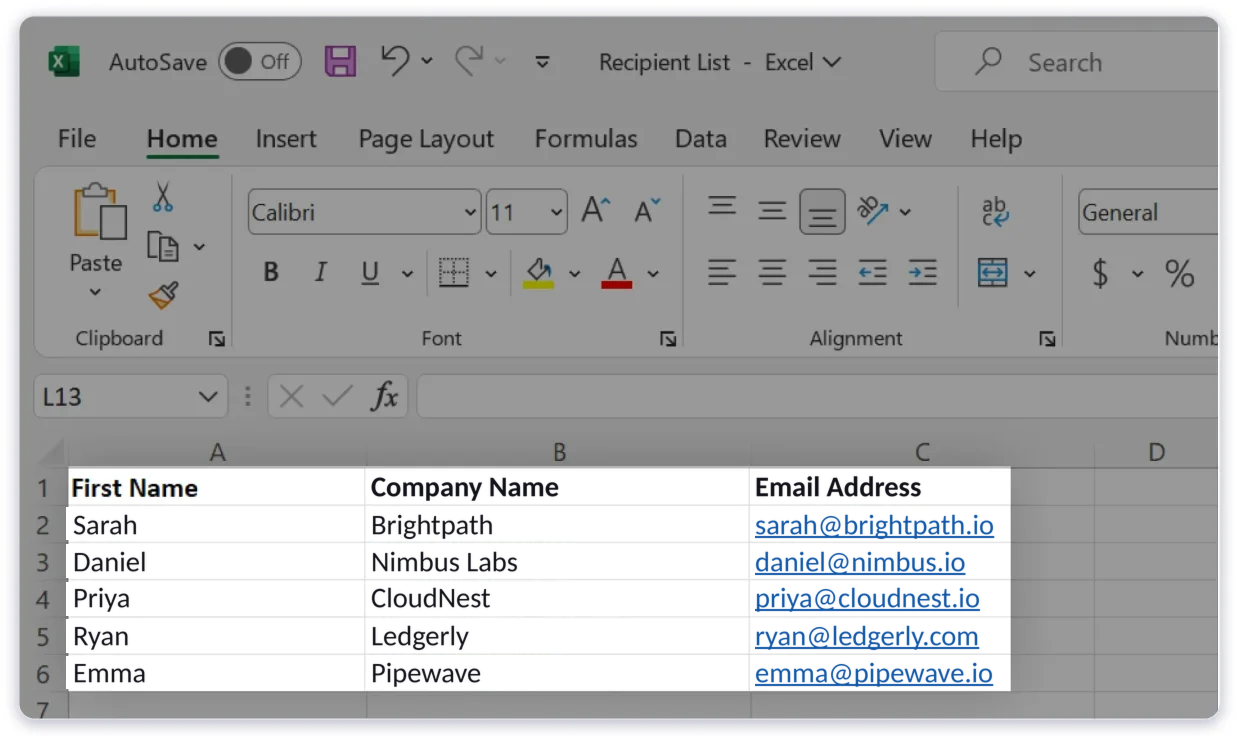
Remove duplicate contacts, correct invalid email addresses, and make sure each column has a clear heading. Save the spreadsheet so Word can use it as the recipient list.
Open Microsoft Word and create a blank document. You will use it to write the email that Outlook sends to each recipient.
Next, open the Mailings tab and select Start Mail Merge. Choose E-mail Messages from the available options.
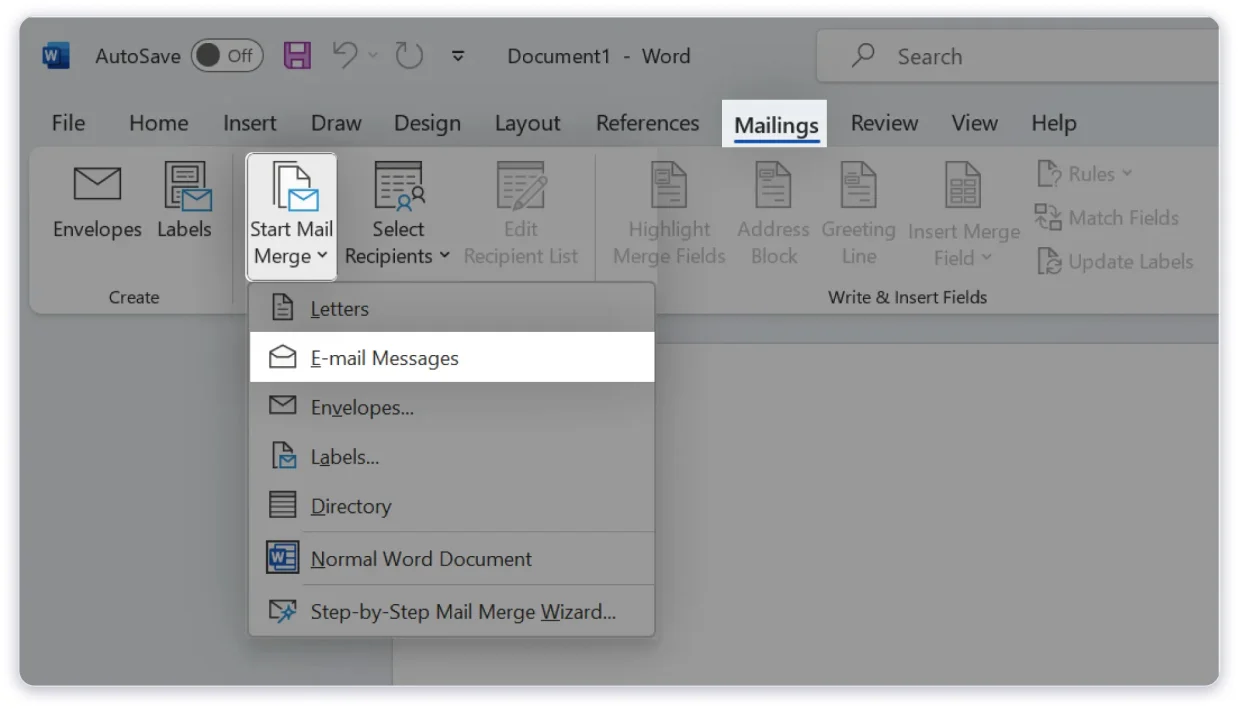
Word will now treat the document as an email template.
You can write your message and insert fields that pull information from your Excel spreadsheet.
Open the Mailings tab and select Select Recipients.
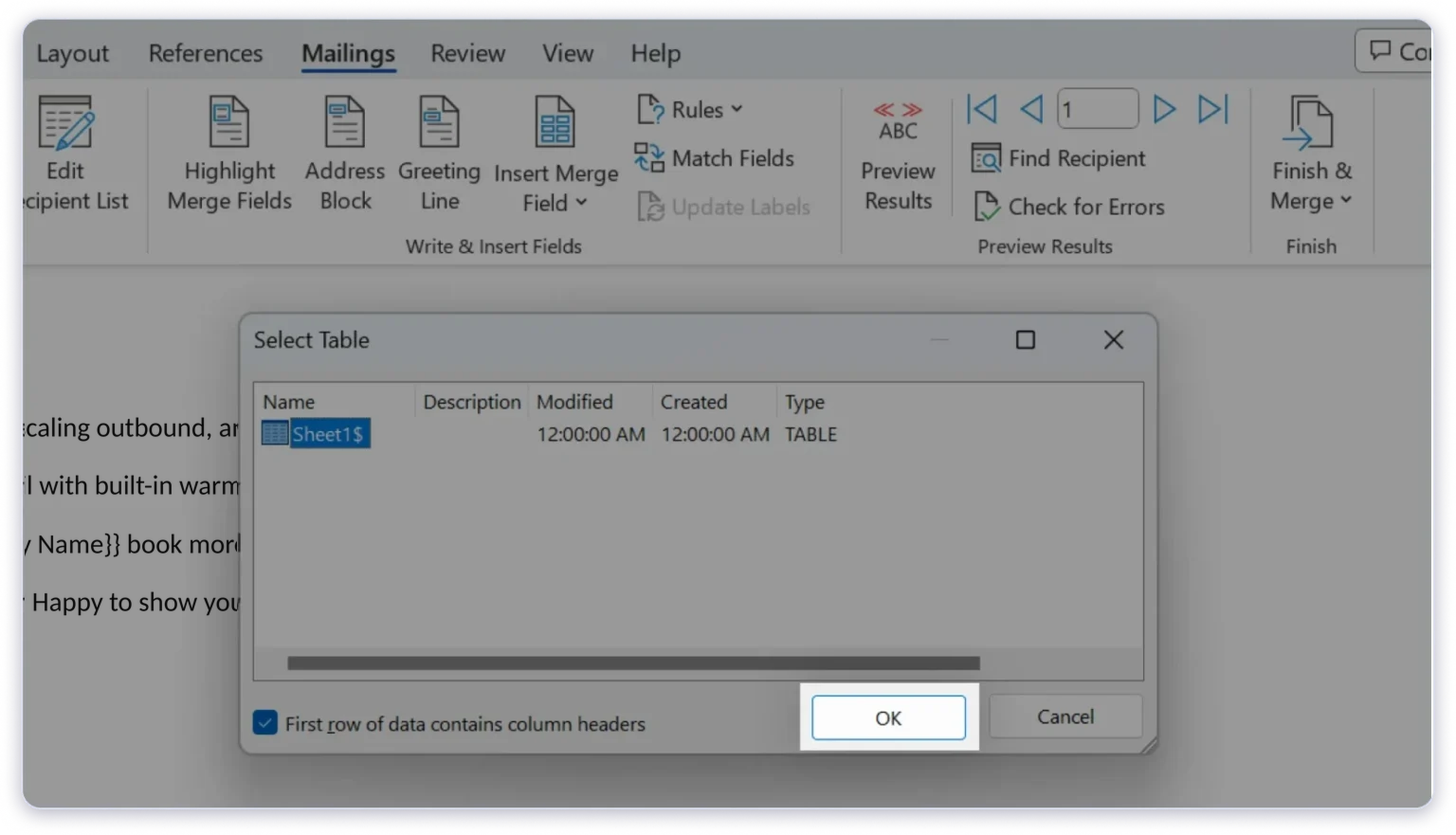
Choose Use an Existing List, then find and open your Excel file. If Word asks you to select a worksheet, choose the one that contains your contact list.
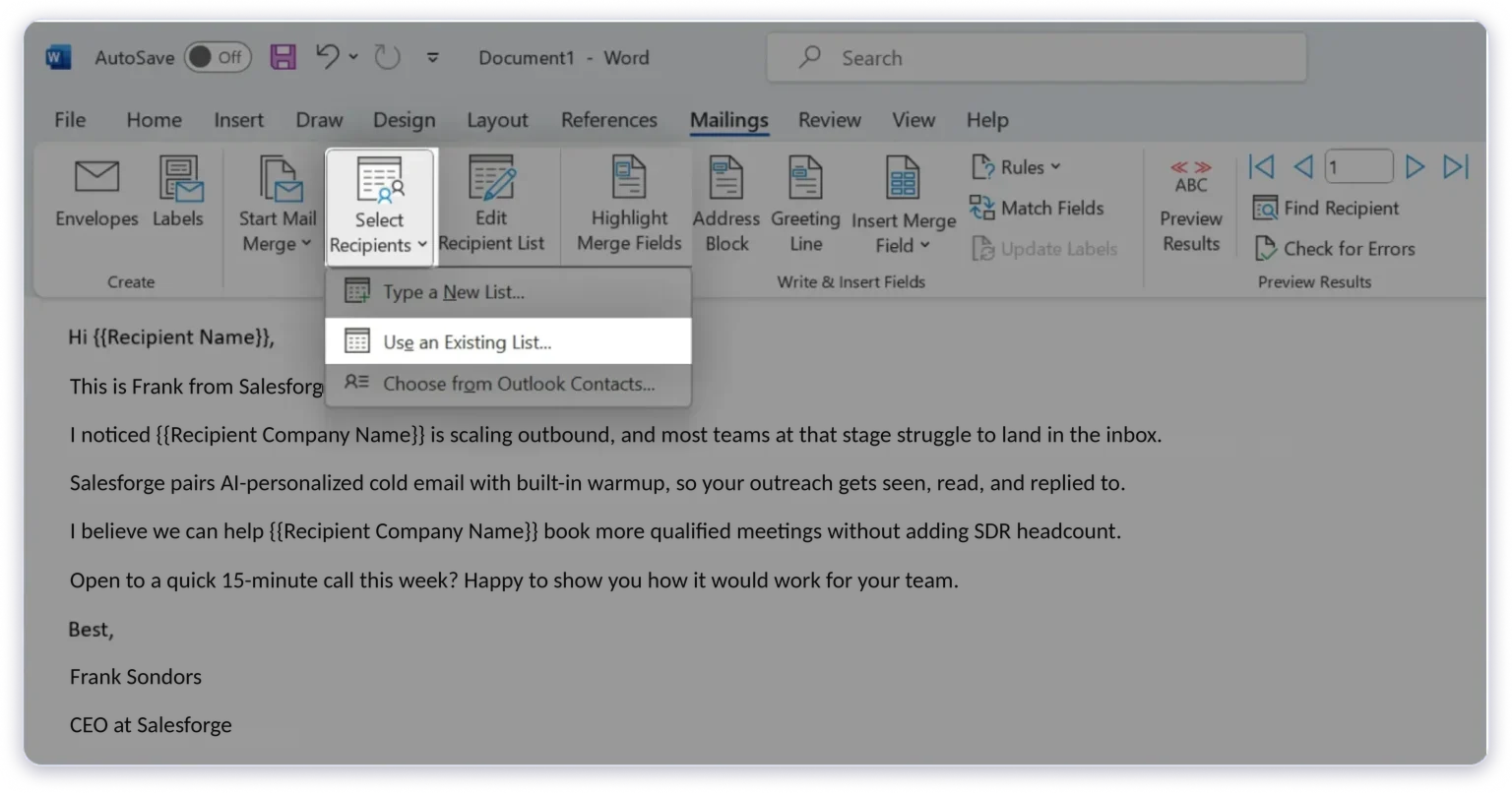
Check the recipient data before continuing. Make sure the email column contains the correct addresses and that the spreadsheet headings match the information you want to use in your message.
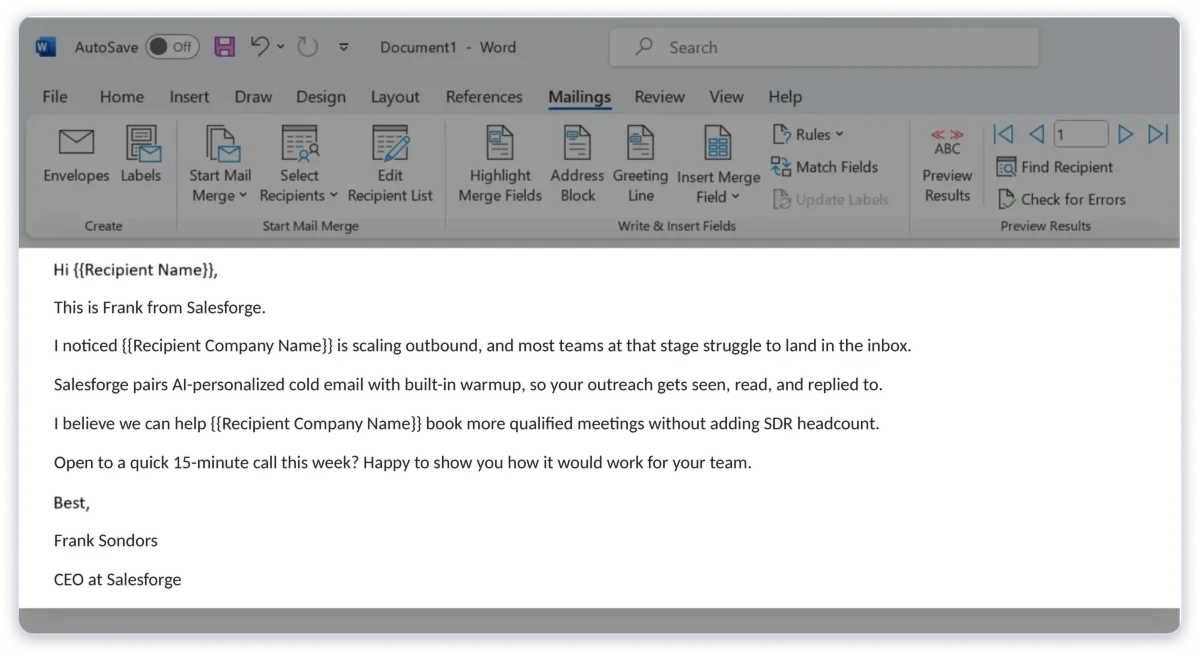
Write your email in Word. Then insert merge fields wherever you want Word to add information from your spreadsheet.
For example, your message could look like this:
To add a field, place your cursor where the information should appear. Select Insert Merge Field under the Mailings tab, then choose the relevant column.
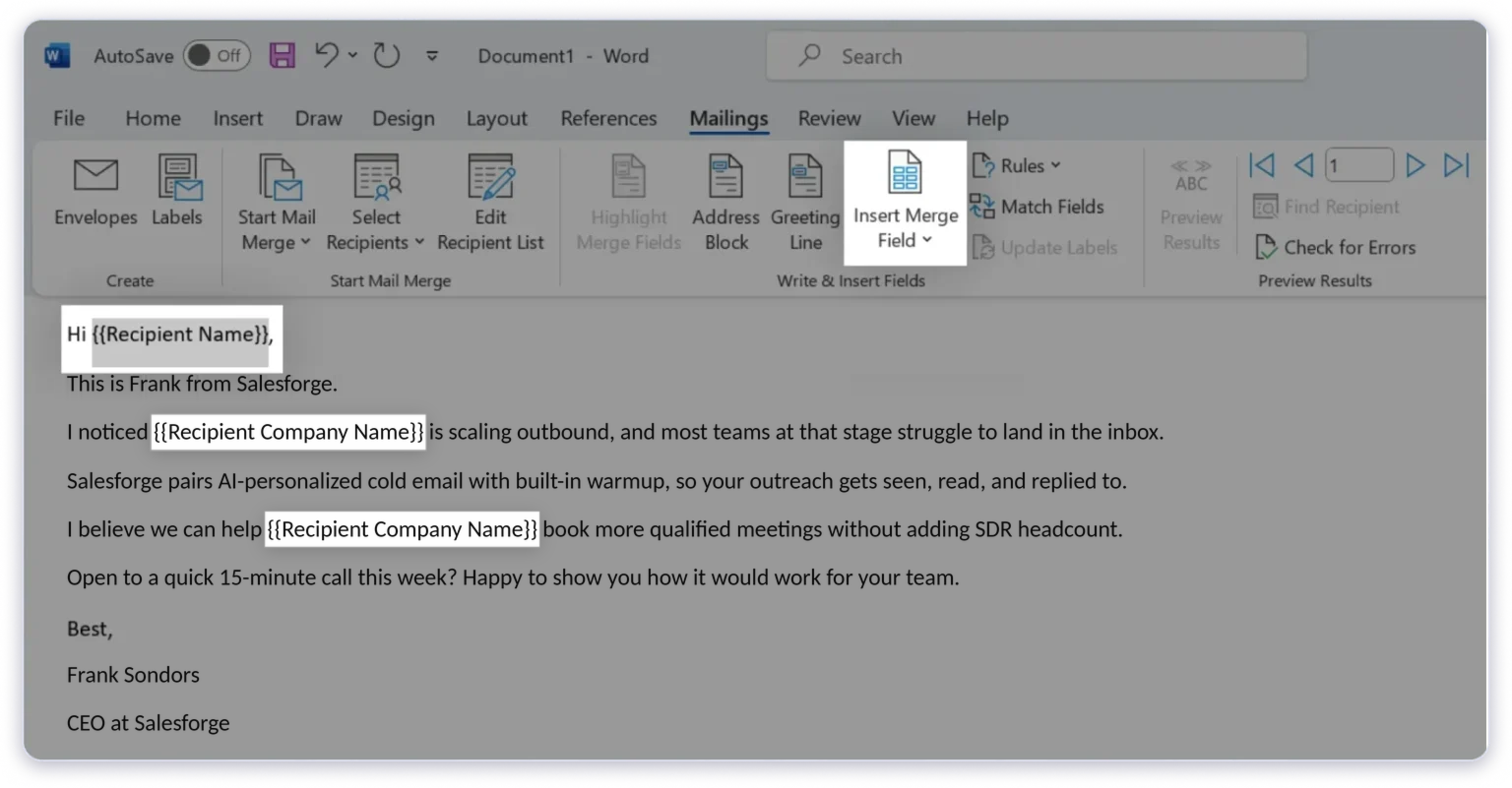
Word will replace each field with the matching value when it creates the emails. Keep the message clear and relevant to the recipients. Personalization works best when the information is accurate and useful.
Before sending the emails, select Preview Results under the Mailings tab. Move through a few records to check how the message looks for different recipients.
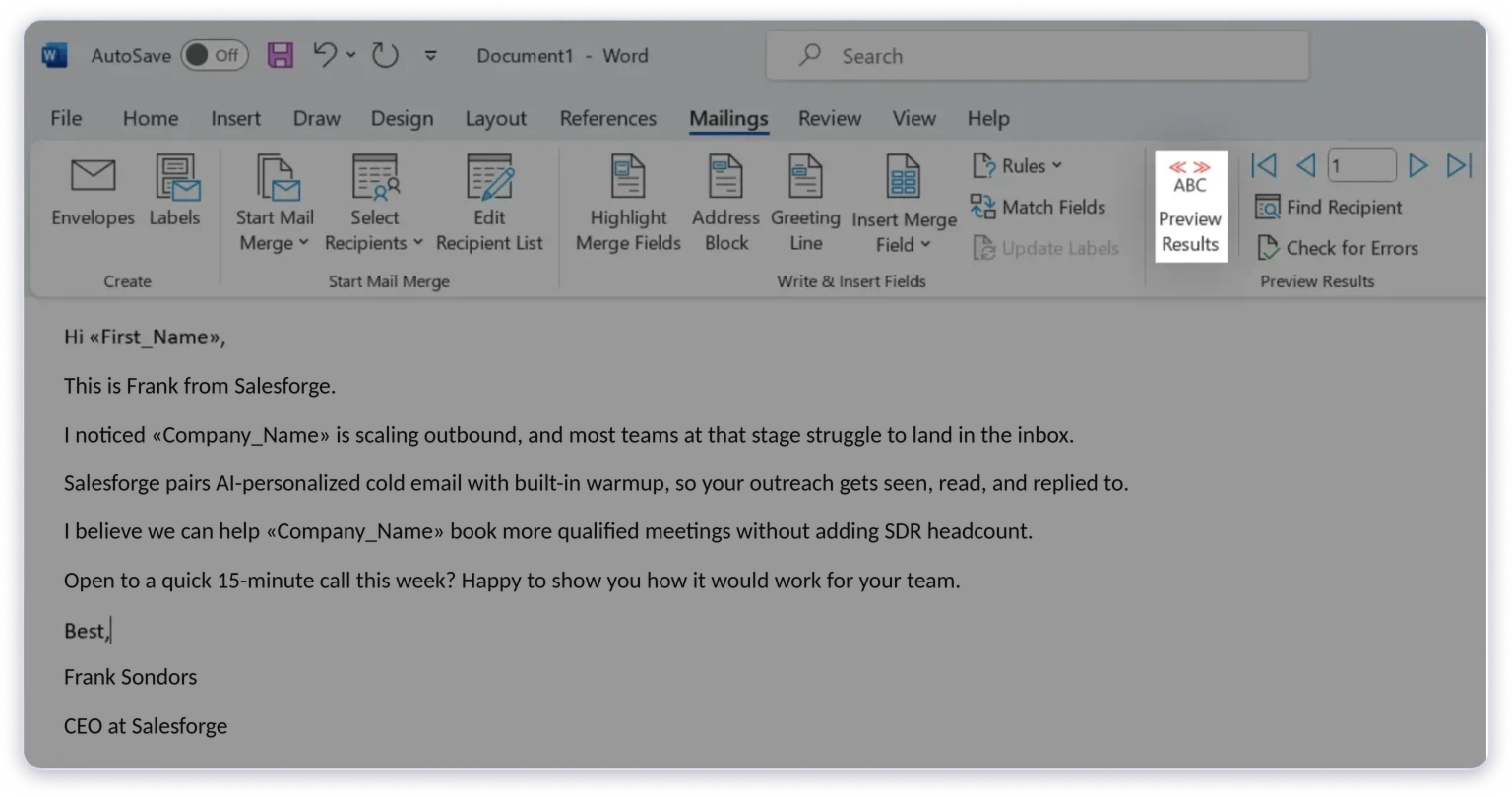
Look for missing names, incorrect company details, and formatting problems. Fix any issues before sending the campaign.
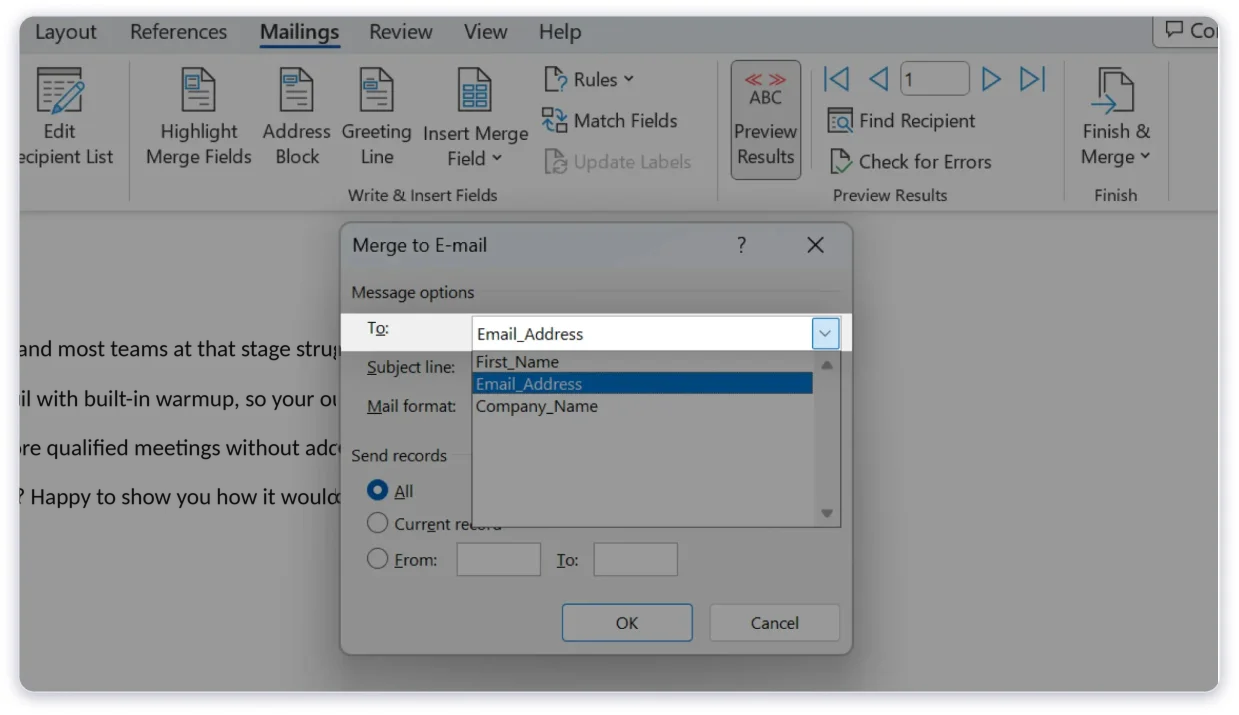
When the message is ready, select Finish & Merge, then choose Send E-mail Messages. In the dialog box, select the column that contains the email addresses, enter your subject line, and choose the email format.
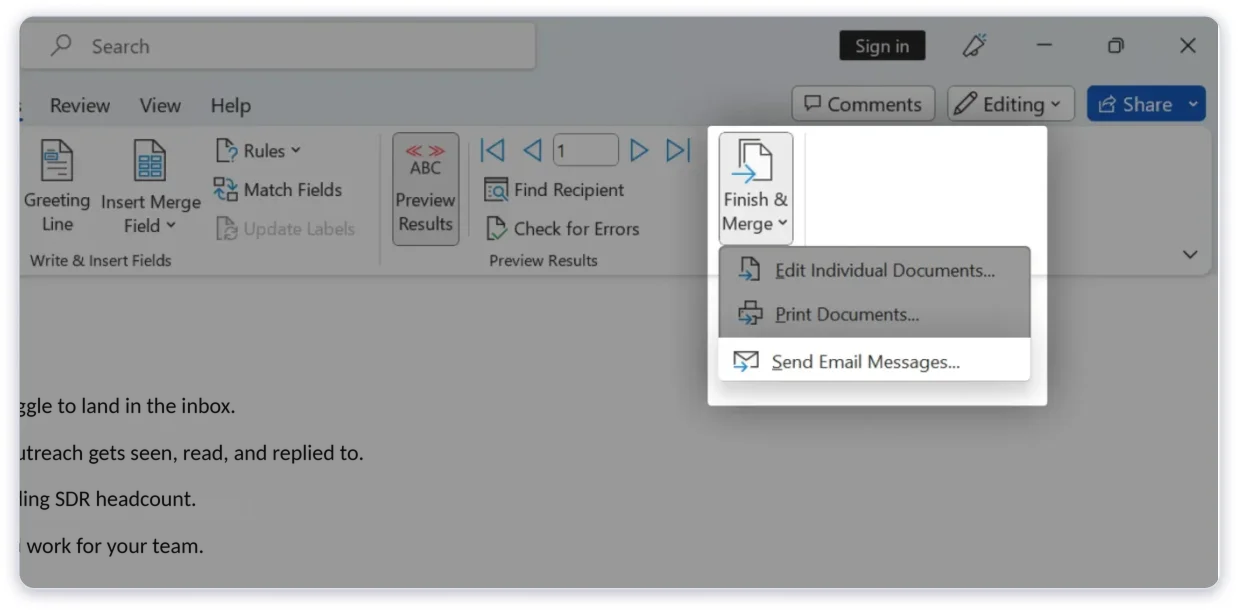
You can then select which records to send and confirm the action. Word creates a separate email for each recipient through the compatible Outlook desktop workflow.
Send a small test first when possible. It helps you catch mistakes before they reach your full list.
Outlook works well for regular business communication and smaller email lists. However, it has limitations when you need to manage large campaigns, personalize messages at scale, or follow up with prospects over time.
Here are the main points to consider before using Outlook for mass email campaigns.
Outlook limits how many recipients you can email within a set period. The exact limit depends on your account type, service plan, and organization's configuration.
For example, Microsoft documents a daily recipient limit of up to 5,000 recipients for eligible Microsoft 365 subscribers using Outlook.com, with a maximum of 500 recipients per message.
Exchange Online has a separate recipient limit of up to 10,000 recipients per mailbox in a rolling 24-hour period, with a default limit of 500 recipients per message. Actual limits can vary by account and configuration.
These limits matter when you plan to send messages to a large list. Reaching a limit can prevent additional messages from going out until the restriction resets.
Before sending a campaign, check the limits that apply to your account. Avoid splitting a large campaign into repeated sends simply to get around a restriction.
Outlook lets you add names and other details to emails through Word's Mail Merge feature. However, the process requires a separate spreadsheet and a Word document.
You must prepare the data, connect the recipient list, insert the merge fields, and preview the results before sending. Updating the campaign can take extra work, especially when you have many recipients or need different message variations.
Mail merge is useful for basic personalization. It is less convenient when you need to change messages based on prospect behavior, company details, or responses to earlier emails.
Outlook provides basic email features, but it does not offer the full campaign management workflow that dedicated outreach platforms provide.
You can use read receipts in certain situations, but they do not provide a reliable picture of campaign performance. Recipients can decline them, and email clients may handle them differently.
Follow-ups also require extra work. If a prospect does not reply, you may need to track the date manually and send another message yourself.
When you manage many prospects, it becomes harder to remember who received an email, who replied, and who needs a follow-up. A dedicated outreach platform can help organize these tasks in one place.
Sending an email does not guarantee that it will reach the recipient's inbox. Messages can land in spam or be rejected because of poor list quality, authentication issues, sending patterns, or recipient complaints.
Outlook is designed for everyday email communication. It does not remove the need to manage email infrastructure and sender reputation when running cold outreach campaigns.
Before sending to a list, verify that you have permission or another valid basis to contact the recipients. Remove invalid addresses, configure SPF, DKIM, and DMARC where applicable, and follow the sending rules of your email provider.
For cold outreach, use appropriate sending infrastructure and keep your volume within provider limits. No tool can guarantee inbox placement.
Word's Mail Merge feature sends individual emails, but it does not provide a complete subscription management system.
If you send marketing emails, you need a way to honor opt-out requests and keep your contact list up to date. With a manual mail-merge process, you may have to manage these requests outside Outlook.
That creates more work and increases the risk of contacting someone who has asked not to receive further messages.
Use an email marketing or outreach platform with suitable unsubscribe management when your campaign requires it. Make sure your email practices comply with applicable laws and your provider's policies.
Outlook can send emails and schedule individual messages, depending on the version and account. However, it is not designed to manage complex outreach sequences on its own.
For example, you might want to send an introductory email, wait three days, and send a follow-up only if the prospect has not replied. Managing that process manually becomes difficult as the list grows.
Dedicated outreach tools can automate steps based on schedules and campaign rules. They can also help you pause follow-ups when a prospect replies or opts out.
If you send occasional updates, Outlook may be enough. If you run recurring cold email campaigns, a dedicated platform can make the workflow easier to manage.
Mailforge helps you set up the domains and mailboxes you need for cold email outreach.
It provides the email infrastructure for your campaigns, while a sending platform such as Salesforge helps you create email sequences, automate follow-ups, and manage campaign activity.
Unlike Outlook, which is built for everyday email communication, Mailforge focuses on preparing your infrastructure for cold outreach.
The following steps explain how the workflow fits together.
Start by setting up the domains and mailboxes you plan to use for cold outreach.
Mailforge helps you create shared email infrastructure for outreach. Choose a setup that fits your campaign size and follow the platform's guidance for domain and mailbox configuration.
Keep your main business domain separate from cold outreach where appropriate. Your primary domain may handle customer support, invoices, and other important business communication, so protecting its reputation matters.
Before sending, make sure the required email authentication records are configured. Give new infrastructure time to establish a sending history and follow the provider's recommended sending practices.
Mailforge provides the sending infrastructure, but you still need a way to manage your outreach campaigns.
Connect your mailboxes to a compatible sending platform, such as Salesforge, using the supported setup process. The sending platform can help you create sequences, manage prospects, and organize replies.
Check that each mailbox connects correctly before launching a campaign. Confirm that the sender name, email address, and reply settings are correct.
A good campaign starts with a relevant and accurate prospect list.
Prepare a spreadsheet or import your contacts into your outreach platform. Include the details you need for personalization, such as first name, company, role, and a relevant reason for contacting each person.
Review the list before importing it. Remove duplicate records, correct missing details, and verify email addresses where possible.
Focus on prospects who match your offer. A smaller and relevant list is often more useful than a large list of contacts with little connection to your product or service.
Write an introductory email that explains why you are reaching out and what value you can offer. Keep it concise and give the recipient a clear next step.
If you plan to send follow-ups, make each one useful. Avoid sending the same message repeatedly. You can add context, answer a likely question, or offer a different reason to respond.
Use cold email personalization fields only when the underlying data is reliable. Preview your messages to check that names, company details, and other fields appear as expected.
Set the sequence timing and stopping rules in your sending platform. For example, configure the campaign to stop sending follow-ups when a prospect replies or opts out, where the platform supports those rules.
Before launching the full campaign, test the setup with a small number of internal or approved test addresses. Check the message formatting, links, sender details, and reply handling.
Start with conservative sending volumes that fit your provider's rules and the history of your mailboxes. Do not increase volume just because the platform allows it.
Once the campaign is running, monitor bounces, replies, complaints, and other available performance data. Investigate problems before increasing the number of emails you send.
Pause the campaign if you see signs of poor list quality or deliverability problems. Fix the cause before resuming.
Outlook and Mailforge serve different purposes, so the right choice depends on the work you need to do.
Outlook is useful for sending everyday business emails and managing individual conversations. Mailforge focuses on the infrastructure behind cold email outreach. When paired with a sending platform, it supports a more structured campaign workflow.
The main difference is that Mailforge does not replace every Outlook feature. It addresses the infrastructure side of cold outreach, while a sending platform handles campaign execution and follow-ups.
If you need to email a group about an internal update or event, Outlook is a sensible option. If you plan to contact prospects through structured cold email campaigns, Mailforge combined with a suitable sending platform may fit your workflow better.
Outlook gives you a simple way to send mass emails. You can add multiple recipients to one message or use Word's Mail Merge feature to personalize emails with details from an Excel spreadsheet.
However, managing large campaigns becomes harder when you need automated follow-ups, campaign tracking, and better control over your email infrastructure.
For occasional announcements and internal updates, Outlook may be enough. For cold email outreach, Mailforge helps you set up the email infrastructure, while a compatible sending platform such as Salesforge helps you manage email sequences and follow-ups.
Choose the approach that fits your needs, prepare your recipient list with care, and follow your email provider's sending rules. These steps will help you manage mass emails with fewer errors and a more organized workflow.
Compose a new email and add your recipients to the To, Cc, or Bcc field. For repeated mailings, use an Outlook contact group where available. If you need personalized messages, use Word's Mail Merge feature in a compatible setup.
The limit depends on your Outlook account and email service. Outlook.com and Exchange Online have different recipient limits. Check the current limits for your account before sending a large mailing.
Add the recipients to the Bcc field. Each recipient will receive the email without seeing the other addresses in that field.
No method can guarantee inbox placement. Use valid recipient addresses, configure email authentication, follow sending limits, and avoid sudden increases in volume. Monitor bounces and complaints, and remove contacts who opt out.
The classic Word Mail Merge workflow is not available in the same way in New Outlook. The options depend on your Outlook version and account. Check Microsoft's current guidance or use a compatible email platform if you need advanced personalization.
Outlook can send cold emails, but it has limited campaign automation and tracking features. For structured outreach, dedicated infrastructure and a sending platform can help manage mailboxes, sequences, and follow-ups.
The best alternative depends on your use case. Email marketing platforms suit newsletters and subscriber campaigns. For cold email outreach, Mailforge can provide email infrastructure, while a compatible sending platform such as Salesforge can manage campaign sequences and follow-ups.