If your emails keep landing in spam, understanding your SMTP setup can help you identify the problem. It also helps when your email tool fails to connect or rejects your login details.
SMTP handles the sending of your emails, but it does not guarantee inbox placement. Your email authentication, sender reputation, and sending practices also affect deliverability.
Whether you send cold emails or run email marketing campaigns, knowing how SMTP works can help you configure your settings and troubleshoot sending issues.
In this guide, you'll learn how SMTP works, which settings you need, how to fix common errors, and how to choose the right SMTP server for your email campaigns.
SMTP stands for Simple Mail Transfer Protocol. The SMTP protocol is the standard that email systems use to send email messages between servers.
An SMTP server is the system that handles outgoing email. It takes the message from your email app or sending tool and passes it to the recipient's mail server.
For example, when you send an email through Gmail, Google's own SMTP servers handle it. You don't need to set up an SMTP server yourself.
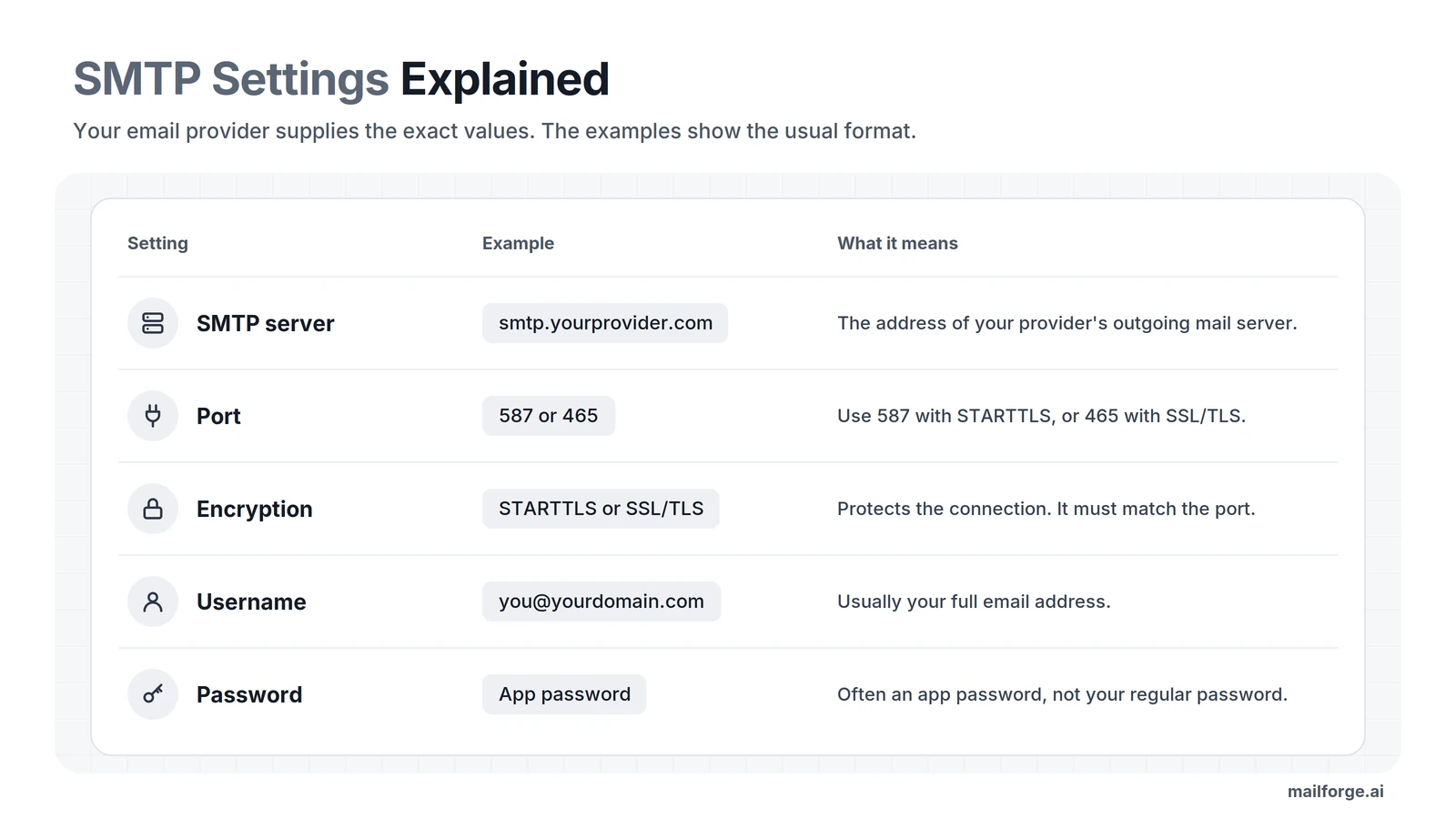
When you connect a mailbox to an email sending tool, you may need to enter these details:
Your email provider supplies these settings. Gmail and Microsoft 365, for example, each publish their own SMTP details and login rules.
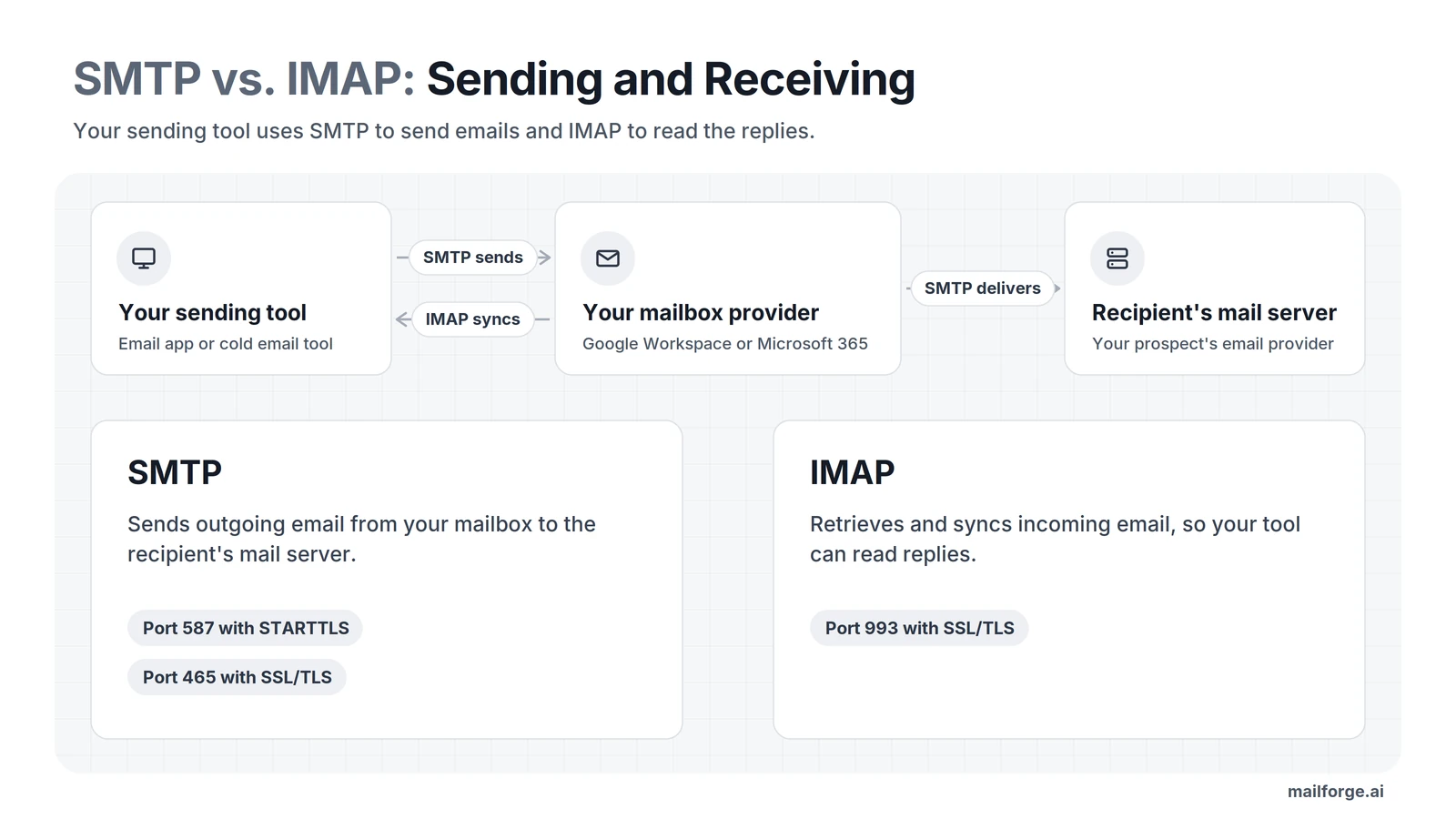
SMTP and IMAP are two protocols that handle different parts of email. SMTP sends your messages out. IMAP brings messages into your email app and keeps your mailbox in sync.
For example, when you send a sales email, SMTP delivers it to the recipient's mail server. When the prospect replies, IMAP lets your email app or sending tool read that reply from your mailbox.
Cold email tools need both protocols. They use SMTP to send your emails and IMAP to track replies. That's why you often enter both SMTP and IMAP settings when you connect a mailbox.
Some older setups use POP3 instead of IMAP. POP3 downloads email to one device, so modern tools usually use IMAP.
If you use a cold email tool, SMTP is one part of your email-sending setup. It helps your tool send messages through a connected mailbox or email service.
You also need to consider three other things:
In short, SMTP sends the email. Your authentication, reputation, and sending habits decide whether it reaches the inbox.
I cover each of these in the email deliverability section.
You don't need to know the technical details to set up SMTP. The steps below show how SMTP sending works every time you send an email.
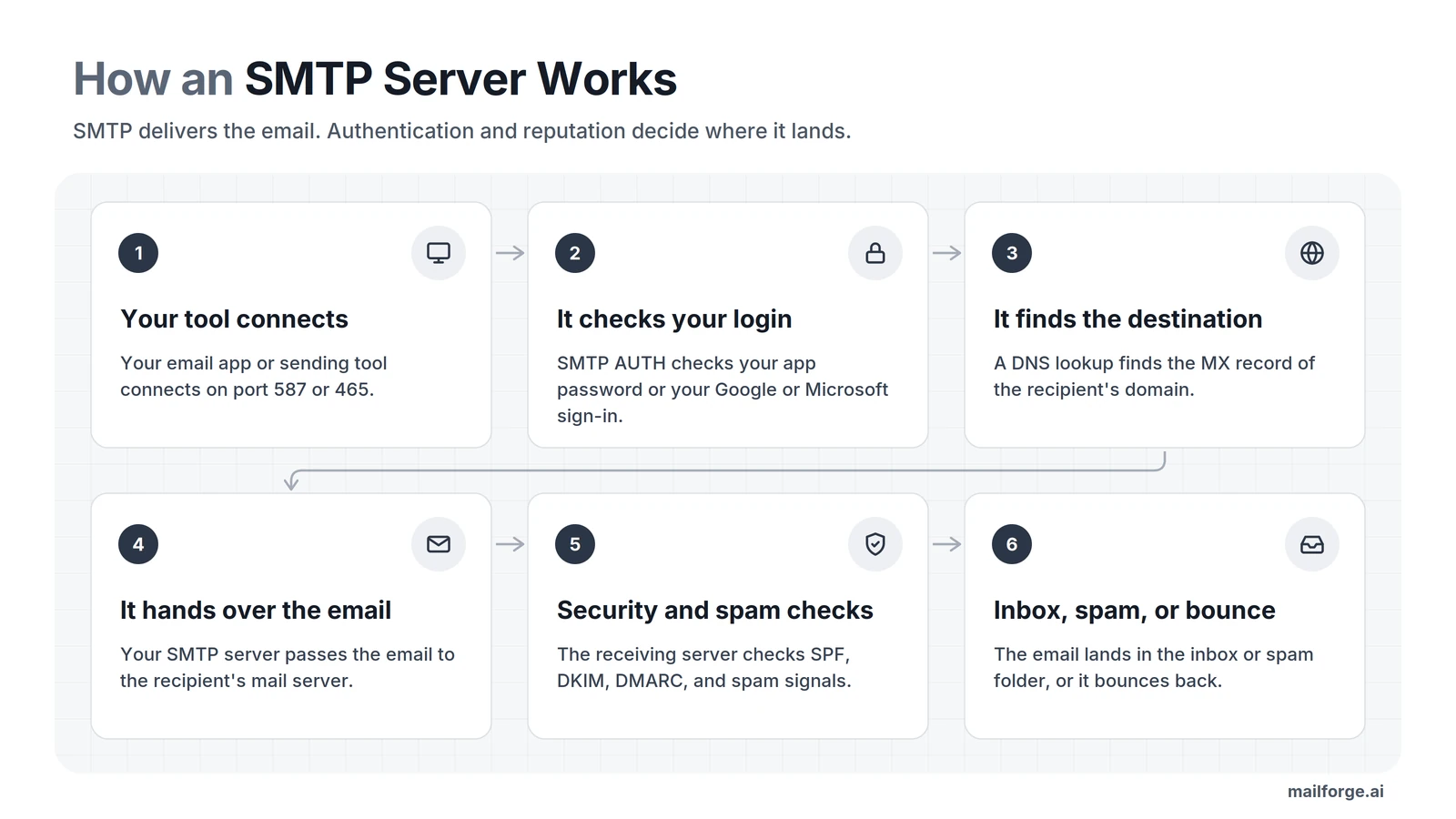
Each server that passes your email along is a mail transfer agent, or MTA. If you and the recipient use the same mail server, the email may never leave that provider's system.
SMTP handles email delivery, but it doesn't control where the email lands.
Sometimes the last step fails. Some problems are temporary. For example, the recipient's email server may be busy. In that case, your server tries again later before it gives up.
Other problems are permanent. For example, if the recipient address doesn't exist, the receiving server rejects the email and you get an error message.
In cold email, I watch bounces closely. Many bounces from invalid addresses hurt your sender reputation, so I check my contact list before every campaign.
Your tool connects to the SMTP server through an SMTP port. A port is a numbered connection point on the server. The port and the encryption setting must match, or the connection fails.
For most email apps and sending tools, I recommend port 587 with STARTTLS. Port 465 with SSL/TLS also works if your provider supports it.
Generally, each provider provides instructions about which port to use.
A common SMTP configuration mistake is to set port 587 and leave encryption turned off. The server then rejects the connection and shows a 530 error that asks for STARTTLS.
To fix it, turn on STARTTLS in your tool's settings. You can also switch to port 465 with SSL/TLS. Then send a test email to confirm the connection works.
The table below shows the SMTP server settings for the four email service providers you'll meet most often.
These settings work for most accounts. Login options can still vary by account type and tool, so check each provider's current help pages before you connect.
The login method matters as much as the server address. Most providers now ask for an app password or a Google or Microsoft sign-in instead of your normal password.
People call the Google and Microsoft sign-in option OAuth. With OAuth, you give a tool access to your mailbox without sharing your password.
Gmail and Microsoft 365 each have rules you need to know before you connect them. I cover both below.
Before you connect a Gmail account, check how you will sign in and how much the account can send.
If your sending tool offers "Sign in with Google," use it. If it doesn't, you can use an app password instead. Your regular Google password usually won't work for this kind of connection.
To create an app password, you need to turn on 2-Step Verification. Some work accounts don't offer app passwords at all. If you can't find the option, use a sending tool that supports Google sign-in.
A standard Google Workspace account has a published limit of up to 2,000 messages per day, while trial accounts have a lower limit of 500. Limits can change and depend on account type and sending method. These are provider limits, not recommended cold email volumes for one mailbox.
If you connect Microsoft 365 mailboxes to a sending tool, you have a deadline to plan for.
Microsoft is changing how sending tools log in to Microsoft 365 with a password. Microsoft calls this type of login Basic Authentication for SMTP AUTH. A tenant is your organization's Microsoft 365 account.
Microsoft's updated timeline looks like this:
Read Microsoft's updated timeline.
If password logins are off for your tenant, any tool that still uses them gets a "550 5.7.30" error. So not every mailbox stops working at the end of December 2026. It depends on your tenant's settings.
Check how your sending tool connects to Microsoft 365. If it uses a password login, ask the tool's provider whether it supports Microsoft sign-in (OAuth). Then make the switch before your admin or Microsoft turns password logins off.
If you connect through Salesforge's Microsoft sign-in, you shouldn't need to change anything. If you use a custom SMTP connection, confirm the login method with your tool and mailbox provider.
You can set up SMTP in an email app, a website, or a sending tool. The exact steps depend on the service you use.
Follow these steps to set up an SMTP connection.
Start with your email provider's help pages. Look for the outgoing server address and port, plus the encryption method and login rules.
For example, Gmail lists smtp.gmail.com as its SMTP server, while other providers use different addresses. Don't copy another provider's settings and expect them to work with your account.
Next, open the page in your tool where you add or manage mailboxes. Tools usually offer two ways to connect. You can sign in with Google or Microsoft, or you can enter your SMTP and IMAP settings by hand.
Choose the method that both your provider and your tool support.
If your tool asks for manual setup, enter these details from your provider:
Check each value against your provider's help pages before you save.
Now log in. If the tool sends you to Google or Microsoft, check the permissions it asks for and finish the sign-in.
If the tool asks for an app password, create one in your account's security settings. Your regular password usually won't work here.
Finally, send a test email to an address you can check. Then look for three things:
A successful connection only shows that your tool can reach the SMTP server. It doesn't guarantee that future emails will land in the inbox.
Once your settings work, you need to decide which SMTP service or SMTP provider to use. You have four main options. The right one depends on how much you send and how much technical work you want to do.
I explain each option in more detail below.
The simplest option is the SMTP server that comes with your current mailbox. You connect the mailbox to your sending tool and start sending.
This option gets harder as you grow. You have to set up every new domain and DNS record yourself. You also usually pay for another user license with each new mailbox.
Services such as Amazon SES and SendGrid are SMTP email services that relay email for you. They focus on transactional email, such as receipts and password resets. People expect to get these messages.
Each service's rules decide whether you can use it for cold email. For example, the AWS acceptable use policy bans unsolicited mass email. I recommend that you read each provider's current policy before you send a campaign through it.
If you run your own SMTP server, you control every setting. You also have to fix every problem yourself.
Cloud providers such as AWS and Google Cloud block outgoing mail on port 25 by default. A new server also has no sending history. You have to handle authentication, reputation, and blocklists on your own.
Cold email infrastructure service providers design their products for outbound teams. They usually give you mailboxes, SMTP and IMAP access, and DNS setup in one place.
This option saves you a lot of manual setup. Compare features, sending rules, and prices before you pick a provider.
No matter which option you pick, your SMTP server only delivers your email. Four other things decide whether the email reaches the inbox.
SPF, DKIM, and DMARC are three DNS records on your sending domain. They help receiving servers confirm that your email comes from you and that nobody is faking your domain.
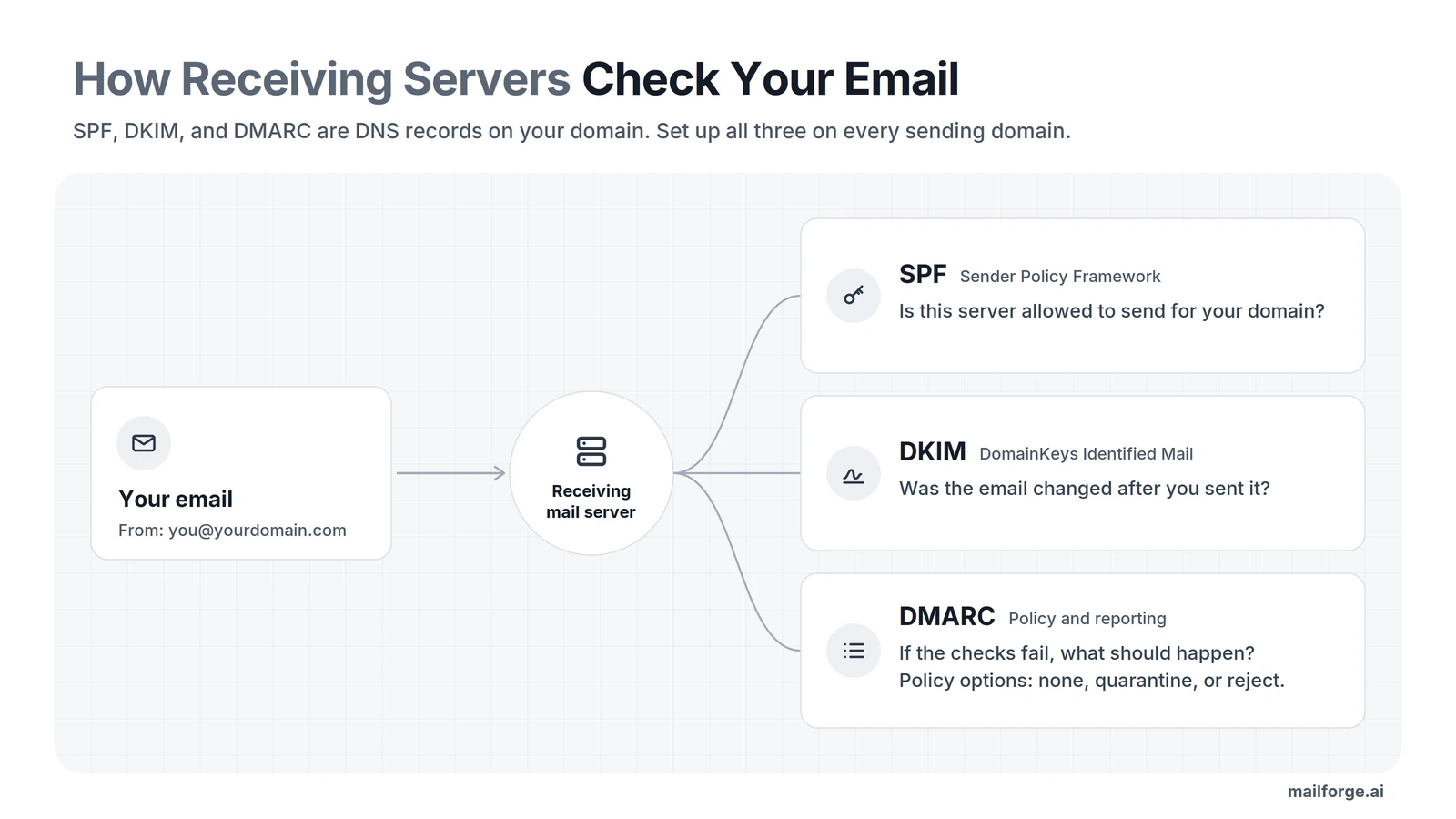
Some cold email infrastructure providers (Mailforge, Primeforge, and Infraforge) set up these records for you. If you manage your own domain, check all three records before you send.
Large email providers now require these records from bulk senders. Google and Yahoo have required SPF, DKIM, and DMARC from bulk senders since February 2024.
Google counts you as a bulk sender when you send close to 5,000 emails a day to Gmail addresses. Google also asks bulk senders to keep spam complaints below 0.3%. Microsoft added similar rules for high-volume senders to Outlook.com in May 2025.
I recommend setting up all three records on every domain you send from, even at low volume.
Authentication shows who you are, but trust also takes time. A new mailbox has little or no sending history.
Warmup tools send emails between a network of mailboxes and reply to them. This builds a normal-looking sending history. Results vary between tools, though, and warmup can't guarantee inbox placement.
Don't rely on warmup alone. Send to valid contacts and follow your provider's rules. Authenticate your domain, and watch how your campaigns perform.
Even a warmed-up mailbox has limits, and no single daily number works for every mailbox. The right volume depends on your provider, the mailbox's history, and how recipients respond.
A cautious starting point is around 30 emails per mailbox per day. Then track your email performance through bounce rates, complaints, and replies before you send more. Adding mailboxes won't fix a poor list or a high complaint rate, so fix those first.
When you're ready to scale, the Mailforge pricing calculator works out how many domains and mailboxes you need for your outgoing emails.
Even with the right setup, you will see errors from time to time. Each SMTP error has a code that helps you find the cause.
The first digit tells you what kind of problem it is. Codes that start with 4 usually mean a temporary problem, so the server may try again. Codes that start with 5 mean the attempt failed for good, but you can often fix the cause.
I read the full error message before I change any settings, because the code alone may not show the exact cause.
Login and encryption errors usually come from your connection settings. Rejections about recipients, policies, or spam point to your list or your sender reputation. If your emails start landing in spam, the Mailforge deliverability page is a good place to start.
Bounces from invalid addresses are the easiest errors to prevent. Verify your contact list before you send. Also check how you collected your contacts and whether your outreach follows the rules that apply to you.
Salesforge checks each contact before sending. Its Bounce Shield also blocks emails to risky addresses before they bounce. These checks reduce bounces, but they can't guarantee that every email gets delivered.
For cold email campaigns, I wouldn't recommend building and maintaining an SMTP server from scratch. A mailbox provider or cold email infrastructure service is usually easier to manage. Check the provider's acceptable-use policy first, then connect supported mailboxes to your sending tool.
I follow four steps to do this.
Pick mailboxes based on your budget, how much you send, and which email providers your prospects use. Shared infrastructure, dedicated infrastructure, and Google Workspace or Microsoft 365 mailboxes each have pros and cons.
The Forge stack offers all three types under one Salesforge login:
All three use the same login, so you can start with one type and add another later. You don't have to move your setup.
Some teams use two mailbox providers to match more of their prospects' providers. This choice depends on who you email and how many mailboxes you manage.
Next, connect each mailbox to your sending tool. Follow the SMTP connection steps above, and use a login method that both the provider and the tool support.
Google Workspace and Microsoft 365 mailboxes usually connect through Google or Microsoft sign-in. Other mailboxes connect with SMTP and IMAP settings.
Salesforge supports both methods. You can sign in with Google or Microsoft, or you can connect any other mailbox with custom SMTP and IMAP settings.
Don't start a campaign from a new mailbox right away. First, learn the provider's sending rules and plan a slow start. A warmup tool builds sending history, but warmup alone doesn't guarantee inbox placement.
Warmforge warms up your mailboxes and gives each one a Heat Score™. The Heat Score shows you when a mailbox is ready to send. Salesforge includes Warmforge free on every plan, with unlimited warmup slots.
After warmup, send a test email to yourself first. Then run a small test campaign and watch your bounces, complaints, and replies. Stay within each account's limits and follow each provider's rules.
Salesforge spreads your sending across your mailboxes. It also collects every email and LinkedIn reply in Primebox™, its shared inbox. ESP matching and A/B testing are part of the Growth plan rather than the Pro plan.
You can also choose who runs your campaigns. Your own team can run them. You can hire Agent Frank, an AI SDR, to run them for you. A Forge Expert agency can also run them.
SMTP is only one part of your email setup. Once your settings and login work, your sender reputation matters most. Authentication, a clean contact list, and careful sending all protect it.
Each of the four options from earlier fits a different type of sender:
A setup that works for a few mailboxes gets harder to manage as you add domains and accounts. I recommend choosing a setup that fits your growth plans as well as your current mailbox count.
SMTP stands for Simple Mail Transfer Protocol. An SMTP server uses this protocol to send outgoing email from your app or sending tool toward the recipient's mail server.
Gmail's SMTP server is smtp.gmail.com. Use port 587 with STARTTLS or port 465 with SSL/TLS. Sign in with Google if your tool supports it, or use an app password. Your regular Google password usually won't work for this kind of connection.
I recommend port 587 with STARTTLS for most email apps and sending tools. Port 465 with SSL/TLS also works if your provider supports it. Your provider's settings page confirms the right choice.
Yes, you can connect a Google Workspace mailbox to a sending tool for cold email. Keep each mailbox's volume low, and check Google's current sending limits and policies first.
You need around 15 mailboxes to send 10,000 cold emails a month. This estimate assumes about 22 sending days a month and 30 emails per mailbox per day. Your provider's limits, list quality, and results may change this number.
Shared cold email infrastructure usually costs the least per mailbox. For example, Mailforge charges $3 per mailbox slot per month on monthly billing. Annual billing and larger purchases lower that price. You need at least 10 mailbox slots, and you pay for domains separately.