If you’re thinking about using Microsoft Outlook for cold email, it’s smart to know how well it actually performs before you start sending.
The interface is designed to be accessible for both new and experienced users, making it user friendly and easy to navigate.
Microsoft Outlook is secure, familiar, and part of most business setups, which makes it an easy choice for professionals. Its user friendly interface simplifies navigation and reduces the learning curve. Outlook also integrates seamlessly with other Microsoft tools, improving workflow efficiency and allowing users to connect with other Microsoft tools like Teams, OneDrive, and calendar services.
But when you use it for cold outreach
Microsoft Outlook has:
Strict sending limits that cap how many emails you can send each day.
Highly sensitive spam filters that can block even clean, personalized messages.
Complex deliverability rules, where minor mistakes in domain setup or sending volume can instantly affect inbox placement.
User friendly interface and intuitive design that enhances usability and accessibility for all users.
In this Microsoft Outlook review, you’ll learn how it performs for cold email deliverability, the sending limits you need to follow, and how to set it up properly to keep your outreach safe and effective.
Key Takeaways
Microsoft Outlook works well for everyday emails, but it isn’t built for cold outreach at scale.
It comes with strict sending limits, no automatic warm-up, and no deliverability tracking.
To make Outlook safer for cold email, use a custom domain, set up SPF, DKIM, and DMARC, and warm up your mailbox gradually.
If you want to keep using Outlook, tools like Primeforge (for setup) and Warmforge (for warm-up) can make the process smoother.
For teams focused on consistent outreach and higher sending volumes, Mailforge offers a complete cold email infrastructure with warm-up, authentication, and inbox tracking built in.
The setup process can present a learning curve for new users, especially due to the complexity of authentication and deliverability settings.
By default, Microsoft prioritizes security and user protection, which means your messages go through strict spam checks before they ever reach someone’s inbox.
Here’swhat affects your deliverability inside Outlook:
Authentication setup:SPF, DKIM, and DMARC must be correctly added to your domain.
Warm-up process: New Outlook accounts need a gradual sending to build trust.
Email content: Using safe templates, plain text, and avoiding links early helps avoid spam filters.
Sending behavior: Keep replies natural, volume steady, and avoid sending too many emails at once.
If you skip these steps, even good emails can land in spam or get throttled.
That’s why many cold emailers pair Outlook with a deliverability tool like Mailforge, to warm up mailboxes, monitor placement, and make sure campaigns stay healthy as volume grows.
And while it’s not made just for cold email, many of its built-in features still help you stay organized and reply faster.
With its integrated calendar, ability to set reminders, schedule meetings, and robust task management tools, Microsoft Outlook helps users stay productive and stay connected throughout their daily workflow.
1. Everything in One Place
You can manage emails, calendars, contacts, and tasks together, taking advantage of Outlook's integrated calendar to seamlessly view, plan, and organize your schedule. You can easily schedule meetings, manage calendar events, and set reminders for appointments and tasks—all within the same platform.
It supports multiple accounts, so you can connect Gmail, Yahoo!, or iCloud and handle all your inboxes in one view.
Outlook's task management features help you organize daily responsibilities by integrating to-do lists, scheduling, and reminders directly with your email and calendar.
2. Professional Look for Cold Outreach
Using an Outlook or Microsoft 365 domain adds credibility to your emails.
It helps your messages look more professional and trustworthy, especially when reaching out to new contacts for the first time.
3. Built for Collaboration
You can share files directly from OneDrive, Word, or Excel, which is great for sending proposals or reports. Outlook also integrates with third party tools like Salesforce and Zoom, enhancing collaboration and minimizing the need to switch between different applications.
Integration with Microsoft Teams allows for seamless communication and quick sharing of updates within your workflow.
These collaboration features reduce the need for external tools, streamlining your work process.
Outlook provides easy access to shared files and collaborative features, improving productivity and user experience.
And because it’s Microsoft, you get secure access from any device, so your data stays protected wherever you work.
What Are the Cons of Microsoft Outlook?
Outlook is reliable for everyday use, but a few things make it less ideal for cold outreach:
The focused inbox feature helps prioritize important messages by separating them from less relevant emails, but it can sometimes misclassify emails, causing users to miss critical communications.
Some users have left negative feedback about the complexity of the interface and ongoing issues with junk mail management.
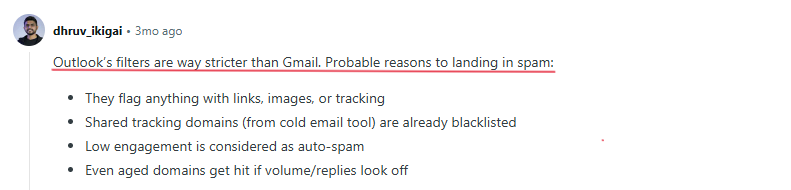
This image shows the Microsoft Outlook user complaint about its strict Spam filters
No Warm-Up Support
There’s no built-in option to warm up new mailboxes.
You’ll need to warm up new accounts manually to build trust and avoid spam filters.
No Deliverability Tracking
Outlook doesn’t show where your emails land: inbox, spam, or junk.
Without this insight, it’s tough to fix deliverability issues early.
It’s secure but time-consuming if you’re managing multiple domains.
No Outreach Automation
Outlook doesn’t have built-in tools for follow-ups, reply tracking, or sequences.
You’ll need to manage everything manually or use other tools for automation. Users who rely heavily on workflow automation may find Outlook's features insufficient, leading to more manual work and reduced productivity.
Inconsistent Deliverability at Scale
Outlook uses the shared Microsoft infrastructure for sending.
Deliverability can fluctuate when sending large volumes of cold emails.
Outlook offers a search bar and advanced search capabilities, allowing users to efficiently locate emails, contacts, and attachments using filters and keyword searches. Folders are available for organizing emails, improving workflow, and making it easier to find important messages. However, challenges remain with sending large files due to attachment size limits, and legacy issues from Hotmail and classic Outlook persist, such as system stability and usability concerns.
Accessing Outlook across devices includes the desktop version, mobile app, and app for Mac, each with its own interface and user experience. Some users report challenges when using Outlook on a phone via a web browser, and offline access is only available with certain premium plans.
The interface can be complex, with notable differences between the classic Outlook and the new interface. Some users prefer the classic Outlook for its features, while others find the modern design more streamlined but less feature-complete.
Overall, Outlook works best for everyday emailing - not large-scale cold outreach. If you plan to send campaigns, you’ll need extra tools and setup to maintain good deliverability.
What Is Outlook Good For?
Before using it for cold email, it helps to know where Outlook is actually strong and where it isn’t.
Outlook is designed to help users stay connected and productive both at the office and at home, making it a reliable choice for organizing emails, calendar events, and contacts in business environments. Its secure email features provide a safe, private, and ad-free experience, ensuring robust data security for users.
Additionally, Outlook integrates seamlessly with other Microsoft products, further enhancing productivity and communication management for professionals.
It’s Best For
User Type
Why Outlook Works Well
Professionals and small businesses
Great for managing day-to-day client communication, meetings, and follow-ups in one place.
Teams using Microsoft 365
Seamless integration with Word, Excel, PowerPoint, and OneDrive directly from the same inbox.
Managers or consultants
Ideal for personalized one-to-one emails and calendar-based coordination.
Users focused on organization and security
Offers strong data protection and structured inbox management.
It’s Not Best For
User Type
Why Outlook Falls Short
Cold email marketers or agencies
Strict sending limits and no warm-up system make it difficult to scale outreach campaigns.
Sales teams
Missing key automation features such as sequences, inbox tracking, and structured follow-ups.
Growth or outbound teams
Provides no deliverability tracking or domain health insights needed for performance monitoring.
Users needing advanced campaign features
Lacks analytics, automation, and testing tools offered by dedicated cold email platforms.
What Are Outlook’s Cold Email Sending Limits?
Outlook imposes strict limits on cold email sending to protect its servers and maintain its reputation.
These restrictions make it difficult to scale outreach or manage high-volume campaigns.
Here's what you need to know before using Outlook for cold email:
Daily sending cap: Outlook typically allows only 100–150 cold emails per day on free accounts and 200–300 per day on Microsoft 365 business accounts, even lower for new mailboxes.
Per-message limit: You can include up to 100–500 recipients in a single email, depending on the account type.
Hourly limit: Sending more than 20–30 cold emails per hour often triggers throttling or temporary blocks.
New account restriction: Fresh Outlook accounts are heavily monitored, sending cold emails too early can cause suspension.
Unverified contact issue: Reaching out to unknown or unengaged recipients increases the risk of Outlook marking your emails as spam.
Scaling limitation: Outlook's shared infrastructure and anti-spam controls prevent consistent deliverability at higher volumes.
In short, Outlook's sending limits are too restrictive for cold email at scale. It's suitable only for low-volume, personalized outreach, not for continuous or automated campaigns.
Cold Email Sending Limits: Outlook vs Gmail vs Mailforge
Criteria
Outlook (Microsoft 365)
Gmail (Google Workspace)
Mailforge (Cold Email Infrastructure)
Daily Sending Limit (Cold Emails)
200–300 per day (after warm-up)
400–500 per day (after warm-up)
1,000–5,000+ per day (using distributed mailboxes)
Per Message Limit
100–500 recipients
Up to 500 recipients
Configurable (depends on setup)
Hourly Limit
20–30 emails/hour
~20 emails/minute
Scalable sending rate based on domain reputation
Warm-Up Support
Manual warm-up required
Manual or third-party warm-up needed
Automatic warm-up via Warmforge
Deliverability Visibility
No inbox or spam tracking
Limited visibility through Postmaster Tools
Real-time inbox placement and blacklist monitoring
Best For
Small-scale, personalized outreach
Medium-scale outreach within Google ecosystem
Scalable cold email infrastructure with built-in warm-up and deliverability tools
The Only Way to Send Cold Emails at Scale From Outlook (Step-by-Step)
If you’re trying to use Microsoft Outlook (Exchange Online / Microsoft 365) for cold email campaigns, you’ve likely seen two issues: deliverability (messages drifting to Spam) and throttling/blocks.
Many users have been working with the new Outlook for quite some time and have observed changes in deliverability and features.
Microsoft doesn’t position Exchange Online for high-volume cold outreach, usage policies and sending limits treat unsolicited bulk mail as risky. Additionally, Outlook can integrate with platforms like Google Calendar to streamline scheduling for outreach campaigns.
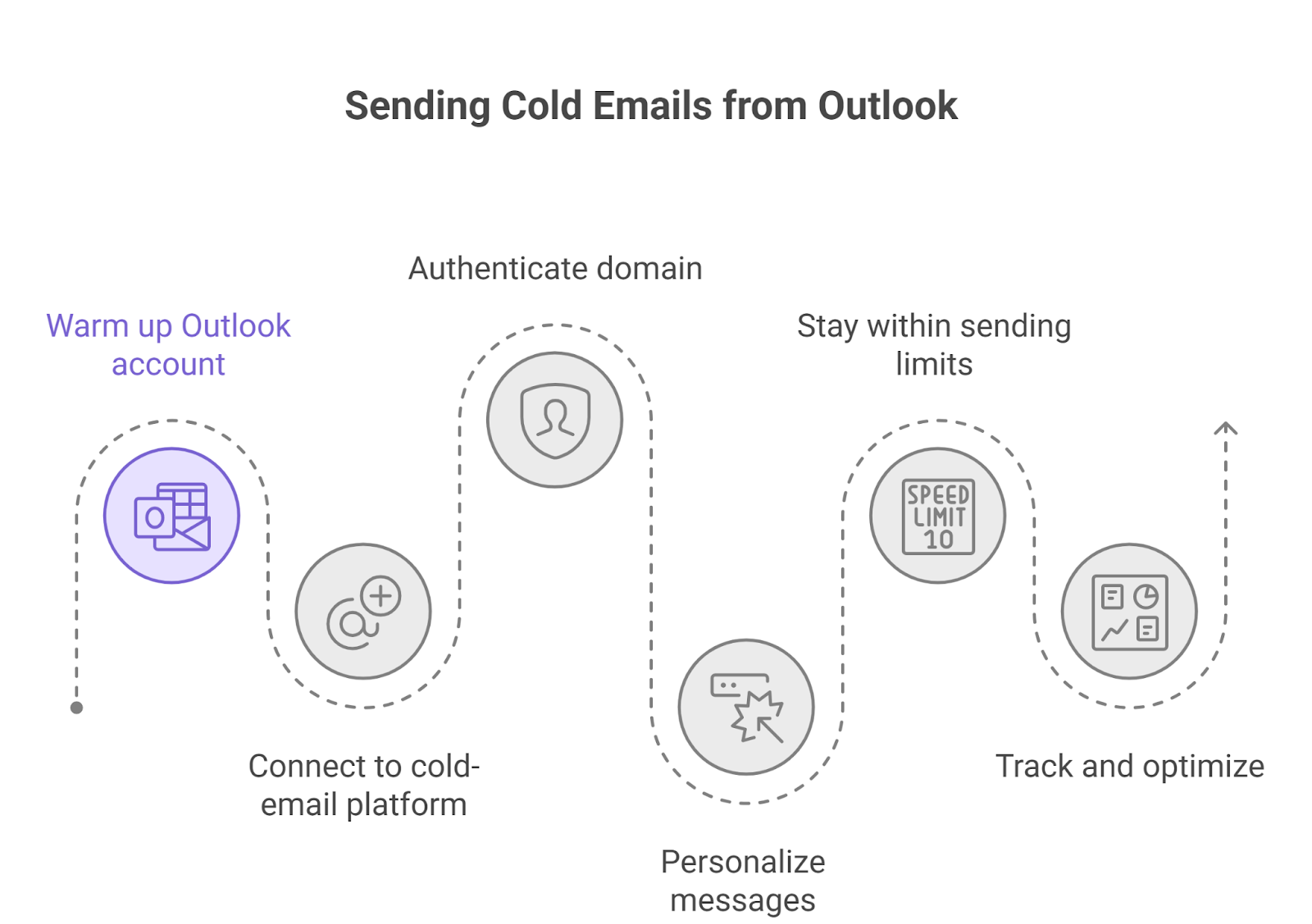
This image shows sending cold emails through Microsoft Outlook
Step 1: Warm up your Outlook account
Before you contact new prospects, build a sender reputation.
Send 10–15 emails/day for 1–2 weeks to active inboxes and get real replies.
Ramp gradually and avoid sudden spikes.
Focus on genuine engagement, positives (opens/replies) and minimal complaints help overall reputation.
Step 2: Connect Outlook to a cold-email platform
You can’t run proper sequences in native Outlook. Use a platform that integrates with Microsoft 365 via SMTP OAuth or the Graph API.
If you want tools designed to optimize Outlook deliverability and compliance specifically, use:
Malforge: emphasizes safe ramping, timing randomization, and reputation safeguards for Outlook-connected inboxes.
Salesforge: AI sequence builder with strong personalization and team controls, integrates with M365.
Primeforge: multi-inbox orchestration aimed at staying under throttling while scaling steadily.
Step 3: Authenticate your domain
Set up SPF, DKIM, and DMARC for your sending domain. This is table stakes for modern deliverability and increasingly enforced for higher-volume senders.
Step 4: Personalize every message
Keep copy human and specific: name, company, and a sentence that proves relevance (recent post, product launch, job change). Avoid heavy template reuse, repetitive patterns get flagged more often.
Step 5: Stay well within safe sending limits
Microsoft enforces message/recipient throttles. Play it safe:
Outlook is a strong choice for day-to-day communication. It’s secure, easy to use, and fits naturally into the Microsoft 365 ecosystem.
But for cold email, Outlook’s setup quickly becomes limiting: strict sending limits, no built-in warm-up, and no insight into inbox placement.
If your cold outreach volume is small and highly personalized, Outlook can still serve you well with the right setup.
But for teams running consistent cold email campaigns, using an infrastructure like Mailforge ensures better control, authentication, and inbox placement.