
Automating LinkedIn outreach takes about ten minutes to set up. Keeping the account healthy for the next six months is the hard part.
Most people I talk to learn this the same way. They connect a tool, push 80 connection requests a day from a profile that sent five last month, and get a restriction notice within a week. The automation worked. The plan behind it did not.
In this guide, I walk through how I automate LinkedIn outreach today: what LinkedIn actually allows, the 7-step workflow I use, the ramp schedule that keeps my profiles out of trouble, and why every LinkedIn campaign I run has an email channel underneath it.
Automation should take over the clicking, not the thinking.
LinkedIn outreach automation is software that runs the repetitive parts of prospecting for you: viewing profiles, sending connection requests, following up, and cleaning up old invites. A sequence decides what happens next based on what the prospect does.
The mistake is automating everything. Here is how I split the work:
If you are still deciding on a tool rather than a process, I compared the main options in my roundup of LinkedIn automation tools. This guide is about the workflow you run once you have one.
Read the rules first, because no tool setting overrides them.
Most automation guides skip this part. I think that is a disservice, so here is what LinkedIn actually says, straight from its own pages.
LinkedIn's help page on prohibited software and extensions says it does not permit crawlers, bots, browser plug-ins, or extensions that scrape, modify the appearance of, or automate activity on its website.
Section 8.2 of the LinkedIn User Agreement lists using bots or other unauthorized automated methods to add contacts or send messages among the things members agree not to do.
So the honest framing is this: every LinkedIn automation tool, including the one I use, operates in a space LinkedIn does not approve. Good tools reduce the chance of a restriction. None can promise zero risk, and you should be wary of any that does.
LinkedIn does not publish a daily or weekly invitation number. It does publish the behaviors that get an account restricted on its page about types of restrictions for sending invitations:
The same page adds rules that matter for automation planning:
The second trigger is the one most people miss. A big pile of ignored invites is a risk on its own, which is why targeting and withdrawal hygiene matter as much as daily volume.
This is the exact order I set things up in, from list to live sequence.
Prospects click your profile before they accept. I make sure the photo, headline, and About section explain who I help and how, and I post or comment a few times a week so the profile looks active. A dormant profile that suddenly sends 30 invites a day looks exactly like what it is.
My full checklist for this is in my LinkedIn outreach playbook.
Automation multiplies whatever list you feed it. A generic list produces generic invites, which get ignored, which is a restriction trigger. I build lists around a recent event so every message has a true, specific opener.
Leadsforge added Signals as a sourcing path for exactly this. Instead of filtering only by ICP, I pick a signal type, set the filters, see how many companies or contacts match, and extract them with credits:
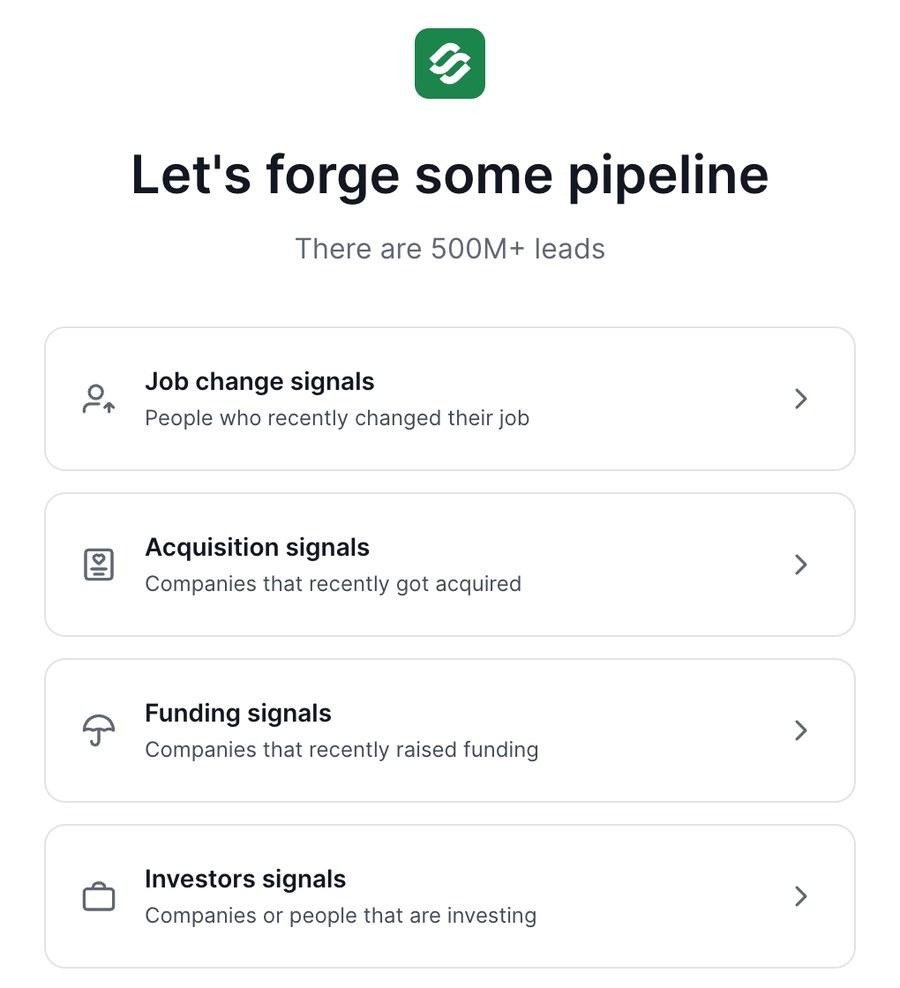
Leadsforge Signals: job change, acquisition, funding, and investor signals
For company signals, Leadsforge finds the matching companies first, then surfaces relevant employees from its 500M+ contact database. Every result has a Details view showing the evidence for why it matched, which I use as the first line of the connection note. I can then run waterfall enrichment and move the leads into the Enriched table.
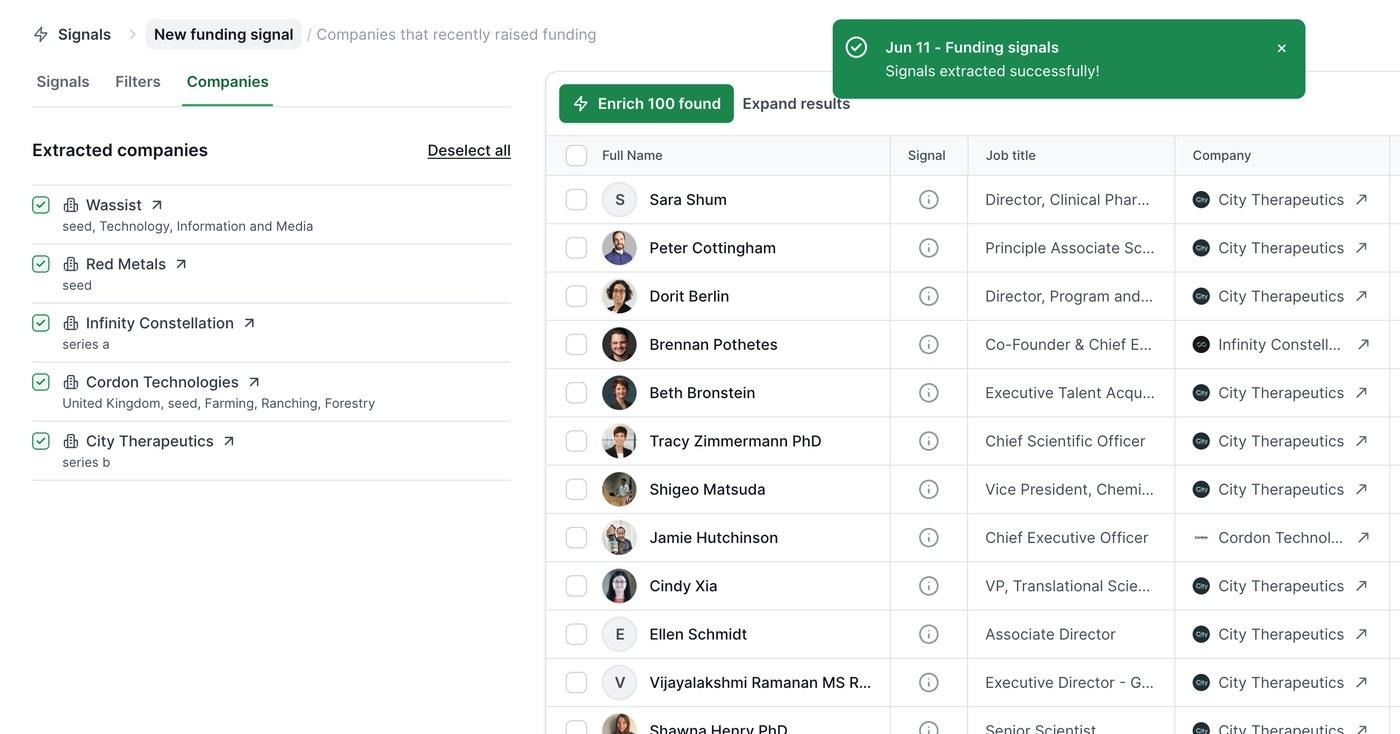
A Leadsforge funding signal: extracted companies on the left, matched contacts with signal evidence on the right
For local businesses, Local Companies Search finds companies by location and business type using Google Maps data, which suits agencies selling to dentists, law firms, or restaurants.
There are three broad ways tools run LinkedIn actions, and they carry different risk:
A good sequence behaves like a thoughtful SDR, not a firehose. Mine usually looks like this:
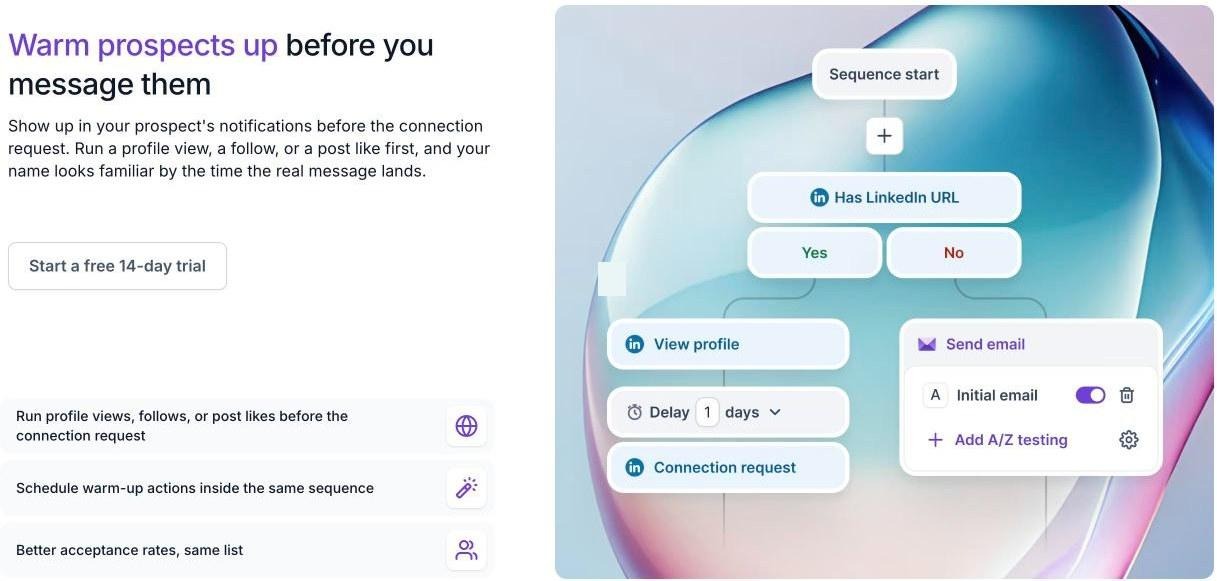
A warm-up sequence that branches on whether a LinkedIn URL exists: profile view and connection request on one side, email on the other
I cap each action type per profile per day, spread sends across business hours in the prospect's time zone, and leave weekends quiet. The exact ramp I use is in the next section.
Some prospects never accept. Some rarely log in. Without an email step, the sequence simply stops for them.
To add one, I need a verified address: the LinkedIn email and phone finder Chrome Extension, powered by Leadsforge, pulls verified business emails and mobile numbers from a profile in one click. New users get 100 free credits on signup.
The fastest way to look automated is to send a follow-up after someone already replied. Every reply, on either channel, should pause the rest of the sequence for that person and land in a single inbox where a human can take over.
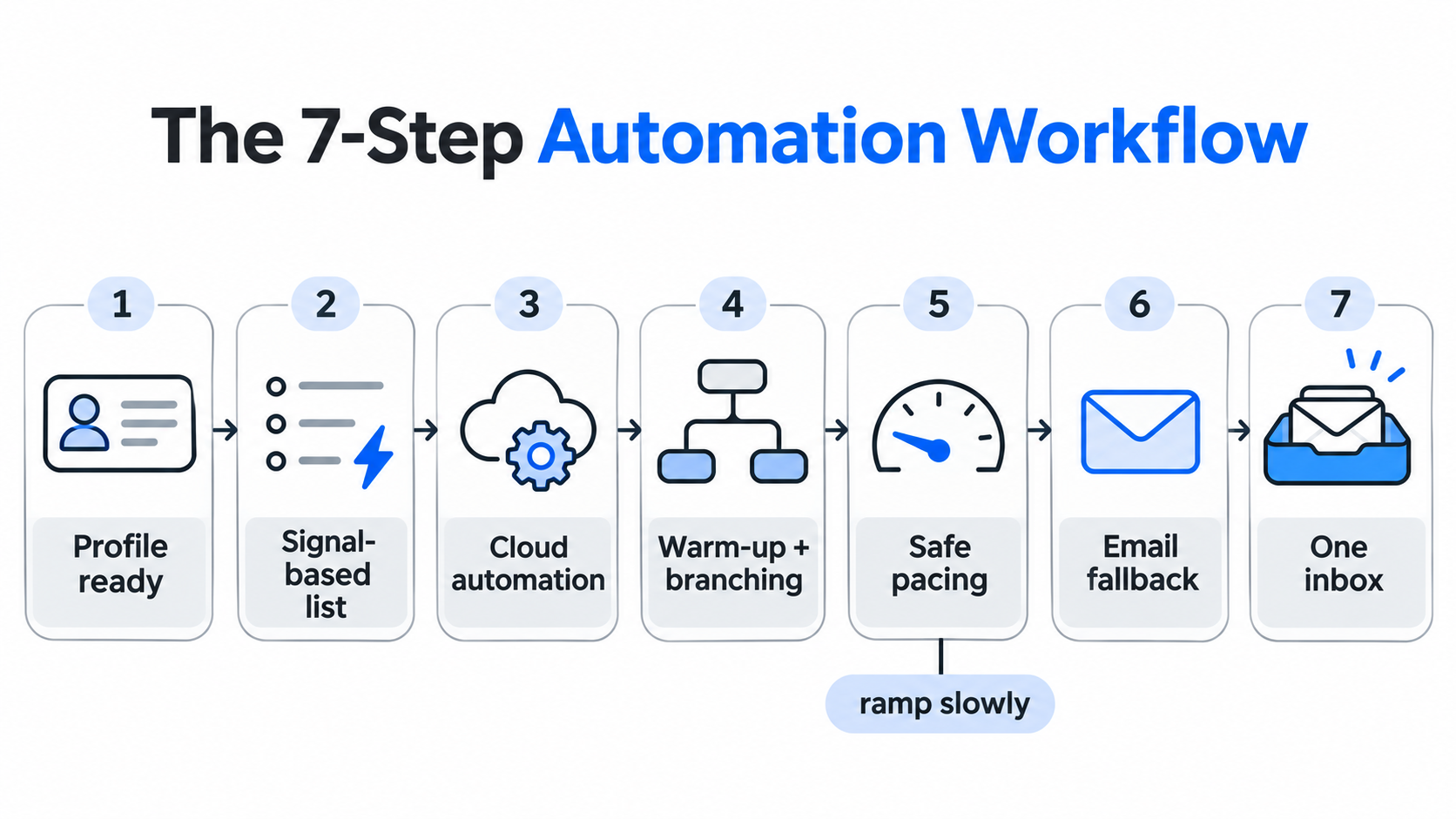
How fast you increase volume matters more than the number you end up at.
Since LinkedIn does not publish a quota, every "safe limit" you read online, including mine, comes from practitioner experience. The pattern I see in sales and automation communities is consistent, though: accounts get restricted after sudden jumps, such as a profile that was quiet for two weeks and then sends 30 invites a day. Several practitioners also describe restriction rates rising sharply once they pushed past 80 or so requests a day.
This is the ramp I use for a new or quiet profile. I only move to the next week if acceptance stays healthy and LinkedIn shows no warnings.
Two rules sit on top of the table. I withdraw invites that have been pending for about three weeks, every week, so the queue never piles up. And if a profile gets a warning, I drop back to week 1 volume rather than pausing and then restarting at full speed, because the restart is its own spike.
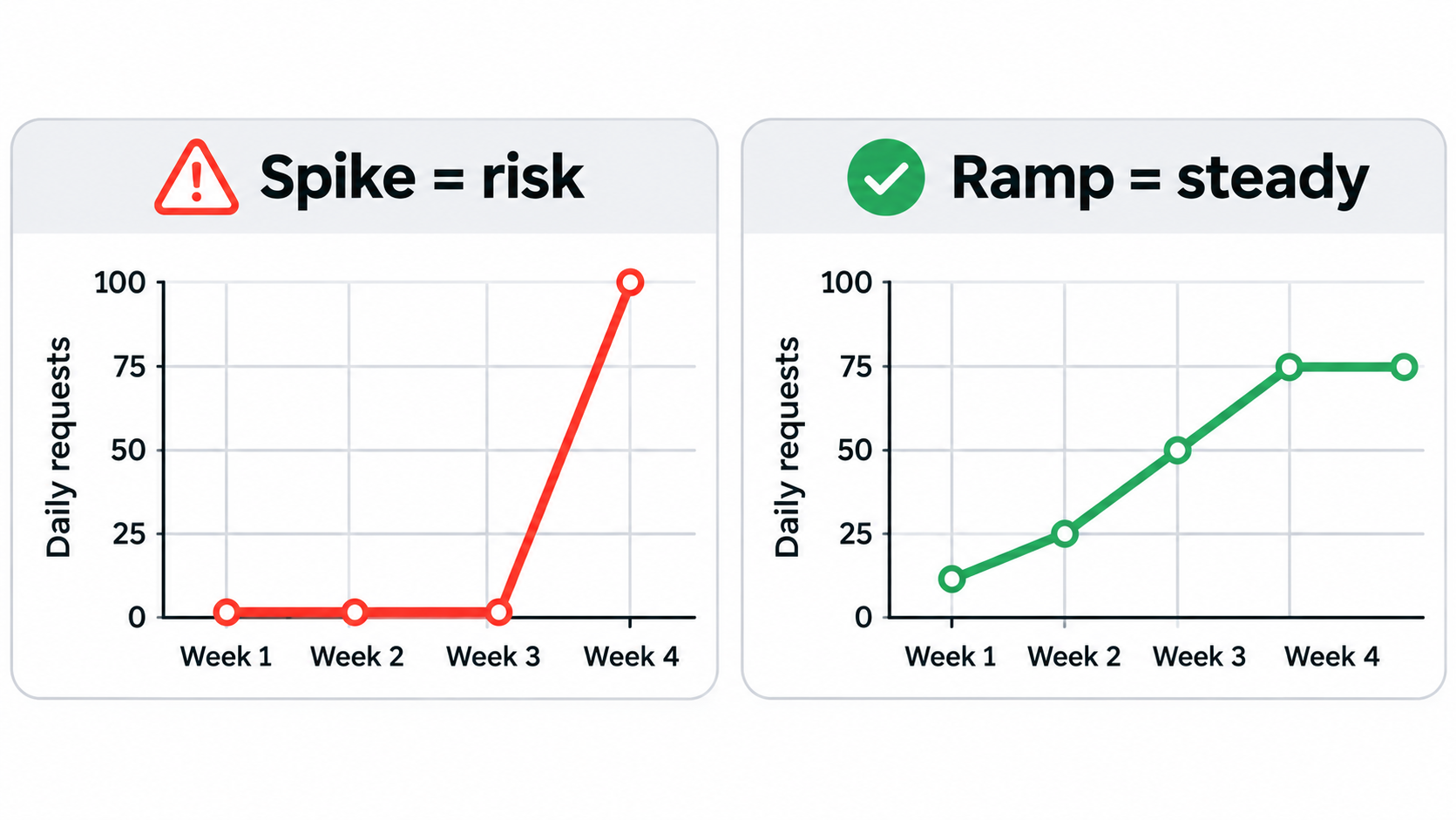
LinkedIn gives you precision. Email gives you reach.
Here is the math I run when someone asks whether LinkedIn automation alone can fill a pipeline. At a steady 20 to 30 requests a day on weekdays, one profile sends roughly 400 to 650 invites a month. Only a share of those get accepted, and only a share of those reply.
Email works on different math. With a 2-step sequence and 8,000 new contacts a month, I send about 16,000 emails, or roughly 730 a day. At around 30 cold sends per mailbox per day, that needs 25 mailboxes across 9 domains. The Mailforge pricing calculator returns the same numbers:
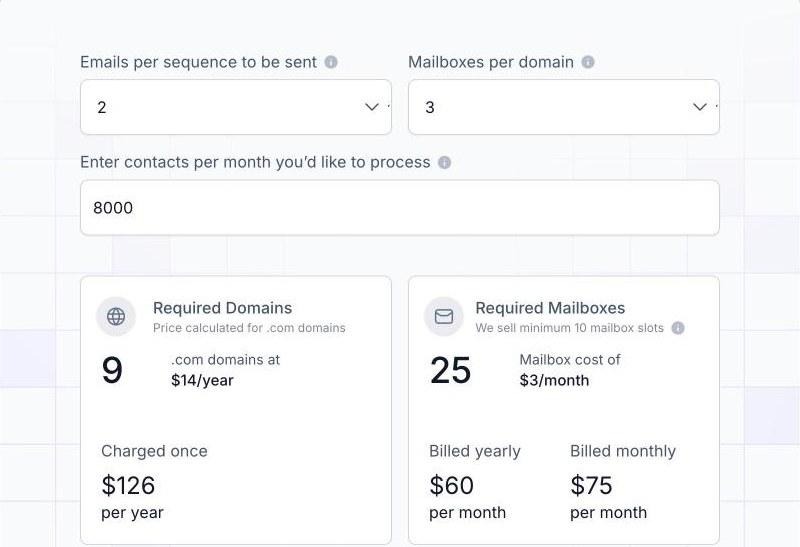
Mailforge pricing calculator: 8,000 contacts a month with a 2-step sequence needs 9 domains and 25 mailboxes
The point is not that email beats LinkedIn. It is that the two do different jobs. LinkedIn handles the warm, personal touches for prospects who are active there. Email covers everyone else, at a volume LinkedIn will never allow. For safe per-mailbox numbers, see my guide on how many cold emails to send per day.
The email fallback only works if the mailboxes behind it are healthy and authenticated.
I never send the email side of a LinkedIn campaign from my main company domain. One bad week on a cold list should not touch the domain my team uses every day. I send from secondary domains on Mailforge, which is shared email infrastructure built for cold outreach.
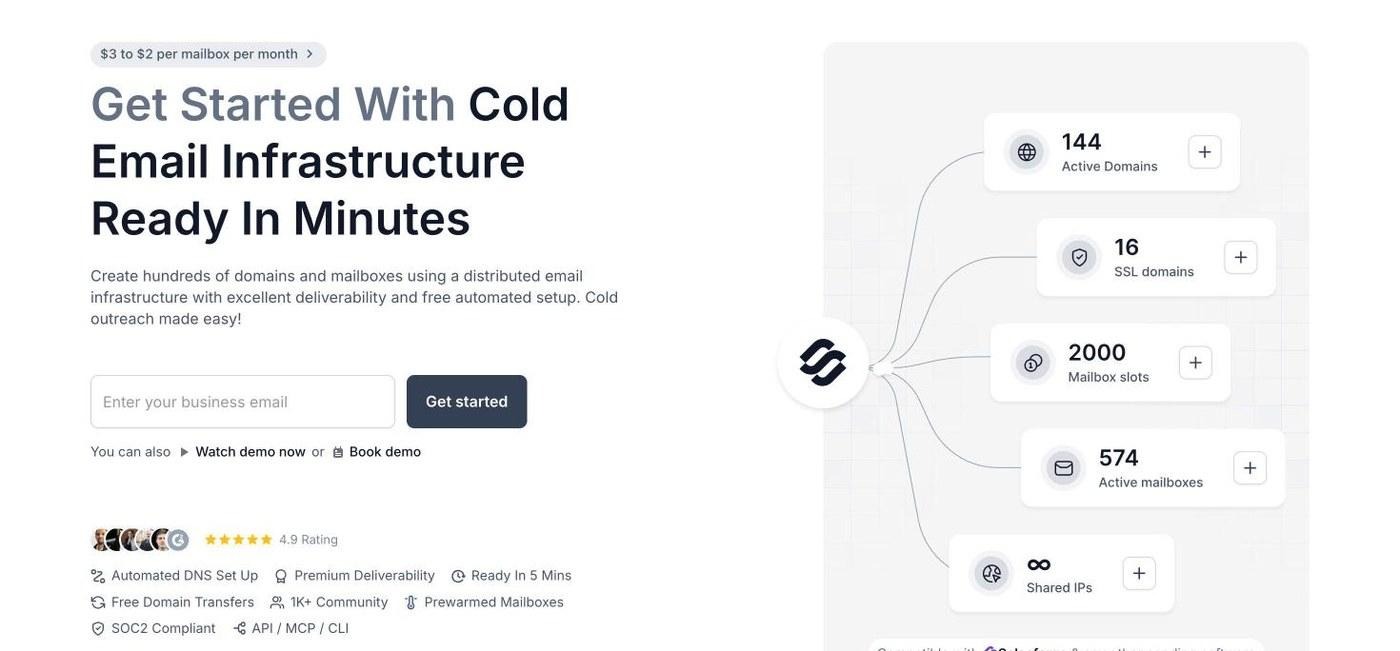
Mailforge: cold email infrastructure ready in minutes, from $3 to $2 per mailbox per month
Mailforge works on a shared model similar to Gmail or Outlook, but it is designed for outbound rather than everyday business email. Mailboxes are spread across a pool used by 10,000+ businesses. I recommend it when you are starting out, scaling quickly, or testing new segments where complaint rates might run higher.
The guided setup works out how many domains and mailboxes my target volume needs, then creates hundreds of them at once. My first full setup was live in about five minutes, which is less time than writing the connection note for the same campaign.
Every domain gets SPF, DKIM, DMARC, and custom domain tracking configured automatically, and bulk DNS updates take a few clicks.
If you want to know what each record does, I covered the best practices for SPF, DKIM, and DMARC records separately.
Domain forwarding sends each secondary domain to my main website or a landing page, handled inside the platform with no external registrar. That matters for LinkedIn campaigns, because a prospect who just viewed my profile often checks the sender domain too. SSL and Domain Masking is available as an add-on for branded pages that do not reveal the primary domain, and domains can be transferred in and out freely.
Separate workspaces keep each client or project apart, with domains and mailboxes movable between them. Mailboxes work with any sending tool. With Salesforge, the login is shared and domains flow straight into sequences with no export step. For agent-driven setups, the Forge MCP CLI handles provisioning from Claude, Cursor, and other AI clients.
You can model your own numbers on the Mailforge pricing page. When I want reputation fully under my own control, Infraforge gives me dedicated IPs. I also add Primeforge for real Google Workspace and Microsoft 365 mailboxes, so I always have a provider that matches the prospect's inbox.
All three run under one login, and I compared the trade-offs in shared vs dedicated email infrastructure.
Two disconnected tools for one prospect is how double-messaging happens.
When LinkedIn runs in one tool and email in another, I end up emailing someone who already replied on LinkedIn, or missing a reply altogether. Salesforge runs both channels in one sequence with one inbox, which is what makes the 7-step workflow above practical.
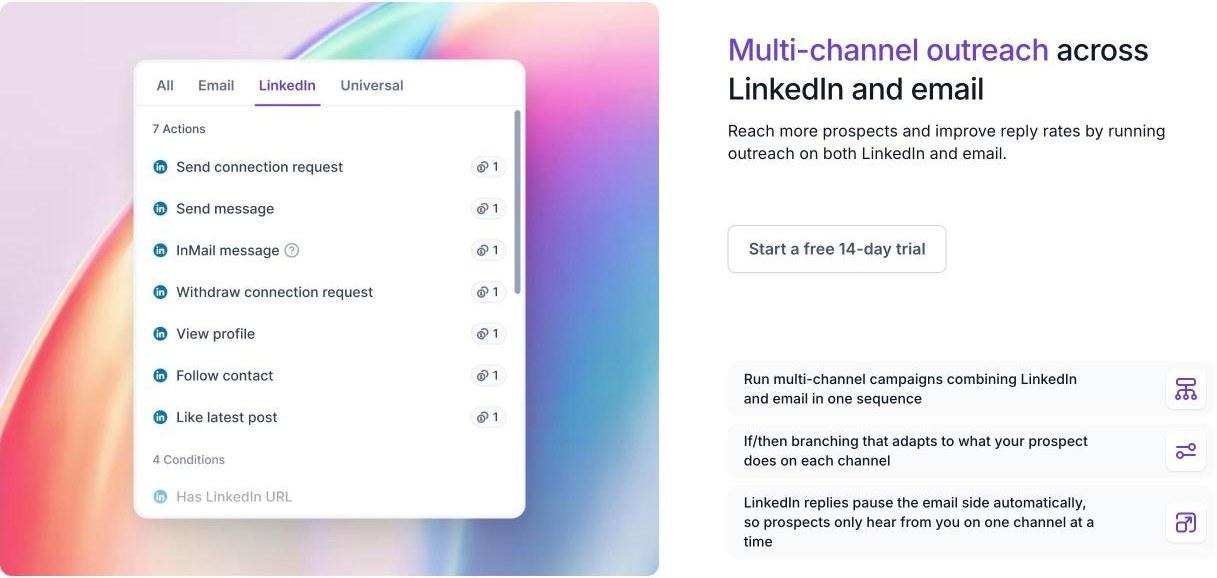
Salesforge LinkedIn actions: connection request, message, InMail, withdraw, view profile, follow, and like latest post
Inside a sequence I can add profile views, connection requests, messages, InMails, follows, post likes, and withdraw requests. That covers the whole warm-up, connect, follow up, and clean-up cycle. Each action type is capped at 30 per day per profile to stay inside conservative usage.
Branching is real if/then logic. If a connection request is accepted, a LinkedIn message goes out. If it is not, the sequence falls back to email. A reply on LinkedIn pauses the email side automatically, so the prospect only hears from me on one channel at a time.
LinkedIn actions route through high-quality shared proxies, with optional custom proxy support. Login uses a session token only, so the LinkedIn password is never stored, and there is no Chrome extension injecting code into LinkedIn pages. Combined with conservative daily caps and human-like timing, this lowers the risk considerably, though no tool can remove it entirely given LinkedIn's policy.
AI variables pull in company news, LinkedIn activity, and industry context for each prospect, on both LinkedIn and email steps. With native support for 21+ languages, I can run localized campaigns without a separate copywriter per region.
There are no per-seat caps on mailboxes. Pro connects 1 LinkedIn profile, and Growth connects unlimited LinkedIn profiles and mailboxes, so adding SDRs or client accounts does not raise the bill per head.
Every LinkedIn and email reply lands in Primebox™, where AI tags positive replies, objections, and meeting requests. In Co-Pilot mode, AI drafts a reply for me to approve. In Auto-Pilot mode, AI handles replies end to end. I start every new campaign in Co-Pilot.
A/B testing on Growth lets me compare connection notes and messages. Analytics split results by LinkedIn and email, covering contacts reached, connection acceptance, reply rate, and meetings. Native integrations cover HubSpot, Salesforce, Pipedrive, HighLevel, Attio, Folk, Clay, Slack, Zapier, Make, and webhooks, plus open API access on Growth.
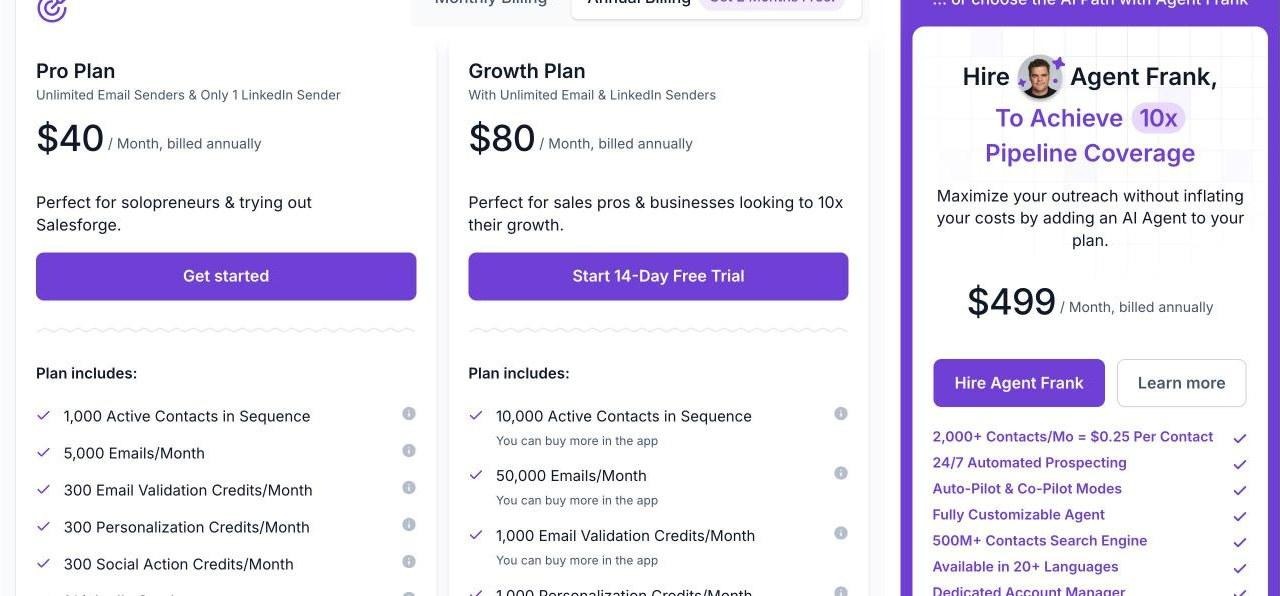
Salesforge plans: Pro, Growth, and Agent Frank
Agents can now plan the campaign, not just send it, but they still need guardrails.
A growing number of teams want an AI assistant like Claude or Cursor to run outreach directly: build the list, write the copy, launch the sequence, and report back. That works best when the agent drives a proper outreach platform through an API, rather than clicking around LinkedIn itself.
Salesforge exposes an MCP server and CLI, so an agent can create sequences, manage contacts, and trigger actions from inside an AI workflow. Mailforge does the same for domains and mailboxes. I walked through a similar setup for email in my guide to automating cold email campaigns with Claude Code.
If you would rather hand off the whole job, Agent Frank is an autonomous AI SDR who prospects from the Leadsforge database, enriches contacts, writes LinkedIn and email messages, runs follow-ups, handles replies through Primebox™, and books meetings on your calendar. I compared him with other options in my roundup of AI SDR tools.
Whichever route you take, two rules stay the same. The agent should follow the same pacing as a human-run campaign, and a person should approve replies until the agent has earned trust.
Short, specific, and built around the signal that put the prospect on your list.
Swap in the real trigger from the Leadsforge evidence before launching. Free accounts have a tight monthly allowance for personalized invite notes, so a Premium profile helps if every request will carry a note.
For more follow-up ideas on the email side, see my guide to writing a follow-up email after no response.
These numbers tell you whether to scale up, hold, or pull back.
Almost every restriction I have seen traces back to one of these.
For a wider look at combining channels, my comparison of multichannel outreach tools covers how other platforms handle LinkedIn and email together.
Every handoff between tools is a place where a prospect can fall through.
The Forge Stack is the only ecosystem I know that covers every layer of automated LinkedIn and email outreach together: Leadsforge to find and enrich contacts, Mailforge, Infraforge, or Primeforge for mailboxes, Warmforge for warmup and Heat Score™ tracking, Salesforge to run both channels, and Agent Frank as an autonomous AI SDR. Lists move from Leadsforge into Salesforge without a CSV, and Mailforge domains flow into sequences without an export.
It also runs three ways. My own team can operate it, Agent Frank can operate it, or a Forge Expert agency can run it for me.
Automate the repetition, protect the account, and never rely on LinkedIn alone.
Automating LinkedIn outreach is not about sending more. It is about sending the right touches at a pace the account can sustain. Build lists around real signals, warm prospects up before you connect, ramp volume slowly, withdraw stale invites, and keep a human on the replies.
Then give the campaign a second channel. I set up the email side on Mailforge so the prospects who never accept still hear from me, and I run LinkedIn steps and email from one Salesforge sequence with every reply in one inbox.
LinkedIn's User Agreement and its help page on prohibited software say it does not permit third-party tools that automate activity on its website, and suspected automation can lead to restrictions. Many teams still use cloud-based tools with conservative pacing to reduce that risk, but no tool can make automation officially approved or risk-free.
LinkedIn does not publish a daily number. It restricts accounts that send many invitations in a short time or have many invitations ignored or left pending. Practitioners commonly report 20 to 30 requests a day as sustainable for established profiles, reached gradually over several weeks rather than all at once.
According to LinkedIn, most invitation restrictions lift automatically within about a week, support cannot remove them early, and you cannot buy extra invitations. Repeated suspensions for automated activity can lead to a permanent restriction, so reduce volume and fix targeting before resuming.
Yes, as regular maintenance. LinkedIn lists many ignored or pending invitations as a restriction trigger. Keep in mind that after you withdraw an invitation, you cannot invite the same person again for up to three weeks.
Yes. AI assistants such as Claude can drive outreach platforms through an API, MCP server, or CLI to build lists, write messages, and launch sequences. An autonomous AI SDR like Agent Frank can run the full LinkedIn and email workflow. Keep the same pacing as a human campaign and approve replies early on.
It helps a lot. LinkedIn caps how many people you can reach each month per profile, and some prospects never accept or rarely log in. An email fallback on secondary domains, set up with infrastructure like Mailforge, reaches them without adding LinkedIn volume.